Environment Variables and the PATH, Explained
Demystify environment variables and $PATH: how the shell finds commands, setting variables with export, and making them stick in your shell config file.

You install a tool, type its name, and the shell snaps back with command not found. The program is right there on disk. You can see the file. So why can't the shell find it? The answer is a single environment variable called PATH, and once you understand it, that error stops being a mystery and becomes a thirty-second fix. This lesson covers what environment variables are, how PATH lets the shell locate commands, and how to set variables so they survive the next time you open a terminal.
What an environment variable actually is
An environment variable is just a named value that the shell and the programs it launches can read. Nothing more exotic than that. Think of it as a sticky note the shell keeps in its pocket: a name on the left, a value on the right.
You already have dozens of them. HOME holds the path to your home directory. USER holds your username. SHELL holds the path to the shell you're running. Read one with echo and a $ in front of the name:
echo $HOME/home/mayaThe $ is the important part. It tells the shell "don't treat this as the literal word HOME. Look up the variable named HOME and substitute its value." Drop the $ and you just get the text back:
echo HOMEHOMEWant to see all of them at once? printenv (or env) dumps every environment variable currently set:
printenvSHELL=/bin/zsh
USER=maya
HOME=/home/maya
PATH=/usr/local/bin:/usr/bin:/bin
LANG=en_US.UTF-8
...That's a lot of output. To check one specific variable, pass its name (no $ this time, since printenv takes the name, not a shell expansion):
printenv PATHPrograms read these values to decide how to behave. Git checks EDITOR to know which editor to open. Many tools check LANG for your language and TERM for what your terminal can display. Your environment is the shared context every command inherits the moment it starts.
PATH: how the shell finds a command
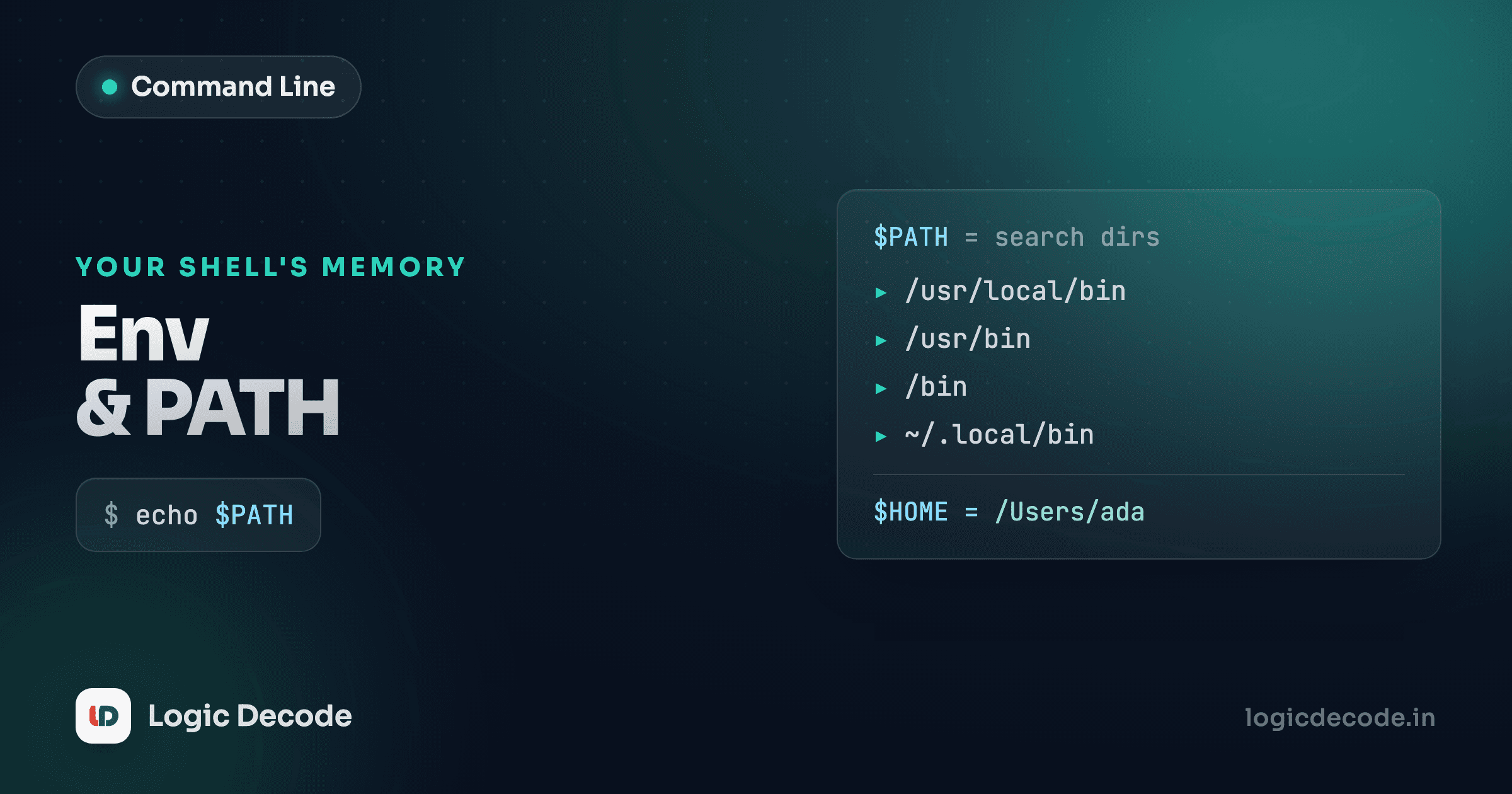
Here's the variable that runs the show. When you type git and hit enter, the shell doesn't search your entire disk hunting for a file called git. That would be painfully slow. Instead it looks in a specific, ordered list of directories, and that list is PATH.
Print it and you'll see directories separated by colons:
echo $PATH/usr/local/bin:/usr/bin:/bin:/usr/sbin:/sbinRead left to right, that's five directories. When you run git, the shell checks /usr/local/bin/git, then /usr/bin/git, then /bin/git, and so on. The first match wins. It runs that one and stops looking, and everything after it is ignored.
Want to know which file actually wins? which tells you the exact path the shell would run:
which git/usr/bin/gitSo now the famous error makes sense. command not found means the shell walked every directory in PATH and none of them held a file by that name. The program might be installed perfectly fine. It's just sitting in a directory that isn't on PATH, so the shell never looks there. That's the whole bug, and the fix is always the same: get that directory onto PATH.
The first match wins, and order matters
Because the shell stops at the first hit, the order of directories in PATH decides which version runs when two exist. If /usr/local/bin/python3 and /usr/bin/python3 both exist and /usr/local/bin comes first, you get the local one. This is exactly why version managers put their directory at the front of PATH.
Setting a variable: one command vs. the whole session
There are two ways to set a variable, and the difference between them trips people up constantly.
To set one for a single command only, put NAME=value right in front of the command, on the same line:
GREETING=hello python3 myscript.pyThat GREETING exists only for the duration of myscript.py. The instant it finishes, the variable is gone. Run echo $GREETING afterward and you get an empty line. Handy for one-off overrides, like running a script once with a different DEBUG flag.
To set one for the rest of your shell session, use export:
export EDITOR=nanoNow every command you run in this terminal (for as long as it stays open) sees EDITOR=nano. The word export is doing specific work here. A plain EDITOR=nano (no export) creates a variable that only the shell itself can see. Child programs you launch won't inherit it. export is what hands the variable down to every program the shell starts. That distinction is the entire reason export exists.
Quick check
You run `export API_URL=http://localhost:3000` in your terminal, then close that window and open a brand-new one. What does `echo $API_URL` print in the new window?
Making it permanent: your shell config file
export lasts until you close the terminal. To set a variable every time you open a shell, you write it into your shell's startup file, the script your shell reads automatically when it launches.
Which file depends on your shell. Check what you're running:
echo $SHELL- If it ends in
/zsh(the default on modern macOS), your file is~/.zshrc. - If it ends in
/bash(common on Linux), your file is~/.bashrc.
Open that file in an editor and add the same export line you'd type by hand:
# in ~/.zshrc or ~/.bashrc
export EDITOR=nano
export PROJECTS=~/code
There's one catch. Your shell only reads that file when it starts, so editing it doesn't affect the terminal you're already in. You have two options: open a new terminal, or re-read the file into your current one with source:
source ~/.zshrcsource runs the file's lines in your current shell, as if you'd typed them yourself. After that, echo $EDITOR shows nano right away, no new window needed. Get in the habit of source-ing after every edit so you're testing the real thing.
One variable per export, no spaces around the =
The syntax is fussy. export NAME=value works, but export NAME = value does not, because spaces around the = break it. And if your value contains spaces, quote it: export GREETING="hello there". A stray space here is the cause of a lot of "why won't my config load" confusion.
"Add this to your PATH": finally, what that means
Every install guide eventually says it: "add this directory to your PATH." Now you can decode it. They're telling you the program lives in some directory that isn't on PATH, so the shell can't find it by name, and the fix is to append that directory to the list.
The standard move is to keep your own little scripts in ~/bin and put that directory on PATH. Say you wrote a handy script and saved it as ~/bin/deploy. Type deploy and you'll get command not found, because ~/bin isn't on PATH yet. Add it:
export PATH="$HOME/bin:$PATH"Read that right to left. $PATH is your existing list. By writing $HOME/bin:$PATH, you're building a new list with your bin folder stuck on the front, then assigning it back to PATH. The trailing $PATH is the part people forget. Leave it out and you'd replace your entire path with just one directory, and suddenly even ls stops working. Always keep the old $PATH in there.
Front or back? Putting $HOME/bin first means your scripts win over anything with the same name elsewhere. Some guides append instead (export PATH="$PATH:$HOME/bin") so system commands keep priority. Either is fine. Just know the order decides who wins a name clash.
To make it stick, drop that exact line into your ~/.zshrc or ~/.bashrc and source it:
echo 'export PATH="$HOME/bin:$PATH"' >> ~/.zshrc
source ~/.zshrc
which deploy/home/maya/bin/deploywhich confirms it. The shell now finds your script by name from anywhere, and it'll keep doing so in every new terminal. That's the same mechanism behind every "add to PATH" instruction you'll ever follow, for Python, Node, Go, Rust, all of them.
The takeaway
An environment variable is a named value the shell hands down to the programs it runs. Read one with echo $NAME, list them all with printenv. PATH is the special one: the ordered list of directories the shell searches to find a command, first match wins, and command not found just means none of those directories held the file. Set a variable for one command by prefixing it inline, for the session with export, and forever by adding the export line to ~/.zshrc or ~/.bashrc and running source to load it. "Add this to your PATH" means appending a directory to that list, always keeping $PATH on the end so you don't wipe out the rest.
For the full reference on shell variables, expansion, and startup files, the GNU Bash manual is the authoritative source.
This lesson built on File permissions, where you learned to control who can read, write, and run a file. Next, you'll put all of this together and start automating: Shell scripting basics turns the commands you've been typing one at a time into reusable scripts of your own.

Written by
Rhythm Bhiwani
Engineer and relentless builder, happiest reverse-engineering hard problems until they click.
Enjoyed this?
Tap the heart to leave some love.
Be the first to react
Comments
Join the conversation.
Loading comments…