Shell Scripting Basics: Your First Bash Script
Turn commands into a reusable script: the shebang, variables, arguments, if statements and for loops in bash, to automate the boring stuff.

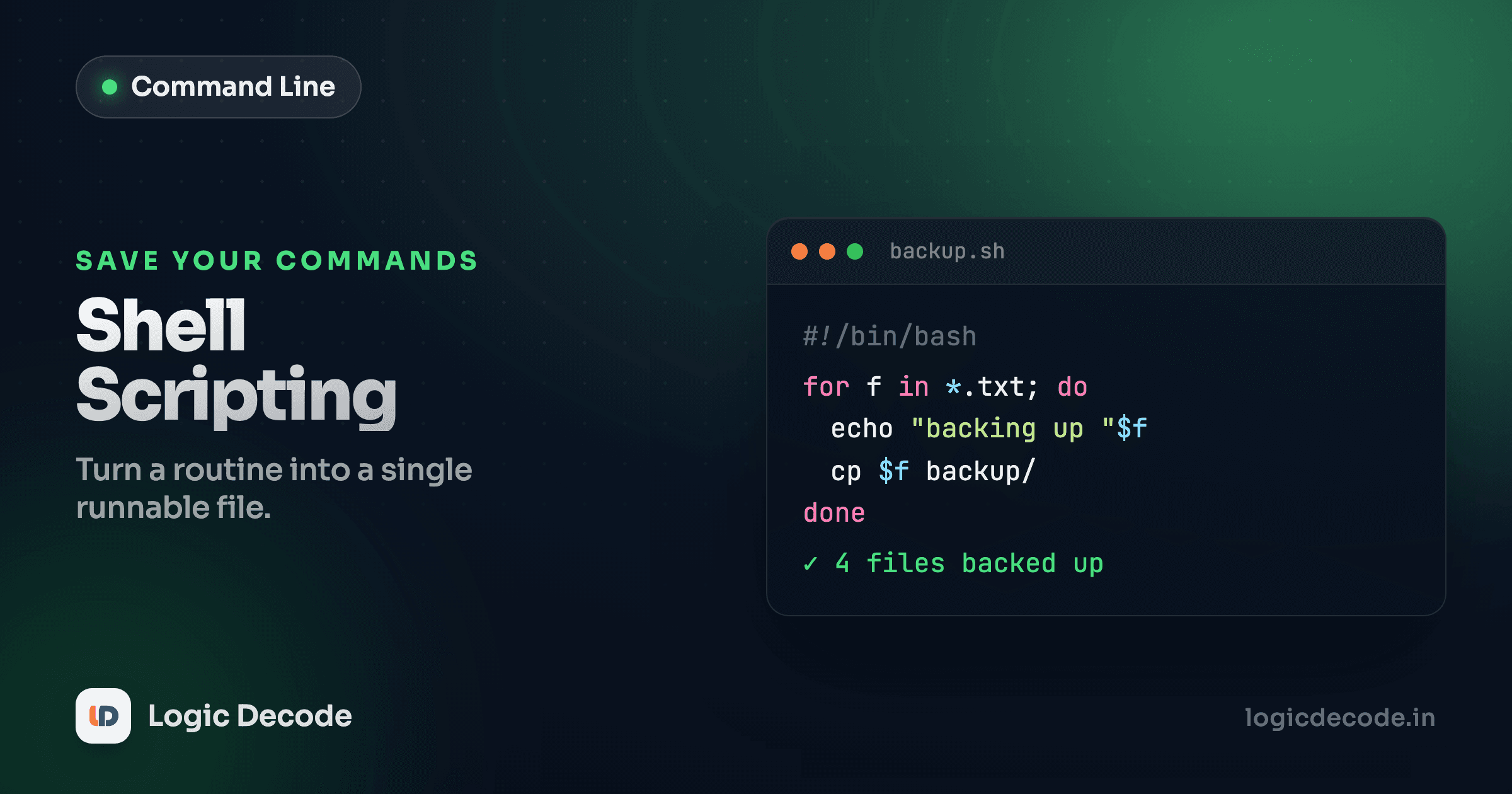
You've been typing commands one at a time for eight lessons. Every time you back up a folder, you retype the same three commands and hope you don't fat-finger one. A script fixes that: stack those commands in a file, give the file a name, and run the whole sequence with one word. That's the entire idea of shell scripting. The rest is just learning enough bash to make the script smart: pass it values, loop over files, branch on conditions.
A script is just commands in a file
Whatever you can type at the prompt, you can put in a file and run together. Open a file called hello.sh and write exactly what you'd type:
echo "Starting up..."
date
echo "Files here:"
ls
That's a script. Four lines, run top to bottom. To run it, hand the file to bash:
bash hello.shbash reads each line and executes it as if you'd typed it. No magic. If you understand the four commands, you understand the script. It just runs them for you, in order, every time, without you retyping anything.
The shebang
Running it with bash hello.sh works, but it's clunky. You want to run the file directly, like a real program: ./hello.sh. For that, two things have to happen. The first is the shebang. The first line tells the system which interpreter should run the file.
#!/usr/bin/env bash
echo "Starting up..."
date
#!/usr/bin/env bash is the line. The #! is the marker the kernel looks for, and /usr/bin/env bash means "find bash on this system's PATH and run the file with it." You'll see #!/bin/bash in older scripts too, which hardcodes the path. The env version is more portable because it respects wherever bash actually lives, which matters once you hit a Mac (Homebrew bash) or a minimal container. (PATH came up in the previous lesson on environment variables and PATH, and it's the same idea here, with env searching it for you.)
Everything after a # on a line is a comment, ignored by bash. The shebang only counts because it's the very first line and starts with #!.
Making it executable and running it
The shebang says how to run the file. But the file also needs permission to be run. Files aren't executable by default. You saw the permission bits a couple of lessons back. Set the execute bit with chmod +x:
chmod +x hello.sh
./hello.sh
Now ./hello.sh runs it directly. The ./ matters: it means "the file named hello.sh in this directory." Without it, bash searches your PATH for a command called hello.sh, doesn't find one (your current folder usually isn't on PATH), and gives up. So the full first-run ritual is: write the file, add the shebang, chmod +x once, then ./script.sh forever after.
Name and permission stick
You only run chmod +x once per file. The execute bit is saved with the file, so after that first time you just run ./hello.sh directly. If you copy or recreate the file, you'll need chmod +x again.
Variables
A variable is a named box holding a value. Assign with name="value", and here's the gotcha that bites everyone: no spaces around the =. name = "Sam" is wrong. bash reads it as a command called name. Get the value back out with a $ in front:
name="Sam"
echo "Hello, $name"
greeting="Welcome back, $name"
echo "$greeting"
That prints Hello, Sam then Welcome back, Sam. The $name gets replaced with the value before the line runs.
Now the part that causes the most real bugs: quoting. Always wrap variables in double quotes when you use them. Here's why it matters:
file="my report.txt"
rm $file        # WRONG: runs `rm my report.txt` — two arguments, deletes the wrong things
rm "$file"      # RIGHT: runs `rm "my report.txt"` — one argument
Without quotes, bash splits the value on spaces. With a filename like my report.txt, the unquoted version tries to delete two files, my and report.txt. Double quotes keep the value as one piece. The rule is dead simple: quote your variables unless you have a specific reason not to. It'll save you hours.
Arguments: feeding values to your script
A script gets useful when it takes input from the outside. Anything you type after the script name becomes an argument, and bash hands them to you as numbered variables: $1 is the first, $2 the second, and so on. $@ is all of them at once.
#!/usr/bin/env bash
echo "Hi, $1!"
echo "You passed $# arguments: $@"./greet.sh Maya
# Hi, Maya!
# You passed 1 arguments: Maya$1 became Maya. $# is the count, $@ is the lot. This is how you write a script once and run it on different inputs (./greet.sh Maya, ./greet.sh Aarav) instead of hardcoding the name.
Reading input
Arguments come in when the script starts. Sometimes you want to ask mid-run instead. read pauses and waits for the user to type a line, then stores it in a variable:
#!/usr/bin/env bash
read -p "What's your name? " name
echo "Nice to meet you, $name"
The -p flag shows a prompt without a trailing newline, so the cursor sits right after the question. Whatever the person types lands in $name. Use arguments for values you know up front, read for ones you want to ask for interactively.
Quick check
A script has the line name=$1. You run ./go.sh Diya and it prints nothing for the name. What's the most likely bug?
if statements: branching on conditions
A script that does the same thing no matter what isn't much smarter than a list. if lets it decide. The shape is if [ condition ]; then ... fi, and the spaces inside the brackets are required. [ is actually a command (the test command), so it needs spaces around it like any other.
if [ "$1" = "hello" ]; then
  echo "Hi there"
else
  echo "I don't know that word"
fi
The conditions you'll reach for split into three kinds:
# Strings
[ "$name" = "Sam" ]        # equal
[ "$name" != "Sam" ]       # not equal
[ -z "$name" ]             # empty (zero length)

# Numbers — use the word operators, not < >
[ "$count" -eq 5 ]         # equal
[ "$count" -gt 5 ]         # greater than
[ "$count" -lt 5 ]         # less than

# Files
[ -f "$path" ]             # exists and is a regular file
[ -d "$path" ]             # exists and is a directory
[ -e "$path" ]             # exists at all
Numbers use -eq, -gt, -lt, not =, >, < (those are for strings, and > would get read as redirection). The file tests are the ones you'll use constantly in real scripts: "does this folder exist before I write to it?"
if [ -d "backups" ]; then
  echo "Backup folder is ready"
else
  echo "No backup folder — creating one"
  mkdir backups
fi
for loops: doing something to a list
The other half of a smart script is repetition. A for loop runs the same block once per item in a list:
for color in red green blue; do
  echo "Color: $color"
done
Each pass, color holds the next word. Three words, three iterations. The real power shows up when the list is your files. bash expands a glob like *.txt into the matching filenames, and the loop walks them:
for file in *.txt; do
  echo "Found: $file"
done
Drop three .txt files in the folder and you get three lines. This is the pattern behind nearly every useful script: loop over files, do something to each one, whether that's rename, convert, back up, or check.
A real example: back up your text files
Let's pull it all together into something you'd actually keep. This script takes a folder name as an argument, checks it exists, then copies every .txt file inside it into a timestamped backup folder:
#!/usr/bin/env bash

source="$1"

if [ -z "$source" ]; then
  echo "Usage: ./backup.sh <folder>"
  exit 1
fi

if [ ! -d "$source" ]; then
  echo "Error: '$source' is not a folder"
  exit 1
fi

dest="backup-$(date +%Y%m%d-%H%M%S)"
mkdir "$dest"

count=0
for file in "$source"/*.txt; do
  cp "$file" "$dest/"
  count=$((count + 1))
done

echo "Backed up $count files into $dest/"
Run it with ./backup.sh notes and it creates something like backup-20260805-143012/ holding copies of every .txt from notes/. Every piece you just learned is in there: the shebang, an argument ($1), -z and -d tests with early exit 1 to bail on bad input, a variable holding a timestamp from $(date ...), a for loop over *.txt, and quoted variables throughout so spaces in filenames don't wreck it. That last point is why "$file" and "$dest" are quoted everywhere. A file called weekly notes.txt would break an unquoted version instantly.
exit codes
exit 1 stops the script and reports failure (non-zero = something went wrong). exit 0, or just reaching the end, means success. Other programs and other scripts read that code to know whether your script worked, and it's how scripts chain together reliably.
Catch bugs before they bite: shellcheck
bash is full of sharp edges: the spacing rules, the quoting traps, the string-vs-number operators. You won't remember all of them, and you don't have to. ShellCheck is a linter that reads your script and flags the mistakes before you run it. Point it at a file:
shellcheck backup.shIt'll tell you exactly where an unquoted variable could bite, where you used = instead of -eq, where a typo'd variable name silently does nothing. Install it (brew install shellcheck on a Mac, apt install shellcheck on Debian/Ubuntu) and run it on every script you write. It catches the boring bugs so you can think about the actual logic.
Recap and what's next
A shell script is commands in a file, run together. The shebang (#!/usr/bin/env bash) picks the interpreter, chmod +x makes the file runnable, and ./script.sh runs it. Variables (name="value", $name, always quoted) hold values. $1, $2, $@ catch arguments. read asks for input mid-run. if [ ... ] branches on string, number, and file conditions, and for ... do ... done repeats over a list, most usefully over your files. Lean on ShellCheck to catch the syntax traps. For the full reference, the GNU Bash manual is the authoritative source.
You now have every building block to automate a real chore. Next lesson is exactly that: a shell scripting project where we build a complete, useful script from scratch, taking these pieces and turning them into a tool you'll actually use.

Written by
Rhythm Bhiwani
Engineer and relentless builder, happiest reverse-engineering hard problems until they click.
Enjoyed this?
Tap the heart to leave some love.
Be the first to react
Comments
Join the conversation.
Loading comments…