Understanding File Permissions: chmod Explained
Make sense of Unix file permissions: reading ls -l, the read/write/execute bits for user/group/other, and changing them with chmod (symbolic and numeric).

You write a shell script, you run it, and the terminal slaps you with permission denied. The file is right there. You can open it, you can read it, you can edit it. But you can't run it. That gap is the whole topic of this lesson: every file on a Unix system carries a tiny set of rules about who's allowed to do what, and once you can read those rules, fixing permission denied takes about three seconds.
Reading what ls -l tells you
Start by looking at the permissions you already have. ls -l (long listing) prints a row per file, and the first chunk of each row is the permission string.
ls -l-rw-r--r-- 1 maya staff 1240 Aug 4 09:12 notes.txt
-rwxr-xr-x 1 maya staff 312 Aug 4 09:14 deploy.sh
drwxr-xr-x 4 maya staff 128 Aug 4 09:10 projectFocus on the first column. Those ten characters are the whole permission picture. The first character is the file type: - means a regular file, d means a directory, and l means a symbolic link. So notes.txt and deploy.sh are plain files, and project is a directory.
The next nine characters are three groups of three. Read them in order: user, group, other.
-  rwx  r-x  r-x
↑   ↑    ↑    ↑
type user group other
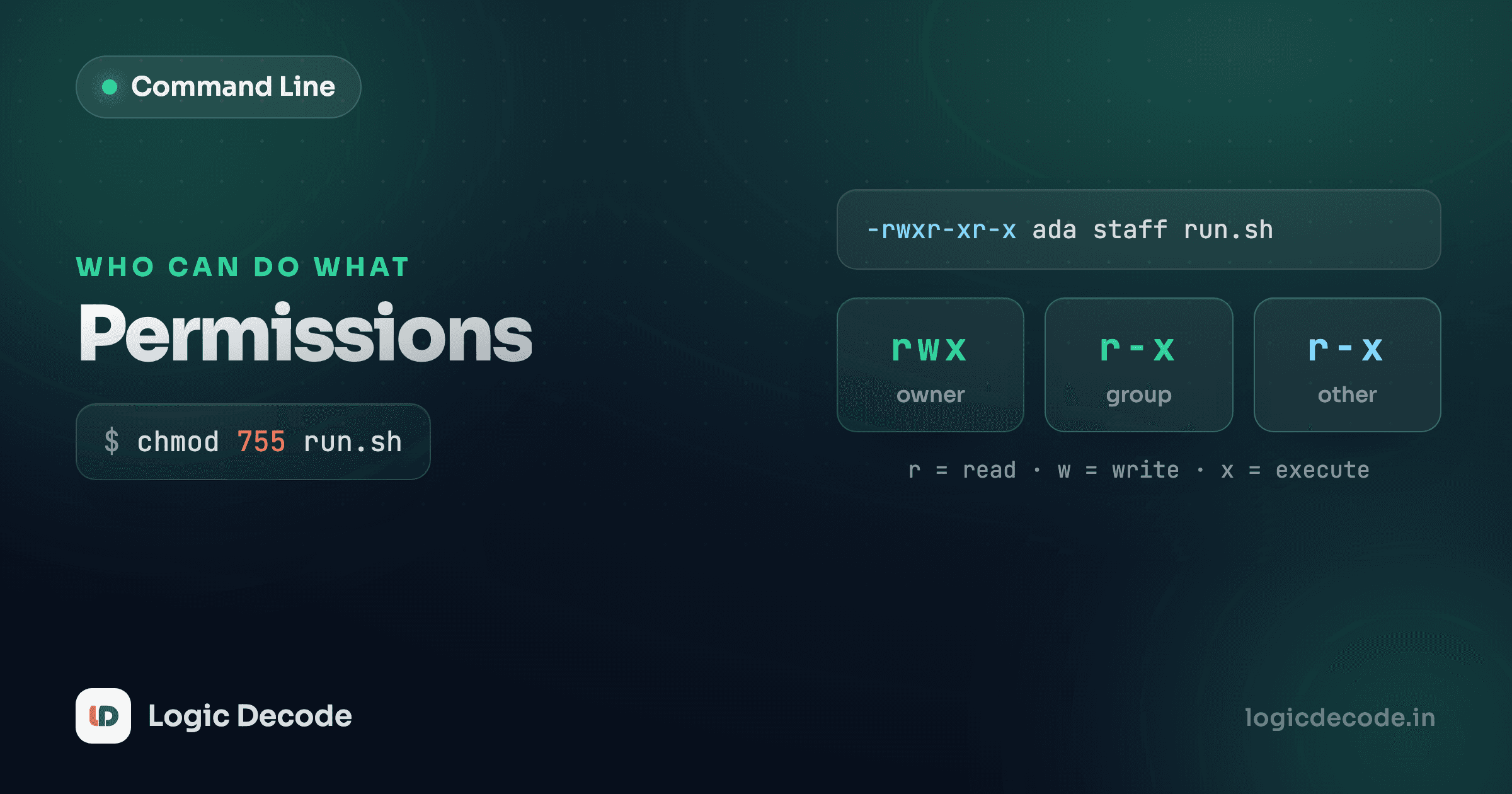
Each triplet is the same three slots, r (read), w (write), x (execute), and a letter means "allowed," a dash means "not allowed." So deploy.sh with -rwxr-xr-x reads as: it's a file. The user (the owner, maya) can read, write, and execute. The group (staff) can read and execute but not write. And other (everyone else) can also read and execute but not write.
Compare that to notes.txt at -rw-r--r--: the owner can read and write, everyone else can only read. Nobody has execute, which is exactly right for a text file. There's nothing to "run."
What read, write, and execute actually mean
The three bits mean slightly different things for a file than for a directory, and this trips people up constantly.
For a file:
- read (
r): you can look at the contents (cat, open it in an editor). - write (
w): you can change the contents or overwrite it. - execute (
x): you can run it as a program. This is the bit that scripts and binaries need.
For a directory, the same letters mean something else:
- read (
r): you can list what's inside (lsworks). - write (
w): you can create, rename, and delete files inside it. - execute (
x): you can enter it (cdinto it) and reach files within. Withoutxon a directory, you can't get to anything inside it even if you know the exact name.
That last one surprises everyone. A directory's execute bit isn't about "running" anything. It's the permission to traverse into it. A directory with r but no x lets you see the names of the files but not actually open them.
The three audiences
"User" is the single owner of the file. "Group" is one Unix group the file belongs to (here, staff). "Other" is literally everyone else on the system. A file has exactly one owner and one group, and permissions are set independently for all three.
Changing permissions with chmod (symbolic)
chmod ("change mode") is the command that flips those bits. The friendliest form is symbolic: you say who, then add or remove, then which bit.
The "who" letters are u (user/owner), g (group), o (other), and a (all three at once). The operators are + (add a permission), - (remove one), and = (set exactly this and nothing else).
Make a script runnable by its owner:
chmod u+x deploy.shTake away write access from group and other, so only you can change a private file:
chmod go-w secrets.envGive everyone read access to a file you want to share:
chmod a+r report.txtYou can stack changes with a comma:
chmod u+x,go-r build.shThat adds execute for the owner and removes read for group and other in one shot. Symbolic mode is great when you want to nudge one bit without thinking about the rest. chmod u+x doesn't touch anything except the owner's execute bit.
Quick check
What does `chmod go-w report.txt` do?
Changing permissions with chmod (numeric)
The other form looks cryptic the first time you see it (chmod 755 deploy.sh), but it's just the same three bits written as numbers, and it's the form you'll see in tutorials and Stack Overflow answers everywhere.
Each permission has a value: read = 4, write = 2, execute = 1. Add up the bits you want for each of the three audiences, and you get one digit per audience. Three digits total, in the usual order: user, group, other.
rwx = 4 + 2 + 1 = 7
rw- = 4 + 2     = 6
r-x = 4 +     1 = 5
r-- = 4         = 4
So the two numbers you'll use 90% of the time:
chmod 755 deploy.sh   # rwx for owner, r-x for group and other
chmod 644 notes.txt   # rw-  for owner, r--  for group and other
755 means the owner gets 7 (read + write + execute) and everyone else gets 5 (read + execute), the standard for a script or program that others should be able to run but not modify. 644 means the owner gets 6 (read + write) and everyone else gets 4 (read only), the standard for a normal document or config file. Read those two back against the ls -l output from earlier and they line up exactly.
Symbolic vs numeric
Use symbolic (chmod u+x) when you want to flip one bit and leave everything else alone. Use numeric (chmod 644) when you want to set the complete permission state in one go. Numeric always overwrites all nine bits, so don't reach for it when you only mean to touch one.
Making a script executable
This is the single most common reason anyone touches chmod, so it's worth its own walkthrough. You write a script, you try to run it, and:
./deploy.shzsh: permission denied: ./deploy.shThe file has no execute bit. Check it:
ls -l deploy.sh-rw-r--r-- 1 maya staff 312 Aug 4 09:14 deploy.shNo x anywhere. Add it:
chmod +x deploy.shA bare +x (no u/g/o) adds execute for everyone, the usual choice for a script. Now ls -l shows the bits flipped on, and ./deploy.sh runs:
-rwxr-xr-x 1 maya staff 312 Aug 4 09:14 deploy.shThat's it. The chmod +x your-script.sh line is one you'll type so often it ends up in muscle memory.
A quick word on chown and sudo
Two related commands you'll bump into, kept short on purpose.
chmod changes what's allowed. chown ("change owner") changes who owns the file in the first place. If a file belongs to someone else, you can hand it to a new owner (and optionally a new group):
chown maya:staff report.txtAnd sudo runs a command as the superuser (root), which sidesteps permission checks entirely:
sudo chmod 644 /etc/some-configRespect sudo
sudo gives a command unrestricted power over the whole machine. There's no "are you sure?" on most actions and no undo. A wrong sudo chmod or sudo rm on a system directory can break your install. Only use it when you actually need root, and read the command twice before you hit enter.
Recap and what's next
Every file carries ten characters of permission data: a type character, then three rwx triplets for user, group, and other. r/w/x mean read/write/execute for files, and list/modify/enter for directories. You change them with chmod, either symbolically (u+x, go-w) to nudge one bit, or numerically (755, 644, where r=4 w=2 x=1) to set the whole thing at once. The one you'll reach for daily is chmod +x to make a script runnable. chown changes ownership, and sudo runs as root, so handle that one with care. The GNU coreutils chmod manual has the exhaustive reference if you want every flag.
You got here by chaining and filtering with grep and find. Next we look at how the shell decides which command actually runs and where it finds it: environment variables and PATH.

Written by
Rhythm Bhiwani
Engineer and relentless builder, happiest reverse-engineering hard problems until they click.
Enjoyed this?
Tap the heart to leave some love.
Be the first to react
Comments
Join the conversation.
Loading comments…