Searching the Command Line: grep and find
Find anything fast: grep to search inside files (with regex basics) and find to locate files by name, type or time. The search tools you'll use daily.

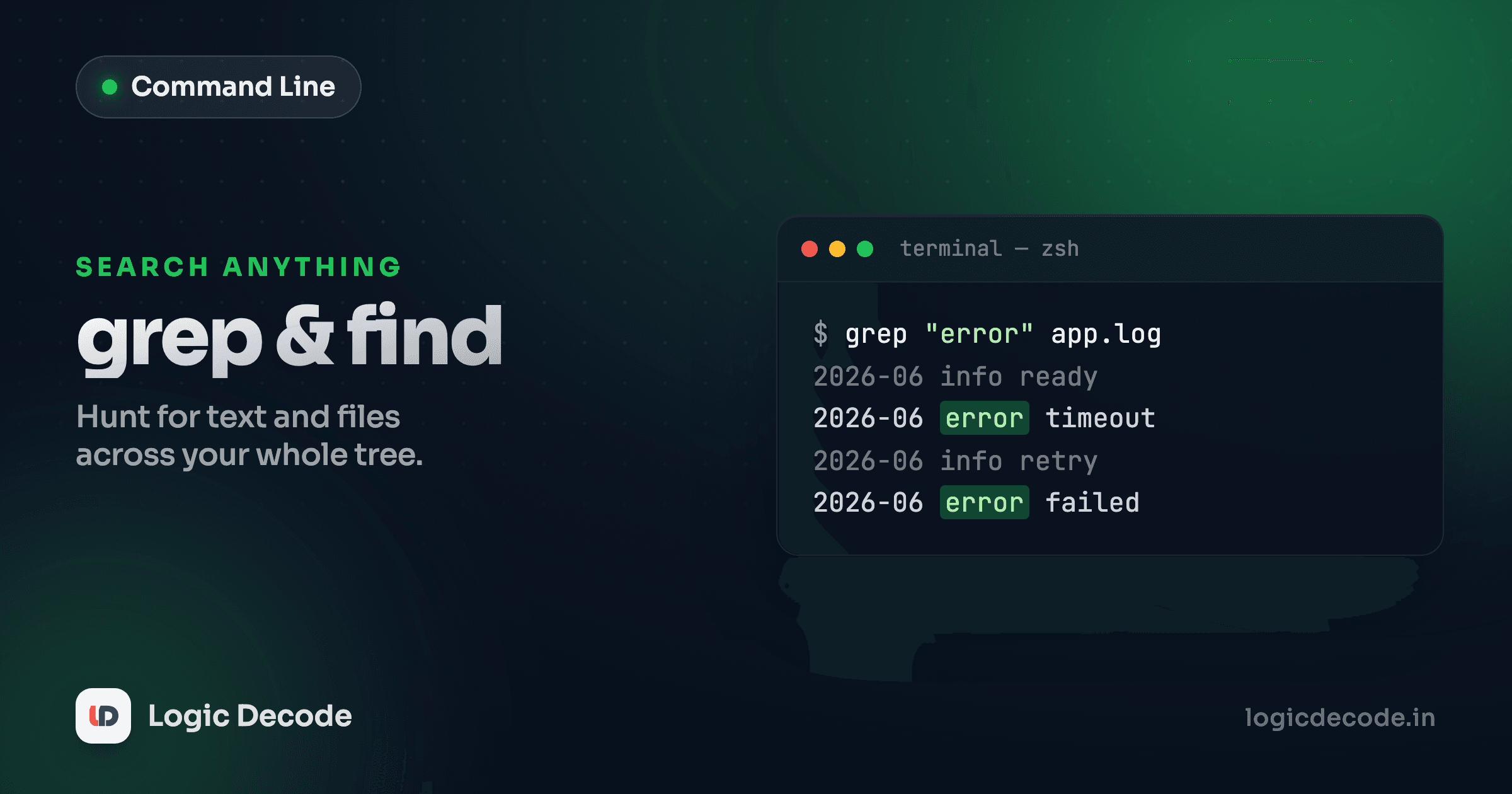
You know the function is broken. You just don't know which of the 400 files it lives in. Opening them one by one is a waste of an afternoon. Two commands solve this: grep searches inside files for text, and find locates files by their name, type, or age. Learn them and "where is that thing?" stops being a question you dread.
grep: search inside files
grep takes a pattern and one or more files, and prints every line that matches. Say you've got a config file and you want the line that sets the port.
grep "port" config.yaml port: 8080That's the core move. One pattern, one file, matching lines out. But the real power shows up once you point it at a whole project and add a flag or two.
grep -rn "TODO" ../src/api.js:42: // TODO: validate the token before this point
./src/db.js:7: # TODO: switch to a connection pool
./README.md:15:- [ ] TODO: write the deploy steps-r means recursive. It searches every file under the directory you give it (here ., the current folder), not just one file. -n prefixes each match with its line number, so you can jump straight there in your editor. That single command just told you everywhere a TODO is hiding, with exact line numbers, in well under a second.
The flags you'll actually use
A handful of grep flags cover almost everything. These five are the ones worth burning into muscle memory.
-i: case-insensitive.grep -i error log.txtcatchesError,ERROR, anderror.-r: recursive, search inside a directory tree.-n: show line numbers.-v: invert. Print lines that don't match. Great for filtering noise.-c: count matches instead of printing them.
A couple of these together is where it gets useful. Want to count how many lines in a log aren't blank?
grep -vc "^$" server.log1284-v flips it to non-matching lines, -c counts them, and ^$ is the pattern for an empty line (more on that next). Combining flags like this is the everyday rhythm of grep. Each flag is a small lever, and you stack the two or three you need.
Quote your patterns
Always wrap the pattern in quotes: grep "log error" file. Without quotes the shell may try to interpret spaces, *, or $ before grep ever sees them, and you get baffling results. Quotes hand the pattern to grep untouched.
A gentle taste of regex
grep's pattern isn't just plain text. It's a regular expression, a tiny language for describing shapes of text. You don't need the whole thing. Five characters get you a long way.
^: start of the line.^Errormatches lines that begin withError.$: end of the line.;$matches lines ending in a semicolon..: any single character.h.tmatcheshat,hot,hit.*: zero or more of the thing before it.ab*cmatchesac,abc,abbbc.[...]: a character class, any one character from the set.[0-9]is any digit,[aeiou]any vowel.
Put them together and you can describe real patterns. Find every line that starts with a digit:
grep "^[0-9]" data.csv1,Maya,Pune
2,Kabir,Delhi
3,Diya,MumbaiOr pull the import lines out of a Python file, the lines that start with import or from:
grep -n "^import\|^from" app.py1:import os
2:from datetime import dateThe \| means "or" in basic grep, so this catches either prefix. Regex goes far deeper than this, but ^, $, ., *, and [...] are the workhorses you'll reach for daily. Start here and add the rest only when a real problem demands it.
Quick check
What does the grep pattern ^$ match?
grep in a pipe
grep doesn't only read files. Give it no filename and it reads from standard input, which means anything piped into it gets filtered. If you covered pipes and redirection, this is where they pay off.
The classic: you want to know if a process is running. ps aux lists every process on the machine, hundreds of lines. Pipe it through grep to keep only the ones you care about.
ps aux | grep nodemaya 4821 0.4 1.2 node server.js
maya 4990 0.0 0.0 grep nodeps aux produces the full list, the | hands it to grep, and grep keeps only lines mentioning node. That second line is grep matching itself, a famous quirk, because grep's own command line contains the word node. You filter it out with grep -v grep, or use pgrep node which sidesteps the whole thing.
This pattern (run a command, pipe to grep, keep the lines you want) is one of the most-used moves on the command line. git log | grep fix, npm ls | grep react, history | grep ssh. Any command that spits out a lot of text becomes searchable the moment you add | grep.
find: locate files by name, type, time, or size
grep searches content. find searches for the files themselves. You give it a place to start and conditions to match, and it walks the whole tree.
find . -name "*.log"./server.log
./logs/error.log
./logs/access.logfind . starts in the current directory and recurses everywhere below. -name "*.log" keeps only files whose name ends in .log. The quotes matter here. They stop the shell from expanding * itself, so find gets the pattern to match.
The conditions are what make find precise. The ones you'll use most:
-name "pattern": match by filename (use-inameto ignore case).-type f: only files.-type d: only directories.-mtime -7: modified in the last 7 days (-mtime +30= older than 30 days).-size +10M: larger than 10 megabytes (+100k,+1Gwork too).
Stack them and the conditions combine with AND. Find big log files that nobody's touched in a month:
find . -type f -name "*.log" -mtime +30 -size +10M./logs/old/access-2026-05.logRead it left to right: under here, regular files, named *.log, older than 30 days, bigger than 10 MB. That one line is a question you'd otherwise answer by clicking through folders and squinting at timestamps.
Acting on what you find
Finding files is half the job. Often you want to do something to them: delete them, move them, search inside them. find has -exec for exactly this.
find . -name "*.tmp" -exec rm {} \;-exec runs a command on each match. {} is the placeholder for the current file, and \; ends the command (the backslash stops the shell from eating the semicolon). So this deletes every .tmp file under the current directory. Test first with -exec echo {} \;, or just run the find alone to see what it'll hit before you let rm loose.
The other route is piping to xargs, which collects the results and feeds them to a command in batches.
find . -name "*.js" | xargs grep -l "useState"./components/Counter.js
./components/Form.jsfind lists every .js file, xargs passes them all to grep -l (which prints just the filenames that contain a match). This is the combo for "which files use this thing?": find to scope the files, grep to search inside them. For files with spaces in their names, reach for find ... -print0 | xargs -0 ... to keep the names intact.
Look before you delete
-exec rm {} \; is irreversible. There's no recycle bin on the command line. Always run the bare find first and read the list. Better yet, on Linux use find ... -delete only after you've eyeballed the matches.
One modern shortcut: ripgrep
If you do a lot of code searching, install ripgrep (rg). It's grep's fast cousin: recursive by default, respects your .gitignore, skips binary files, and is genuinely much quicker on big repos. rg "TODO" does what grep -rn "TODO" . does, with less typing and prettier output. grep is everywhere by default, so learn it first. Reach for rg once you're searching codebases all day.
Recap and what's next
grep searches inside files: pattern plus files in, matching lines out, with -i, -r, -n, -v, and -c covering most needs, and a little regex (^ $ . * [...]) to describe what you're after. Pipe any command into it to filter the output. find locates the files themselves by -name, -type, -mtime, or -size, and -exec or xargs lets you act on the results. Between them you can answer almost any "where is it?" on a machine.
Next up: file permissions, covering who can read, write, and run a file, what those rwx letters mean, and how to fix the dreaded "permission denied." For the full pattern syntax behind grep, the GNU grep manual is the authoritative reference.

Written by
Rhythm Bhiwani
Engineer and relentless builder, happiest reverse-engineering hard problems until they click.
Enjoyed this?
Tap the heart to leave some love.
Be the first to react
Comments
Join the conversation.
Loading comments…