Command Line Project: Automate a Task with a Script
Put it together: build a small bash script that organizes a messy folder by file type using variables, loops, conditionals, and the tools from the series.

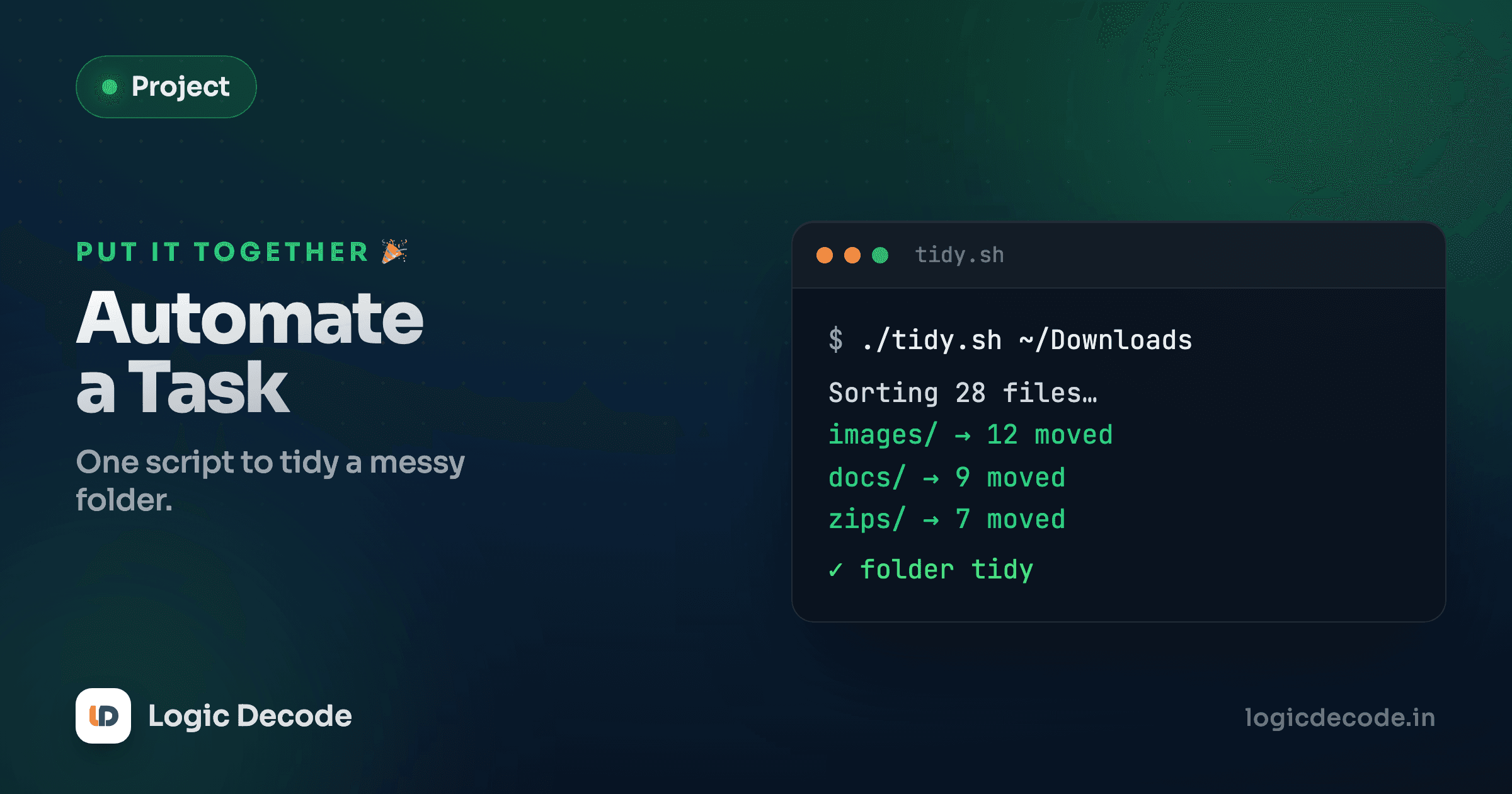
Everybody has that one folder. Downloads, usually: a flat dump of screenshots, PDFs, zip files, and installers, all piled together, three hundred items deep. Sorting it by hand is the kind of boring you do once, get annoyed at, and never finish. So let's not do it by hand. Let's write a script that walks the folder, looks at each file's extension, and drops it into the right subfolder: images in images/, documents in docs/, archives in archives/. Run it once, watch the mess sort itself, and you've got a tool you'll actually keep.
This is the capstone of the series. Every piece you need (navigating, listing files, variables, loops, conditionals) you've already met. Today we wire them into one real program.
What we're building, and the safety rule
The plan in one breath: loop over every file in a folder, read its extension, decide which bucket it belongs in, make that bucket if it doesn't exist, and move the file there. Then print a tidy summary of what happened.
Before a single line of code, one rule that will save you a bad afternoon: a script that moves files can also lose files. A typo in a path and mv happily shoves your tax documents somewhere you'll never look. So the whole time we build this, we test on a copy. Make a throwaway folder, fill it with junk, and point the script at that. Only when it behaves do you let it near your real Downloads.
mkdir -p ~/tidy-test
cd ~/tidy-test
touch cat.jpg report.pdf notes.txt photo.png backup.zip song.mp3
lsbackup.zip cat.jpg notes.txt photo.png report.pdf song.mp3Six fake files, three types we'll sort and a couple we'll deliberately ignore. This is our crash-test dummy. If we wreck it, who cares.
Start with the shebang and a safety net
Every shell script starts with a shebang, the #! line that tells the system which program runs the file. For bash, it's this:
#!/usr/bin/env bash
set -euo pipefail
The env bash form finds bash wherever it lives on the machine, which is more portable than hardcoding a path. The second line is the one that separates a toy from a tool. set -euo pipefail flips on three guardrails at once:
-eexits the moment any command fails, instead of barreling ahead with a broken state.-utreats using an unset variable as an error, so a typo'd$targthalts the script instead of silently expanding to nothing.-o pipefailmeans if any command in a pipe fails, the whole pipe is considered failed (without this, only the last command's exit status counts).
Put that pair at the top of every script you write. It's the difference between "the script stopped and told me what broke" and "the script kept going and made it worse."
set -e is a seatbelt, not autopilot
set -euo pipefail catches a lot, but it won't stop a logically wrong mv. It stops a crashed command, not a command that does the wrong thing correctly. That's exactly why we still test on a copy.
Loop over the files
Now we need to walk through each file in the folder. We met loops and globbing earlier. Here a for loop over a * glob is all it takes:
#!/usr/bin/env bash
set -euo pipefail

target_dir="$HOME/tidy-test"
cd "$target_dir"

for file in *; do
  echo "Found: $file"
done
We stored the folder in a variable, target_dir, so there's one place to change it later. cd "$target_dir" steps us into it. Note the quotes around "$target_dir", which keep paths with spaces from breaking apart. Then for file in * runs the loop body once per item in the current directory, with each name landing in the file variable.
Run it and you get a line per item. We're not moving anything yet. We're confirming the loop sees everything before we let it touch a single file. That's the rhythm: prove each step works, then add the next.
Found: backup.zip
Found: cat.jpg
Found: notes.txt
Found: photo.png
Found: report.pdf
Found: song.mp3
Read the extension and decide the bucket
For each file we need its extension. Bash has a built-in trick: ${file##*.} strips everything up to and including the last dot, leaving just the extension. So cat.jpg gives jpg. We then feed that into a case statement, bash's clean version of a multi-way if, perfect when you're matching one value against a list of possibilities.
#!/usr/bin/env bash
set -euo pipefail

target_dir="$HOME/tidy-test"
cd "$target_dir"

for file in *; do
  # skip directories — we only sort files
  if [ -d "$file" ]; then
    continue
  fi

  extension="${file##*.}"

  case "$extension" in
    jpg|jpeg|png|gif)
      dest="images" ;;
    pdf|txt|docx|md)
      dest="docs" ;;
    zip|tar|gz)
      dest="archives" ;;
    *)
      echo "Skipping $file (no rule for .$extension)"
      continue ;;
  esac

  echo "$file -> $dest/"
done
A few things earn a closer look. if [ -d "$file" ] asks "is this a directory?" If so, continue jumps straight to the next loop iteration so we don't try to sort our own images/ folder into itself. The case block matches the extension against patterns: jpg|jpeg|png|gif means "any of these," and each branch sets the dest variable to the right bucket. The *) at the end is the catch-all. Anything we don't recognize gets a friendly note and a continue, so song.mp3 is reported and left alone rather than dumped somewhere wrong.
Run this version and it tells you its plan without moving anything yet:
backup.zip -> archives/
cat.jpg -> images/
Skipping notes.txt (no rule for .txt)
Wait. notes.txt got skipped, but txt is right there in the docs branch. Look again: it is matched. The skip line above is the kind of thing you'd see only if you'd forgotten to add txt, and it's exactly why printing the plan first is so useful. With txt in the list, notes.txt correctly reports notes.txt -> docs/. Eyeball the plan, fix the rules, then move.
Quick check
In the script, what does the *) branch of the case statement do?
Make the folder and move the file
Now the payoff. For each file we know its destination, so we create that subfolder and move the file in. Two commands you met earlier do it: mkdir -p and mv.
#!/usr/bin/env bash
set -euo pipefail

target_dir="$HOME/tidy-test"
cd "$target_dir"

for file in *; do
  if [ -d "$file" ]; then
    continue
  fi

  extension="${file##*.}"

  case "$extension" in
    jpg|jpeg|png|gif)  dest="images" ;;
    pdf|txt|docx|md)   dest="docs" ;;
    zip|tar|gz)        dest="archives" ;;
    *)
      echo "Skipping $file (no rule for .$extension)"
      continue ;;
  esac

  mkdir -p "$dest"
  mv "$file" "$dest/"
  echo "Moved $file -> $dest/"
done
mkdir -p "$dest" creates the bucket folder, and the -p flag means "don't complain if it already exists." So on the second file headed for images/, it quietly does nothing instead of erroring out. Then mv "$file" "$dest/" slides the file into place. Both arguments are quoted, again so a filename with spaces (my vacation.jpg) stays one argument instead of two.
Run it against the test folder and the flat pile sorts itself:
Moved backup.zip -> archives/
Moved cat.jpg -> images/
Moved notes.txt -> docs/
Moved photo.png -> images/
Moved report.pdf -> docs/
Skipping song.mp3 (no rule for .mp3)
Check the result with ls and you'll see three new folders, each holding the right files, with song.mp3 left sitting at the top exactly as intended.
lsarchives docs images song.mp3Add a summary count
A pro touch: tell the user what you did. We'll keep a running tally with a counter variable and print it at the end. This pulls in plain arithmetic, since $((...)) does math in bash.
#!/usr/bin/env bash
set -euo pipefail

target_dir="$HOME/tidy-test"
cd "$target_dir"

moved=0
skipped=0

for file in *; do
  if [ -d "$file" ]; then
    continue
  fi

  extension="${file##*.}"

  case "$extension" in
    jpg|jpeg|png|gif)  dest="images" ;;
    pdf|txt|docx|md)   dest="docs" ;;
    zip|tar|gz)        dest="archives" ;;
    *)
      echo "Skipping $file (no rule for .$extension)"
      skipped=$((skipped + 1))
      continue ;;
  esac

  mkdir -p "$dest"
  mv "$file" "$dest/"
  echo "Moved $file -> $dest/"
  moved=$((moved + 1))
done

echo "---"
echo "Done. Moved $moved file(s), skipped $skipped."
moved=0 and skipped=0 start the counters at zero. Each time we move a file, moved=$((moved + 1)) bumps the count, and the same goes for skips. At the end, one summary line reports the damage. That's the whole script, about thirty lines, and it does something you'd actually use.
Moved backup.zip -> archives/
Moved cat.jpg -> images/
Moved notes.txt -> docs/
Moved photo.png -> images/
Moved report.pdf -> docs/
Skipping song.mp3 (no rule for .mp3)
---
Done. Moved 5 file(s), skipped 1.
Run it for real
Save it as tidy.sh, make it executable, and run it:
chmod +x tidy.sh
./tidy.sh
chmod +x flips on the execute permission we covered in the permissions lesson, so the file becomes a runnable program instead of just text. ./tidy.sh runs it from the current folder, and the ./ matters, because the shell doesn't look in the current directory for commands unless you tell it to.
When you're confident, change one line to point at the real mess:
target_dir="$HOME/Downloads"But run it on a copy of Downloads first. cp -r ~/Downloads ~/Downloads-copy, point the script there, and confirm it sorts the way you expect before you trust it with the original. Same lesson as always: test on a copy.
Make it yours
This is a starting point, not a finished product. Add a video bucket for mp4 and mov. Add a dry-run mode that prints the plan but skips the mv. Pipe ls output through the grep and find tools from earlier in the series to sort only files older than a week. The skeleton (loop, decide, act, report) handles all of it. The full bash reference manual is where you go when you want to push further.
The whole series, in one place
You started this series staring at a black window wondering why anyone would type commands instead of clicking. Look at what you can do now.
- Why the command line? made the case: the terminal is faster, scriptable, and works the same over SSH on a server you'll never see the desktop of.
- Navigation (
pwd,ls,cd, and absolute vs relative paths) taught you to move through the filesystem on purpose. - Files and directories (
mkdir,touch,cp,mv,rm) gave you the verbs to create and rearrange, the exact tools this project leans on. - Viewing files, then pipes and redirection, taught you to chain small commands into bigger ones, the philosophy that makes the shell so capable.
- grep and find turned you into someone who searches instead of scrolls.
- Permissions explained the
chmod +xyou used to make this very script runnable. - Environment and PATH demystified how the shell finds the programs you call.
- Shell scripting basics handed you variables, loops, and conditionals, the building blocks you just assembled into a working tool.
And here, at the end, you put every one of those to work: navigating into a folder, looping over its files, branching on each one's type with a case, creating directories, moving files, and reporting back. That's not a tutorial exercise. It's a real script solving a real annoyance, built from parts you understand top to bottom.
That's the whole point of the command line. It's not a set of magic incantations to memorize. It's a small kit of sharp tools that snap together. You've got the kit now. Go find the next boring folder and automate it away.

Written by
Rhythm Bhiwani
Engineer and relentless builder, happiest reverse-engineering hard problems until they click.
Enjoyed this?
Tap the heart to leave some love.
Be the first to react
Comments
Join the conversation.
Loading comments…