Docker Project: Containerize a Web App
Put it together: write a Dockerfile for a small web app, add a database with Docker Compose, wire them up with env and volumes, and run the whole stack.

Every lesson so far gave you one piece: a Dockerfile here, a volume there, a port mapping, an env var. Pieces are easy to nod along to and hard to actually use. So let's bolt them together into the thing you'll really do at work. Take a small web app, write a clean Dockerfile for it, add a real database alongside it, and bring the whole stack up with one command. By the end you'll have an app and a Postgres database running in their own containers, talking to each other, started with a single docker compose up.
The app we're shipping
Keep the app boring on purpose. The interesting part is the containerizing, not the code. Here's a tiny Node/Express API that counts visits in Postgres. Three files in a folder called visits-api.
{
  "name": "visits-api",
  "version": "1.0.0",
  "main": "server.js",
  "scripts": { "start": "node server.js" },
  "dependencies": {
    "express": "^4.19.2",
    "pg": "^8.12.0"
  }
}const express = require("express");
const { Pool } = require("pg");
const app = express();
const pool = new Pool({ connectionString: process.env.DATABASE_URL });
async function init() {
await pool.query(
"CREATE TABLE IF NOT EXISTS visits (id serial PRIMARY KEY, seen_at timestamptz DEFAULT now())"
);
}
app.get("/", async (_req, res) => {
await pool.query("INSERT INTO visits DEFAULT VALUES");
const { rows } = await pool.query("SELECT count(*) FROM visits");
res.json({ visits: Number(rows[0].count) });
});
init()
.then(() => app.listen(3000, () => console.log("up on :3000")))
.catch((err) => {
console.error("db not ready:", err.message);
process.exit(1);
});The only line that matters for the rest of this lesson is process.env.DATABASE_URL. The app doesn't hardcode where the database lives. It reads it from an environment variable. That's what lets the exact same image run against a Postgres on your laptop today and a managed cloud database tomorrow. Same image, different env. Hold onto that idea.
Step 1: write the Dockerfile
We've covered the syntax in Dockerfile basics and squeezed the layers in layers and caching. Now we put both to work in one real file.
# Small, official base — not the 1GB full image
FROM node:20-slim

# A dedicated app directory inside the container
WORKDIR /app

# Copy ONLY the manifest first, install, THEN copy the code.
# This is the layer-caching trick: deps reinstall only when
# package.json changes, not on every code edit.
COPY package.json package-lock.json* ./
RUN npm install --omit=dev

# Now the source. Edits here don't bust the deps layer above.
COPY . .

# Don't run as root. Create an unprivileged user and switch to it.
RUN useradd --create-home appuser
USER appuser

# Document the port the app listens on
EXPOSE 3000

# What runs when the container starts
CMD ["node", "server.js"]
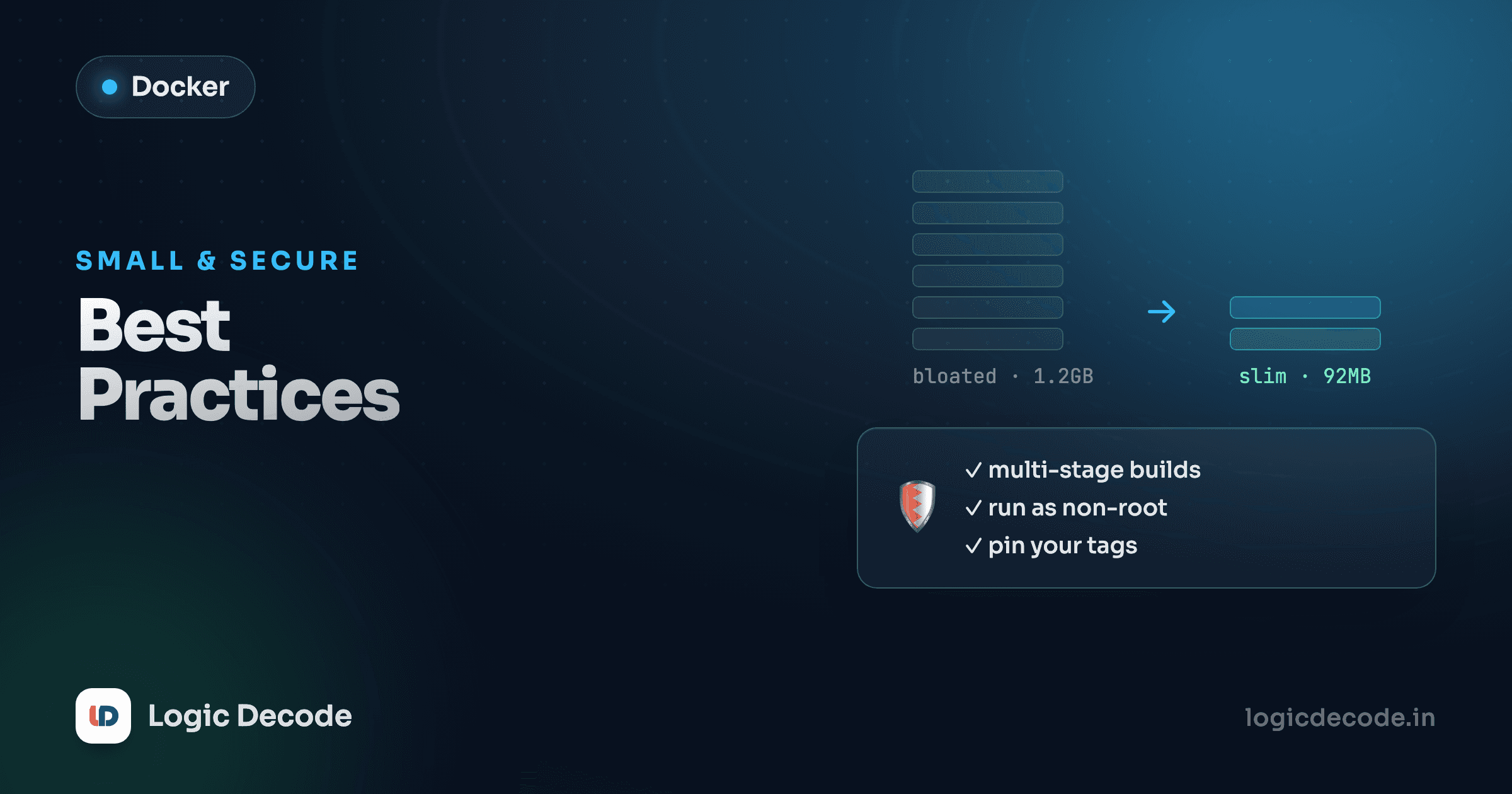
Read it top to bottom and you'll see four of the series' lessons baked in. The -slim base keeps the image small instead of dragging a full OS userland. The COPY package.json before COPY . . is deliberate layer ordering. Change one line of server.js and Docker reuses the cached npm install instead of redoing it, which is the difference between a 2-second rebuild and a 40-second one. USER appuser means that if anything ever breaks out of your app, it isn't root inside the container. And EXPOSE 3000 plus the CMD say exactly how to run the thing.
Multi-stage when you have a build step
This app has no compile step, so a single stage is honest and clean. The moment you add one (TypeScript, a React build, Go) reach for a multi-stage build: do the heavy building in a first FROM, then COPY --from=builder only the finished artifacts into a tiny final image. You ship the output, not the toolchain.
Step 2: add a .dockerignore
Before you build, stop Docker from copying junk into the image. COPY . . grabs everything in the folder unless you tell it not to, including your local node_modules, your .git history, and any secrets in .env. That bloats the image and can leak things you never meant to ship.
node_modules
npm-debug.log
.git
.env
Dockerfile
docker-compose.yml
Same idea as .gitignore. The big win is node_modules: you want the container to install its own dependencies for its OS during the build, not inherit whatever your Mac or Windows machine compiled. Ignoring it keeps the build context small and the install correct.
Build it now and run a quick sanity check that the image exists:
docker build -t visits-api .
docker images visits-api
The app can't fully start yet, since it has no database to talk to. That's the next piece, and it's where Compose earns its keep.
Step 3: add a database with Docker Compose
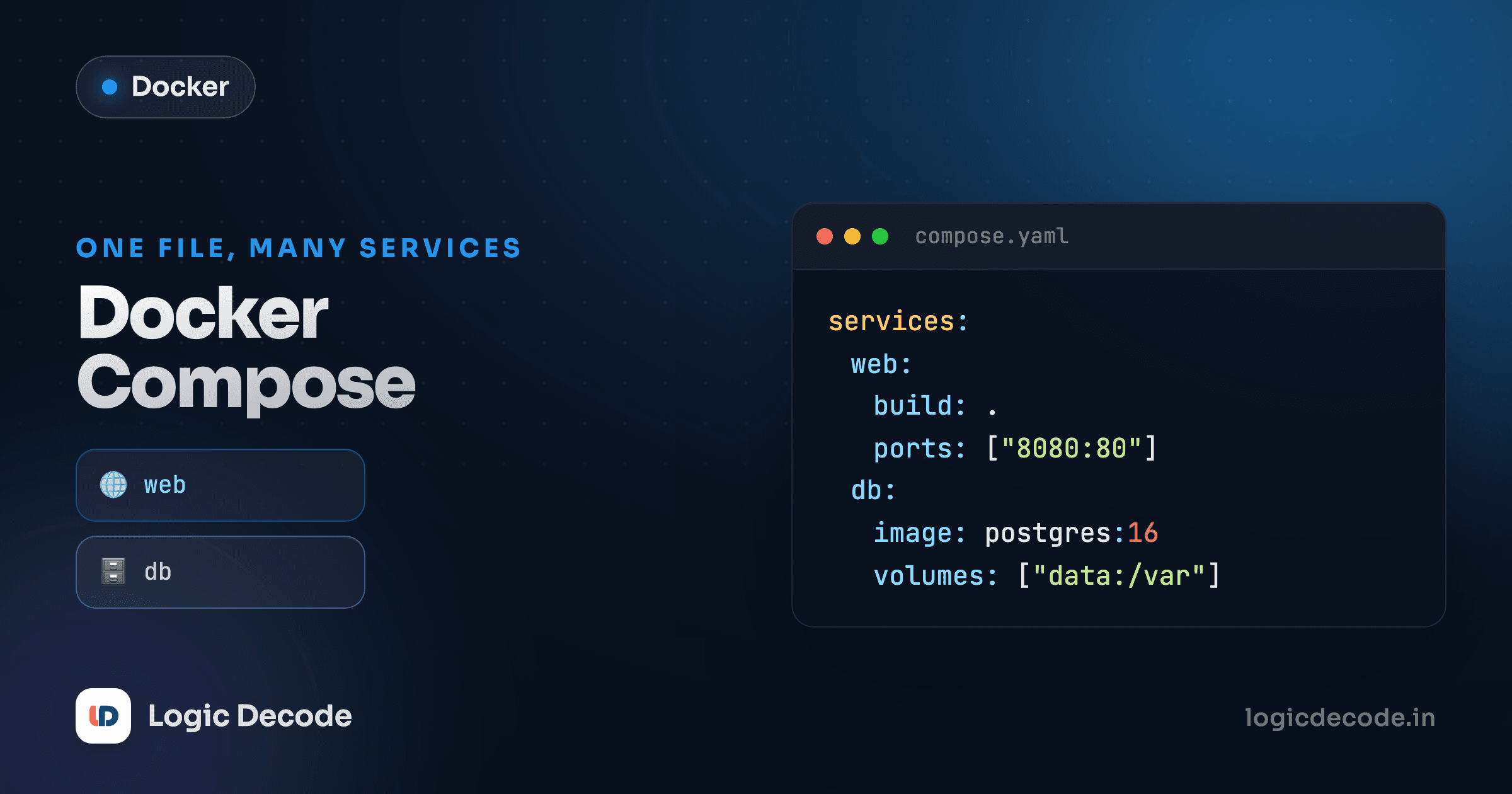
You could start Postgres by hand with a long docker run (set the password env, map a port, mount a volume, name the network) and then start the app with another long command pointed at it. You'd retype both every time. Docker Compose replaces all of that with one file that describes the whole stack, and one command to run it.
services:
  app:
    build: .
    ports:
      - "3000:3000"
    environment:
      DATABASE_URL: postgres://appuser:secret@db:5432/visits
    depends_on:
      - db

  db:
    image: postgres:16
    environment:
      POSTGRES_USER: appuser
      POSTGRES_PASSWORD: secret
      POSTGRES_DB: visits
    volumes:
      - pgdata:/var/lib/postgresql/data

volumes:
  pgdata:
Every concept from the series shows up in those twenty lines. Walk through them.
Two services. app is built from our Dockerfile (build: .). db is pulled ready-made from the official postgres:16 image, no Dockerfile needed for it. Compose runs each in its own container.
Networking by name. Look at the DATABASE_URL: postgres://appuser:secret@db:5432/visits. The host is literally db, the name of the service. Compose puts both containers on a shared network and gives each one a DNS name matching its service, so the app reaches the database at db with zero IP-juggling. This is the environment and networking lesson made concrete: services find each other by name, not by address.
Env vars on both sides. The db service reads POSTGRES_USER, POSTGRES_PASSWORD, and POSTGRES_DB to create the database and account on first boot. The app service reads DATABASE_URL to know where to connect. The username, password, and database name match on both sides. That's the contract.
A named volume for the data. pgdata:/var/lib/postgresql/data mounts a persistent volume where Postgres stores its files. Without it, every time the database container is recreated your data vanishes. With it, you can docker compose down, come back tomorrow, bring it up, and your visit count is still there. Volumes were the whole point of ports and volumes: ports let the outside world in, volumes make data outlive the container.
depends_on. This tells Compose to start db before app. It controls start order, not readiness. Postgres being launched isn't the same as Postgres being ready to accept connections. That's exactly why server.js exits with an error if the first query fails: Compose restarts the app, and on a retry the database is ready. (For production you'd add a proper healthcheck, but this keeps the project honest and simple.)
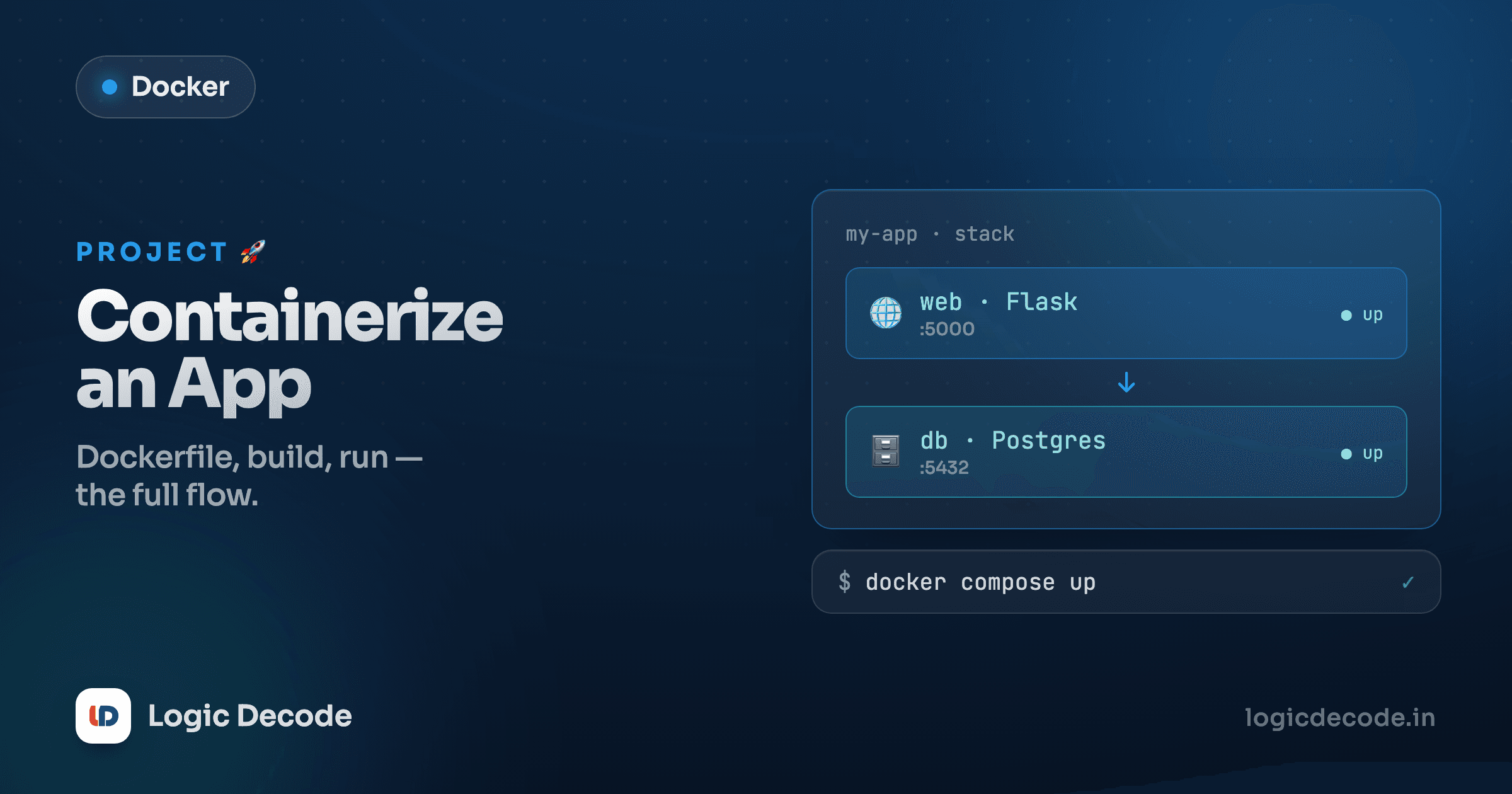
Here's the whole stack as Compose wires it:
Your browser hits port 3000 on the host, which maps into the app container. The app talks to the db container by name over the internal network. The database persists its files to the pgdata volume, which lives independently of the container.
Step 4: bring it up and verify
One command starts both containers, creates the network, and mounts the volume:
docker compose up --build--build forces a rebuild of the app image so your latest code is in there. You'll see logs from both services interleaved: Postgres initializing, then up on :3000 from the app. Now hit it:
curl http://localhost:3000
# {"visits":1}

curl http://localhost:3000
# {"visits":2}
The count goes up because each request inserts a row into Postgres, in the db container, persisted to the volume. Two separate containers, cooperating, started from one file.
Prove the data really persists. Stop everything, then bring it back:
docker compose down      # stops and removes the containers (volume stays)
docker compose up        # back up
curl http://localhost:3000
# {"visits":3}   <- it remembered
The count picked up where it left off because the volume outlived the containers. If you ever do want a clean slate, docker compose down -v removes the named volumes too. That's the one command that wipes the data on purpose.
Quick check
In the compose file, how does the app container reach the database?
That password is fine for learning, not for real
secret hardcoded in the compose file is OK while you're building on your laptop. In production you never commit credentials. You inject them as environment variables or secrets at deploy time, and keep the compose file in git with placeholders. Best practices goes deeper, but the rule is short: code in git, secrets out of git.
What you actually built
Step back and look at the whole thing, because it's more than a toy. You wrote a Dockerfile that uses a slim base, orders its layers so rebuilds are fast, and runs as a non-root user. You added a .dockerignore so the image stays clean and safe. You described a two-service stack (your app plus a real Postgres database) in a single compose file, wired them together with environment variables, let them find each other by service name on a shared network, and made the data survive restarts with a named volume. Then you brought the entire stack up with one command and watched it work.
That is the actual shape of containerizing an app. Every piece (Dockerfile, layers, ports, volumes, env, networking, Compose, the security and size habits) came from an earlier lesson in this series, arranged to solve one concrete problem.
Recap of the whole series, and where to go next
You started at Why Docker? with the mental model: a container packages your app with its environment so it runs the same everywhere, staying light by sharing the host kernel instead of hauling a whole OS like a VM. From there you ran your first container, learned the image-vs-container split, wrote Dockerfiles, made builds fast with layer caching, exposed ports and persisted data with volumes, connected containers with env and networking, orchestrated multiple services with Docker Compose, and tightened it all up with best practices. This project tied every thread together.
So where next? Three natural roads from here:
- Kubernetes. Once you can run a few containers, the next question is running many across many machines, restarting crashed ones, and scaling under load. That's orchestration at scale, and Docker is its foundation.
- CI/CD. Wire your image build into a pipeline so every push builds, tests, and ships a fresh container automatically. The Git & GitHub series is the prerequisite for that.
- Cloud. Push your image to a registry and run it on a managed container service. The compose file you just wrote translates almost directly to most cloud deployment formats.
Keep the Compose docs bookmarked as your reference. But you've got the thing that matters now: you can take an app, package it, give it a database, and run the whole stack anywhere Docker runs. That's the skill the job posting was asking for.

Written by
Rhythm Bhiwani
Engineer and relentless builder, happiest reverse-engineering hard problems until they click.
Enjoyed this?
Tap the heart to leave some love.
Be the first to react
Comments
Join the conversation.
Loading comments…