Docker Compose: Run Multi-Container Apps
Define a whole stack in one file: docker-compose.yml for an app plus a database, with docker compose up. Stop juggling long docker run commands.

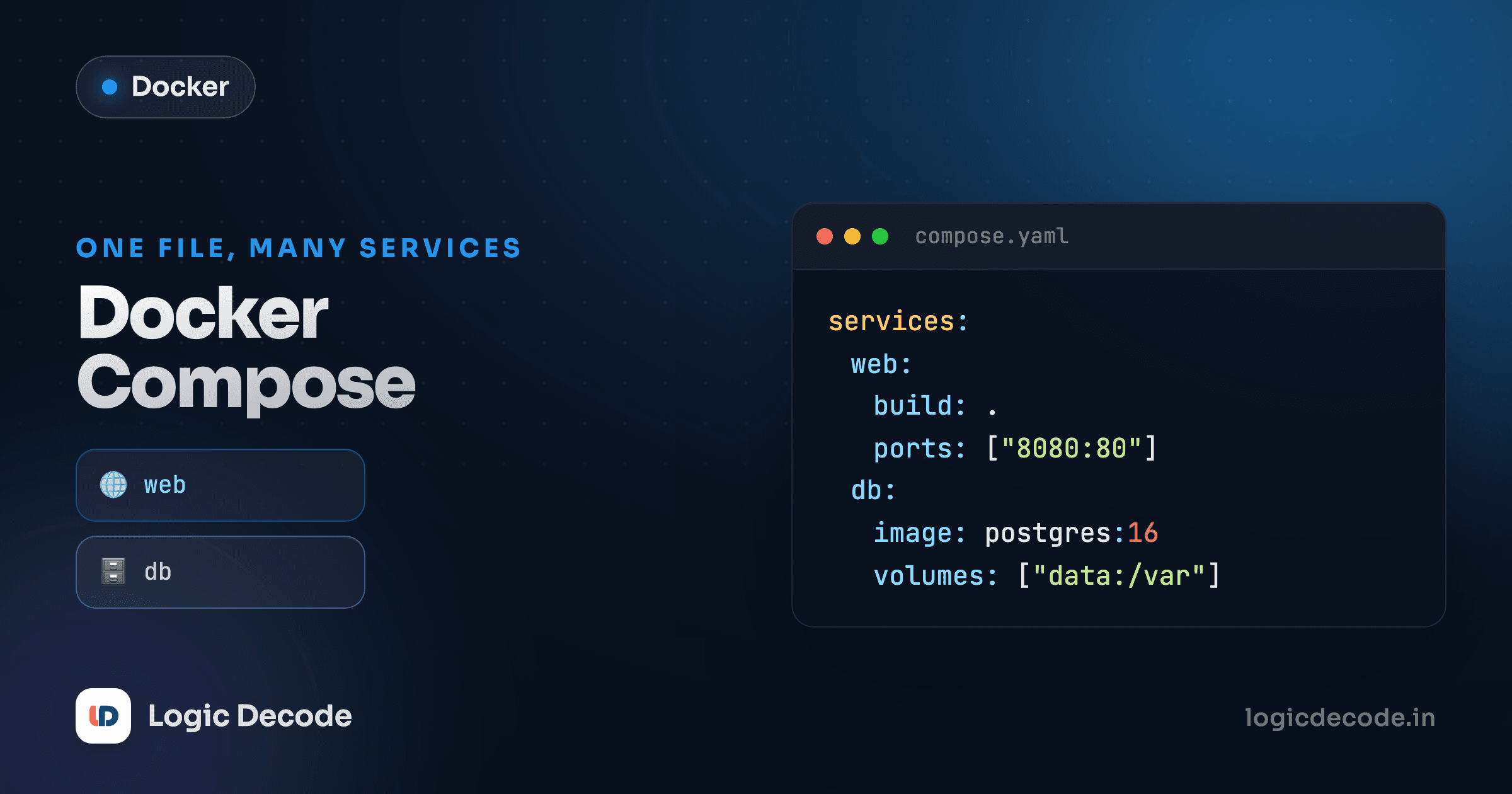
Real apps are never one container. You've got a web service, and it needs a database. Maybe a cache too. Run all of that by hand and you end up with a wall of docker run flags you copy-paste from a notes file, plus a network you have to create and remember to attach everything to. Forget one flag and the app can't reach the database. Docker Compose replaces that whole ritual with one file and one command.
The pain Compose actually solves
Here's what running a web app plus a Postgres database looks like with raw docker run. From the environment and networking lesson you already know each piece. Now watch them pile up.
docker network create app-net

docker run -d \
  --name db \
  --network app-net \
  -e POSTGRES_PASSWORD=secret \
  -e POSTGRES_DB=appdb \
  -v pgdata:/var/lib/postgresql/data \
  postgres:16

docker run -d \
  --name web \
  --network app-net \
  -p 8080:3000 \
  -e DATABASE_URL=postgres://postgres:secret@db:5432/appdb \
  myapp:latest
Three commands, and you have to run them in the right order with the database password matching in two places. Now imagine doing that on a teammate's laptop, then explaining over Slack why their web container can't find db (they forgot --network app-net). This is the exact mess Compose exists to delete.
The same stack as one file
Put this in a file named docker-compose.yml next to your code:
services:
  web:
    build: .
    ports:
      - "8080:3000"
    environment:
      DATABASE_URL: postgres://postgres:secret@db:5432/appdb
    depends_on:
      - db

  db:
    image: postgres:16
    environment:
      POSTGRES_PASSWORD: secret
      POSTGRES_DB: appdb
    volumes:
      - pgdata:/var/lib/postgresql/data

volumes:
  pgdata:
Then, from that folder:
docker compose upThat single command builds the web image, pulls postgres:16, creates a network, attaches both containers to it, mounts the volume, and starts everything in dependency order. The wall of flags is gone. The file is the documentation. Anyone who clones the repo can read it and know exactly what the app needs.
One file, version-controlled
Commit docker-compose.yml to git. Now "how do I run this locally" has a one-line answer that never goes stale, and every teammate gets the byte-for-byte same setup.
Reading the file, key by key
Every top-level entry under services: is one container. The name you give it (web, db) becomes both the container's identity and, this is the important part, its hostname on the network. Let's walk the keys that matter.
build: .tells Compose to build an image from theDockerfilein the current directory. Use this for your code. The other service usesimage: postgres:16instead, pulling a ready-made image from a registry. A service uses one or the other, not both.ports: - "8080:3000"maps host port 8080 to container port 3000, samehost:containerrule asdocker run -p. Onlywebpublishes a port; the database stays internal, reachable by other containers but not from your laptop's browser.environment:sets env vars inside the container, like the database password and the connection string. Same as stacking-eflags, just readable.volumes:on thedbservice mounts the named volumepgdataat Postgres's data directory so your data survivesdocker compose down. Named volumes also get their own top-levelvolumes:block at the bottom of the file, which is wherepgdata:is declared.depends_on: - dbtells Compose to startdbbeforeweb.
depends_on waits for start, not for ready
depends_on controls start order, not readiness. The db container will be running before web starts, but Postgres might still be a second or two from accepting connections. For production-grade waiting, add a healthcheck to db and use depends_on: with condition: service_healthy. For local dev, having your app retry the connection on boot is usually enough.
The network is automatic, and so is service discovery
This is the line that makes Compose click. Look at the connection string again:
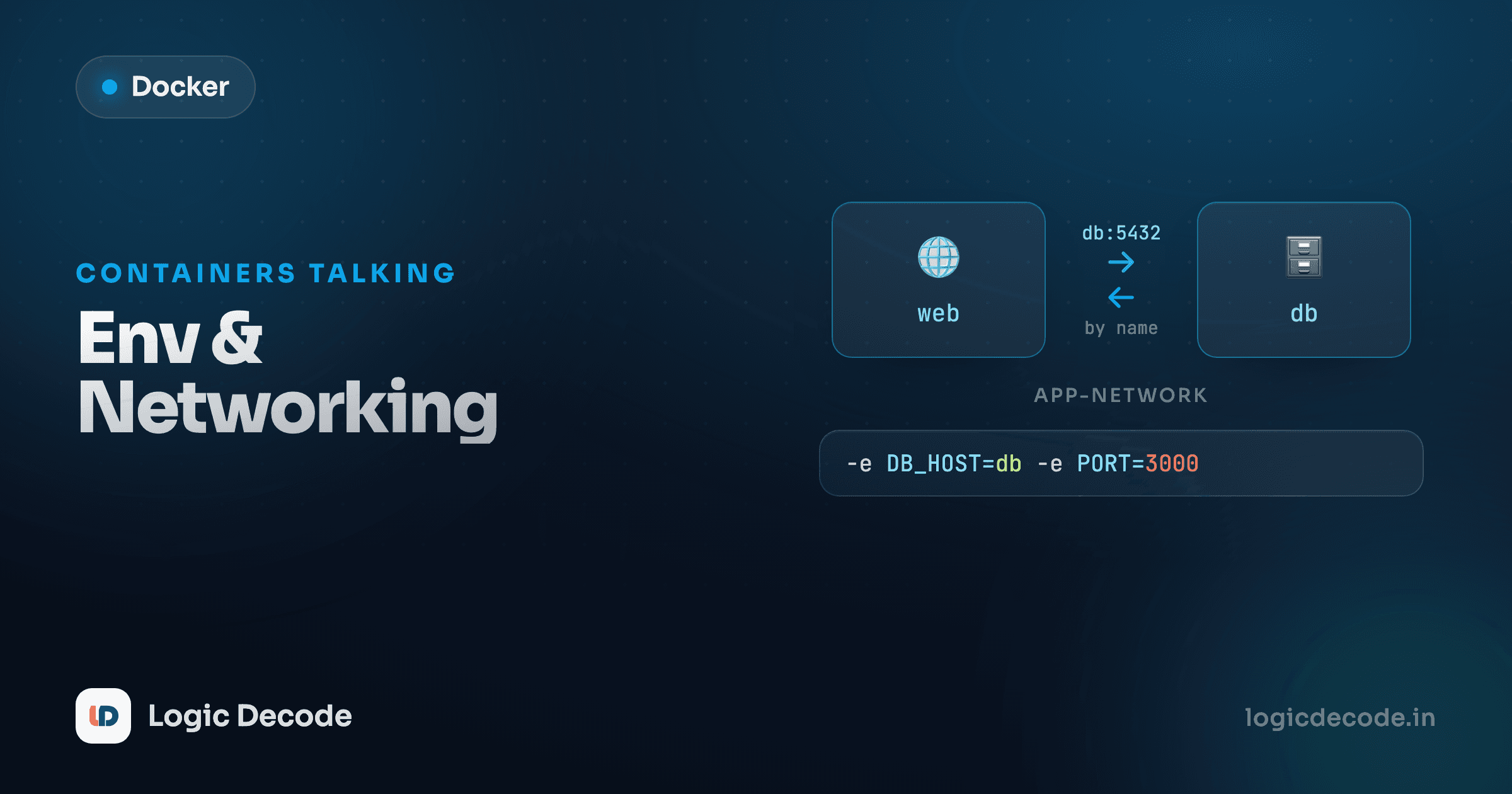
postgres://postgres:secret@db:5432/appdbThe host is db. Not an IP, not localhost, just db, the service name. Compose puts every service in your file onto a shared private network and runs a tiny DNS server on it, so web can reach db by name with zero configuration. No docker network create, no --network flag, no chasing container IPs that change on every restart.
Your browser hits web through the published port on localhost:8080. Inside the Compose network, web talks to db by name on port 5432. The database never exposes a port to your host, because it doesn't need to. That's the whole topology, and you wrote zero networking code to get it.
Quick check
In a docker-compose.yml, how does the 'web' service connect to the 'db' service?
The commands you'll actually use
Compose has a handful of subcommands that cover almost everything day to day.
# Build (if needed) and start everything, logs streamed to your terminal
docker compose up

# Same, but detached — runs in the background and returns your prompt
docker compose up -d

# Stop and remove the containers and the network (named volumes are KEPT)
docker compose down

# Tail logs from all services; -f follows, or name one service
docker compose logs -f
docker compose logs -f web

# List the containers in this project and their status/ports
docker compose ps
A typical loop: docker compose up -d to bring the stack up in the background, docker compose logs -f web to watch your app's output, docker compose ps to confirm everything's healthy, and docker compose down when you're done. Changed your Dockerfile or app code? docker compose up -d --build forces a rebuild before starting.
down -v wipes your data
docker compose down leaves named volumes alone, so your database survives. But docker compose down -v also deletes the volumes. That -v is how you reset a corrupted local database on purpose, and exactly how you accidentally nuke it. Know which one you're typing.
"docker compose" vs "docker-compose": the hyphen matters
You'll see both spellings online, and they are not interchangeable.
docker-compose(with a hyphen) is Compose v1, a separate Python program, now deprecated and not maintained. If you find a tutorial using it, the tutorial is old.docker compose(a space, a subcommand) is Compose v2, a Go plugin built into modern Docker. This is what ships with Docker Desktop and current Docker Engine, and it's what you should use.
The file format is the same for both, so the only practical change is dropping the hyphen in your commands. One more thing while we're cleaning up old habits: you no longer need a version: "3.8" line at the top of the file. Compose v2 ignores it and will warn you it's obsolete. Just start with services:, like the example above.
Recap and what's next
Compose turns a pile of docker run flags and a hand-built network into one declarative file. services: lists your containers. Each picks build: (your code) or image: (a prebuilt one). The ports, environment, volumes, and depends_on keys configure them, and Compose wires up a shared network where services find each other by name. Then docker compose up -d runs the whole stack and docker compose down tears it down. For everything Compose can do (profiles, healthchecks, multiple files, overrides) the official Compose docs are the reference to keep open.
You can now define and run a real multi-container app. Next we tighten it up with Docker best practices: smaller images, faster builds, and the security mistakes worth avoiding before any of this goes to production.

Written by
Rhythm Bhiwani
Engineer and relentless builder, happiest reverse-engineering hard problems until they click.
Enjoyed this?
Tap the heart to leave some love.
Be the first to react
Comments
Join the conversation.
Loading comments…