Docker Image Layers and Build Caching
Why Docker builds are fast (and sometimes slow): images are stacked layers, the build cache reuses them, and command order is everything, plus .dockerignore.

Change one line of code, rebuild, and Docker reinstalls every npm package from scratch: two minutes of waiting for a one-character fix. That's not Docker being slow. That's a Dockerfile written in the wrong order, busting a cache it didn't have to. Once you see how layers and the build cache actually work, you can turn that two-minute rebuild into two seconds.
An image is a stack of layers
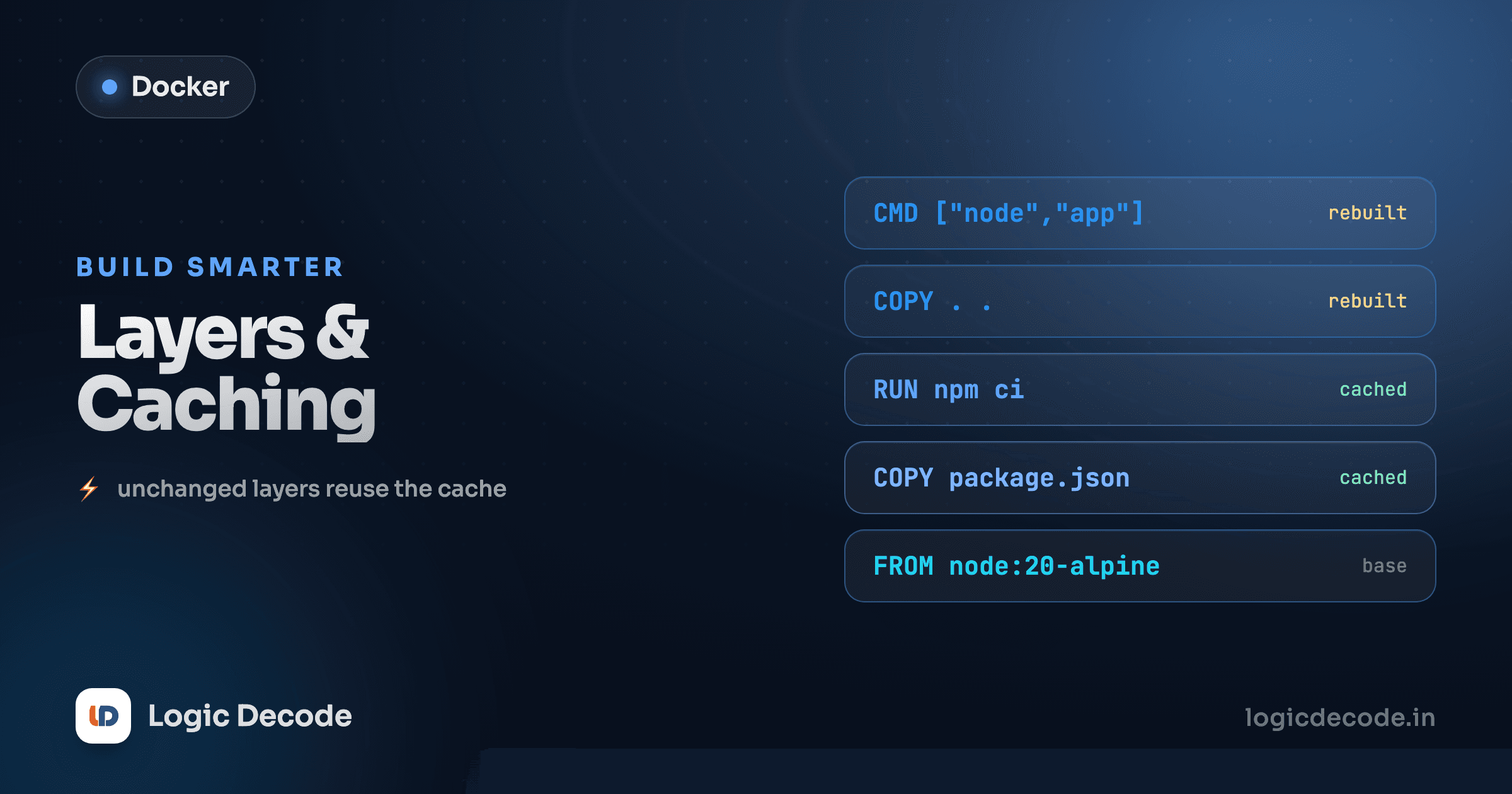
Every instruction in a Dockerfile (FROM, COPY, RUN) creates a new layer. A layer is just the set of filesystem changes that instruction made: the files it added, changed, or deleted. Stack them up and you get the final image.
Take this small Node app Dockerfile:
FROM node:20-slim
WORKDIR /app
COPY package.json package-lock.json ./
RUN npm ci
COPY . .
CMD ["node", "server.js"]
That's six instructions, and roughly six layers. The base image sits at the bottom, then your working directory, then your dependency manifest, then the installed node_modules, then your source, then the command metadata on top. They sit on each other like this:
Each layer is read-only and identified by a hash of its contents. That hashing is the whole trick behind the next part.
The build cache reuses layers
The first time you build, Docker runs every instruction and saves each resulting layer. The second time, it walks the Dockerfile top to bottom and asks one question at each step: has anything changed that would make this layer different? If not, it reuses the saved layer instead of running the instruction again. You'll see CACHED next to those steps in the output:
$ docker build -t myapp .
 => CACHED [2/5] WORKDIR /app
 => CACHED [3/5] COPY package.json package-lock.json ./
 => CACHED [4/5] RUN npm ci
 => [5/5] COPY . .
There's the payoff. npm ci, the slow step, got reused. Docker didn't reinstall anything because nothing it depended on changed.
For COPY and ADD, "changed" means the files being copied have a different checksum. For RUN, it means the command string is different, or (and this is the important bit) a layer before it changed.
Cache invalidation cascades downward
Here's the rule that explains every confusing slow build: when a layer's cache is invalidated, every layer after it is invalidated too. The cache is a chain, not a set of independent slots. Break a link and everything below it has to be rebuilt.
This makes sense once you picture the stack. Layer 5 is built on top of layer 4. If layer 4 changes, layer 5 is now sitting on different ground, so Docker can't trust the old layer 5. It has to rebuild it, and layer 6, and so on down the line.
So the question that decides your build speed is: which layer breaks first when you make a typical change? And for most projects, the typical change is editing source code, not dependencies.
Top vs bottom
Layers are numbered from the base up, but the cache is checked top-to-bottom through the Dockerfile. The first instruction whose inputs changed is where caching stops, and everything from there down gets rebuilt.
The killer optimization: copy manifests before source
This is the single biggest speed-up you can make to a Dockerfile. Look at the bad version first:
FROM node:20-slim
WORKDIR /app
COPY . .
RUN npm ci
CMD ["node", "server.js"]
It copies everything, including your source, in one COPY . ., then installs dependencies. The problem: every time you change any source file, that COPY . . layer is invalidated. And because invalidation cascades, the RUN npm ci right below it is invalidated too. So a one-line edit to server.js triggers a full reinstall of every dependency. Every single time.
Now the good version:
FROM node:20-slim
WORKDIR /app
COPY package.json package-lock.json ./
RUN npm ci
COPY . .
CMD ["node", "server.js"]
Same instructions, reordered. Copy only the dependency manifest first, install, then copy the source. Now when you edit server.js, the only thing that changed is what COPY . . brings in. The COPY package.json and RUN npm ci layers above it are untouched, so they stay cached. Your dependencies install once and get reused on every code change after that.
The principle generalizes to any stack: put the stuff that rarely changes (dependency manifests, system packages) near the top, and the stuff that changes constantly (your source code) near the bottom. It's Python's requirements.txt before the app, a Go module file before the packages, a Gemfile before the Rails app. Order by how often each input changes.
Quick check
You edit one source file and rebuild. With COPY package.json + RUN npm ci placed BEFORE COPY . ., what happens to the npm install step?
Keep the build context small with .dockerignore
When you run docker build ., that . is the build context. Docker tarballs the whole directory and sends it to the daemon before building. If your folder has a 400 MB node_modules and a .git history, all of that gets shipped over, even when your Dockerfile only copies a few files.
Worse, a stray node_modules in the context can sneak into your image through COPY . . and quietly bust your cache. The host's node_modules changes, so the copy layer changes, so the install below it reruns.
Fix both with a .dockerignore file next to your Dockerfile. It works like .gitignore:
node_modules
.git
.env
*.log
dist
.DS_Store
Now those paths never enter the build context. Smaller context means a faster upload, and excluding node_modules means your COPY . . only brings real source, so the cache stays stable for the right reasons. Add a .dockerignore to basically every project. It's a two-minute file that pays off on every build.
Mirror your COPY
A good default is to ignore anything you wouldn't want copied into the image: dependencies that get reinstalled, build output, secrets, and VCS metadata. If it's regenerated inside the container or shouldn't be in the image, it belongs in .dockerignore.
See the layers with docker history
You don't have to guess what your image is made of. docker history lists every layer, newest on top, with the instruction that made it and its size:
$ docker history myapp
IMAGE          CREATED        CREATED BY                       SIZE
a1b2c3d4e5f6   2 minutes ago  CMD ["node" "server.js"]         0B
<missing>      2 minutes ago  COPY . . # buildkit              184kB
<missing>      5 minutes ago  RUN npm ci                       72MB
<missing>      5 minutes ago  COPY package.json package-lo...  2.1kB
<missing>      6 minutes ago  WORKDIR /app                     0B
<missing>      6 minutes ago  /bin/sh -c #(nop) CMD ["node"]   0B
This is how you find what's bloating an image and which layer is the expensive one. Here it's obvious the RUN npm ci layer carries 72 MB of dependencies, exactly the layer you want cached and reused, which is why you put it above the source copy. Reading docker history turns "my image is huge" from a mystery into a list you can act on.
Takeaway
Three rules cover most of it. Each Dockerfile instruction is a cached layer. Invalidating one layer cascades to every layer below it. So order instructions from least-changing to most-changing, with manifest and install before source copy. Add a .dockerignore to keep the context lean and the cache honest, and use docker history to see what you actually built. Do that and your everyday rebuilds drop from minutes to seconds.
If you want to go deeper on cache modes and BuildKit specifics, the official Docker build cache guide is the reference. This builds directly on Dockerfile basics, so if any of the instructions above were unfamiliar, start there. Next up we make a container actually talk to the outside world and remember its data: ports and volumes.

Written by
Rhythm Bhiwani
Engineer and relentless builder, happiest reverse-engineering hard problems until they click.
Enjoyed this?
Tap the heart to leave some love.
Be the first to react
Comments
Join the conversation.
Loading comments…