Creating and Managing Files in the Terminal
Work with files and folders from the command line: mkdir, touch, cp, mv, rm and rmdir, including the flags that save you (and the one that bites).

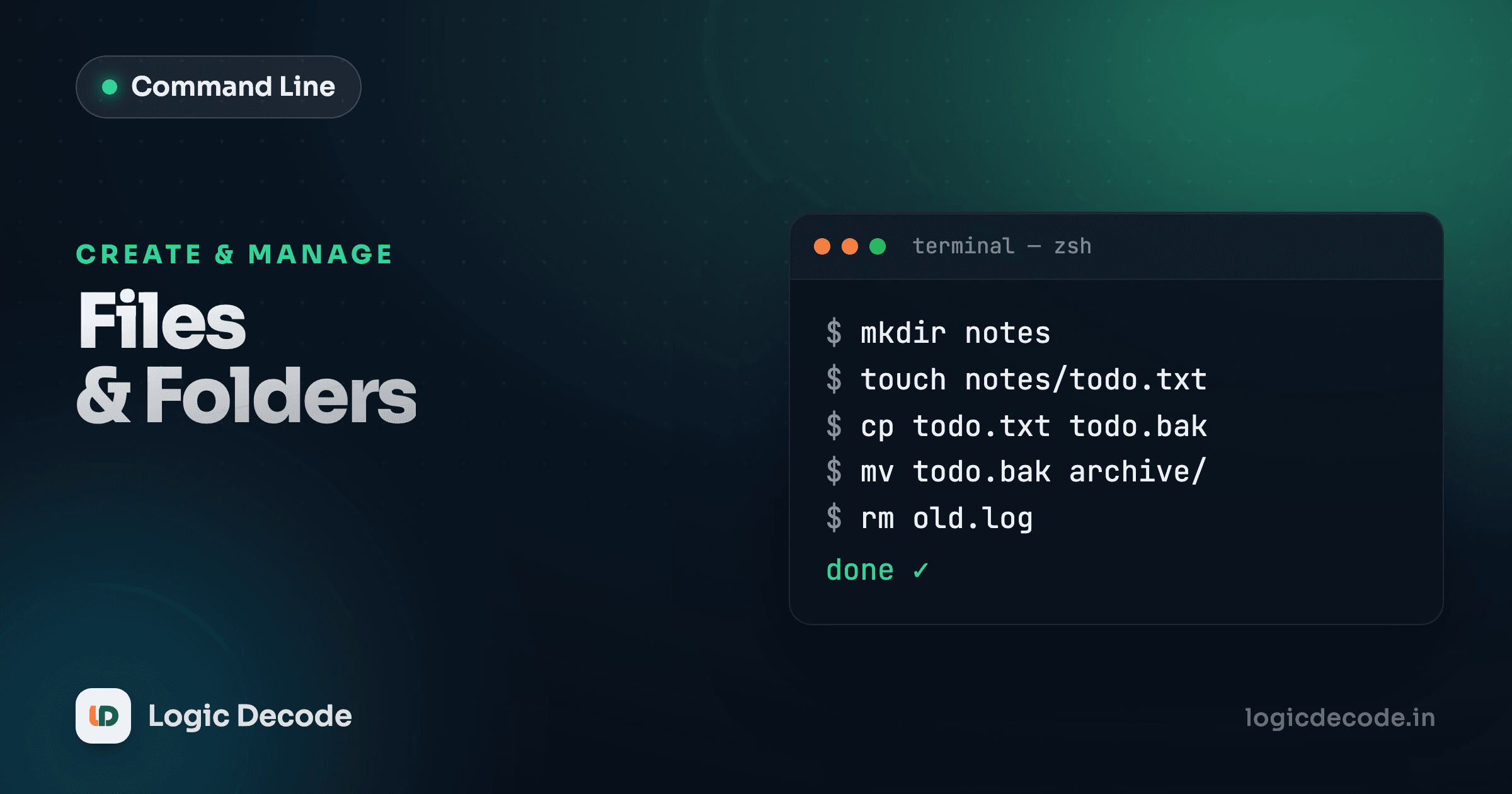
You can already move around the filesystem. Now you get to change it: make folders, drop in files, copy and rename things, and delete what you don't need. This is the bread and butter of working in a terminal: every project you ever set up starts with a few of these commands. The catch is that the terminal does exactly what you say, instantly, with no "are you sure?" and no trash can to dig things back out of. So we'll learn the commands and the flags that make them safe.
Let's build a small project folder from nothing and shape it as we go. Open a terminal and follow along.
mkdir blog
cd blog
mkdir posts drafts images
Three commands and you've got a folder called blog with three subfolders inside. That's the whole loop you'll repeat forever: make a directory, step into it, make more. Now let's slow down and look at each tool properly.
Make directories with mkdir
mkdir means "make directory." Hand it one or more names and it creates them:
mkdir posts
mkdir posts drafts images
The second line makes three folders in one go. So far so good, but try to make a nested folder that doesn't exist yet and mkdir refuses:
mkdir posts/2026/january
# mkdir: cannot create directory 'posts/2026/january': No such file or directory
It won't create posts/2026 just to put january inside it. That's where -p comes in. The -p flag ("parents") tells mkdir to create every directory in the path that's missing:
mkdir -p posts/2026/januaryOne command, three nested folders, no complaints. -p has a second handy trait: it doesn't error if the folder already exists, which makes it safe to run in scripts where you're not sure whether something's already there.
Make a whole tree at once
Brace expansion plus -p scaffolds a project in a single line: mkdir -p src/{components,utils,styles} creates src/components, src/utils, and src/styles all at once. Great for setting up a folder structure the moment you start a project.
Create empty files with touch
Folders are containers, and you need files to put in them. The quickest way to create an empty file is touch:
touch posts/hello.md
touch README.md .gitignore notes.txt
touch was originally built to update a file's timestamp, and it still does that if the file already exists, leaving the contents untouched. But its everyday use is the side effect: if the file doesn't exist, touch creates it, empty. That makes it the go-to for "I just need the file to exist so I can open it in my editor." Need ten numbered files? touch chapter-{1..10}.md makes all ten in one shot.
Here's where the project stands now. Picture the tree:
Copy files and folders with cp
cp copies. The pattern is always the same: cp <source> <destination>.
# copy a file to a new name (the original stays put)
cp README.md README.backup.md

# copy a file into a folder, keeping its name
cp notes.txt drafts/
When the destination is an existing folder (note the trailing /), cp drops the copy inside it with the same name. When the destination is a new name, you get a renamed duplicate. The source always survives. That's the difference between copying and moving.
Try to copy a folder the plain way, though, and cp balks:
cp drafts archive
# cp: -r not specified; omitting directory 'drafts'
A folder has contents, and copying it means copying everything inside, recursively. You opt into that with -r ("recursive"):
cp -r drafts archiveThat duplicates drafts and everything in it into a new folder called archive. Whenever you're copying a directory, you need -r. Whenever you're copying a single file, you don't.
Quick check
You want to copy an entire folder called src into a new folder called src-backup. Which command works?
Move and rename with mv
Here's the one that surprises people: there's no separate "rename" command. Renaming is moving. You move a file from its old name to a new one. mv does both jobs.
# rename: move notes.txt to ideas.txt (same folder, new name)
mv notes.txt ideas.txt

# move: relocate a file into another folder, keeping its name
mv ideas.txt drafts/

# move AND rename in one step
mv drafts/ideas.txt posts/published-ideas.md
The mental model is identical to cp, with one difference: mv doesn't leave the original behind. After mv notes.txt ideas.txt, there is no notes.txt anymore. It's ideas.txt now. And unlike cp, you don't need -r to move a folder. Moving a directory is just relinking where it lives, so mv drafts archive-drafts works directly whether drafts has one file or a thousand.
One thing to watch: if the destination name already exists, mv overwrites it without asking. mv a.txt b.txt when b.txt already has content silently replaces it. The -i flag ("interactive") makes mv prompt before clobbering, so mv -i a.txt b.txt asks first. Worth using when you're not certain.
Delete with rm and rmdir
Deleting is where the terminal earns its scary reputation, so read this section twice.
rm removes files:
# delete one file
rm notes.txt

# delete several at once
rm draft1.md draft2.md temp.log
Gone. Not in a recycle bin, not recoverable from the desktop. Just gone. rm deletes immediately and permanently. There's a flag that adds a confirmation prompt, -i ("interactive"), and it's a good habit when you're deleting anything you can't easily recreate:
rm -i important.txt
# rm: remove regular file 'important.txt'? y
To delete a folder, you have two options. rmdir removes a directory, but only if it's already empty:
rmdir images
# rmdir: failed to remove 'drafts': Directory not empty
That "empty only" rule is a feature, not an annoyance. rmdir can't accidentally wipe out a folder full of work, because it refuses the moment there's anything inside. For deleting a folder and its contents, you reach for rm -r (recursive), which removes the directory and everything in it:
rm -r archiveThis is genuinely useful and genuinely dangerous, which brings us to the one command you must respect.
The command that bites: rm -rf
You'll see rm -rf everywhere, in tutorials, in scripts, in Stack Overflow answers. It's rm with two flags: -r (recursive, so it descends into folders) and -f (force, which skips every confirmation and ignores "this doesn't exist" errors). Together they mean delete this and everything under it, right now, no questions, no warnings.
# delete a folder and all its contents, no prompts
rm -rf node_modules
That specific use is fine and common. node_modules is regenerable, you delete it constantly. The problem is that the same command pointed at the wrong place is catastrophic, and there is no undo.
rm -rf has no undo, so read the path twice
There is no trash can and no recovery. rm -rf deletes recursively and silently, so a typo in the path can erase far more than you meant. The classic disasters: rm -rf / (tries to wipe your entire system), and the spacing trap rm -rf / path/to/thing, where that stray space means "delete / AND path/to/thing," not the folder you intended. A trailing variable that's empty does the same: rm -rf "$DIR/" becomes rm -rf / when $DIR is unset. Before you press Enter on any rm -rf, read the path out loud. When in doubt, cd into the parent and delete by a short, obviously-correct name, or run ls on the exact target first to see precisely what you're about to destroy.
The safe habits are simple. Use rm -ri instead of rm -rf when you're unsure. The -i makes it ask before each deletion. Never combine rm -rf with a wildcard you haven't checked. And remember the deeper truth: unlike deleting in a file manager, the terminal's rm doesn't move things to a trash folder. What you delete is immediately reclaimed by the system.
Wildcards: act on many files at once
A wildcard lets one command hit a whole batch of files. The star * matches any run of characters, so you can select files by pattern instead of naming each one:
# every Markdown file in the current folder
ls *.md

# delete every .log file
rm *.log

# copy all images into a folder
cp *.png images/
The shell expands the * before the command runs, so rm *.log becomes rm error.log debug.log access.log and then rm sees the full list. That's handy and a little hair-raising, because the safest way to know what a wildcard will hit is to test it with a harmless command first:
# preview what the pattern matches BEFORE you delete
ls *.tmp
# happy with the list? now run the destructive command
rm *.tmp
rm * deletes everything in the folder
rm * matches every file in the current directory and deletes all of them instantly, with no confirmation and no trash. The truly painful variant is an accidental space: rm * .txt is read as "delete everything (*) and also a file literally named .txt," so it nukes the whole folder instead of just the .txt files you wanted. Always ls your pattern first, and double-check there's no stray space between rm and *.
Where to go next
You can now shape the filesystem from the keyboard: mkdir (and mkdir -p for nested folders), touch to create empty files, cp to copy (with -r for directories), mv to move and rename in one tool, rm to delete files, rmdir for empty folders, and rm -r for folders with contents. Wildcards like * let one command act on a whole batch. The thread running through all of it: the terminal has no undo, so -i is your seatbelt and ls is your dry run, especially before anything with rm -rf or rm *.
For the exhaustive reference on every flag these commands accept, the GNU Coreutils manual is the primary source: GNU Coreutils manual.
You came from Navigation, where you learned to move around without touching anything. Now that you can create files, the obvious next question is how to look inside them and make edits. That's next: Viewing and editing files.

Written by
Rhythm Bhiwani
Engineer and relentless builder, happiest reverse-engineering hard problems until they click.
Enjoyed this?
Tap the heart to leave some love.
Be the first to react
Comments
Join the conversation.
Loading comments…