Command Line Navigation: pwd, ls and cd
Move around the filesystem in the terminal: pwd, ls and its flags, cd, and absolute vs relative paths, with a diagram of the directory tree.

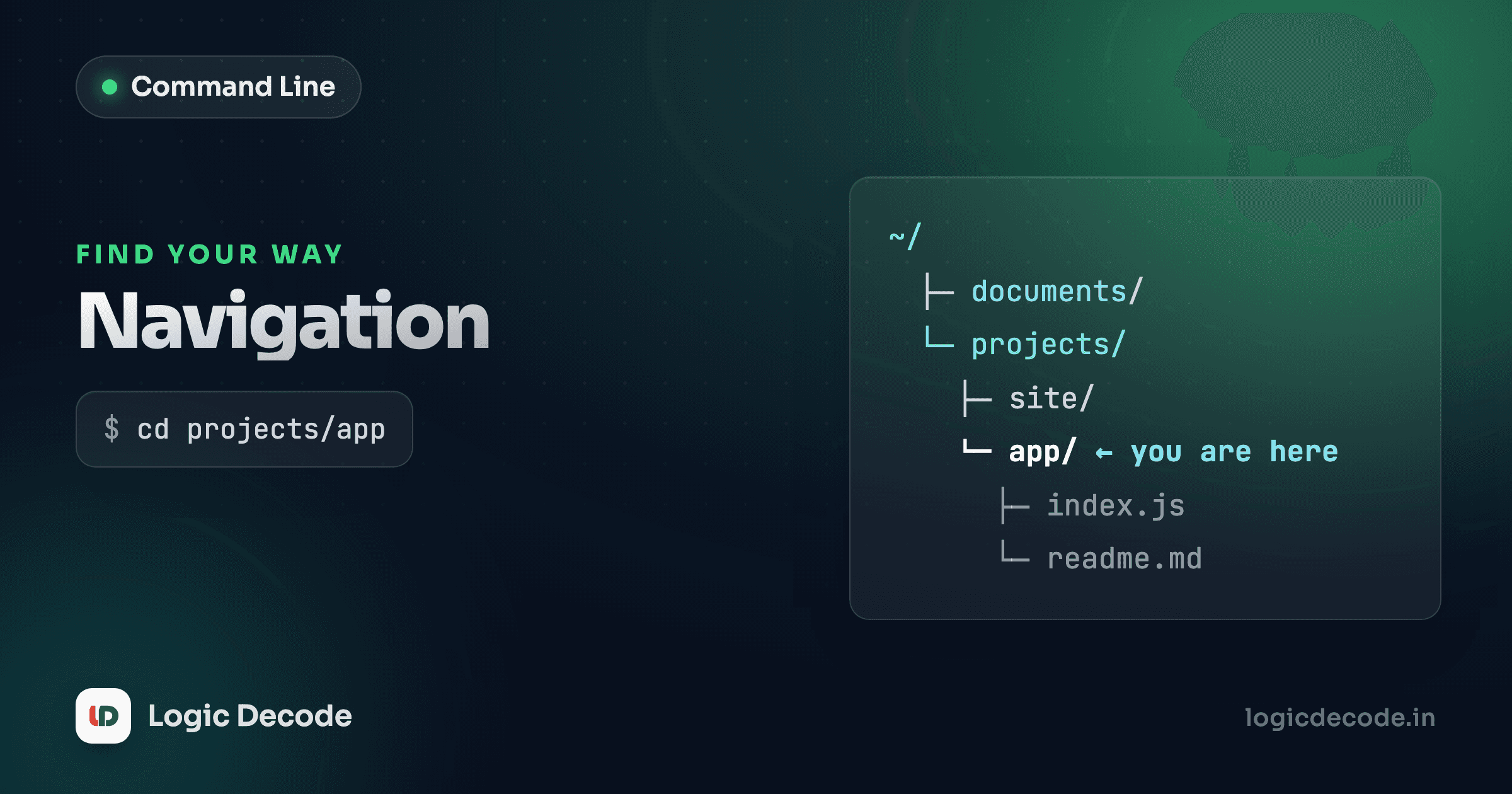
A file manager shows you one folder at a time and makes you click to move. The terminal lets you jump anywhere in one line and see exactly where you are. Three commands cover almost all of it: pwd tells you where you are, ls shows what's around you, and cd moves you somewhere else. Learn those and the filesystem stops being a maze you click through and becomes a place you walk on purpose.
Open a terminal and run this right now:
pwd/Users/mayaThat's your answer to "where am I?", the full path from the top of the disk down to the folder you're standing in. Everything else in this lesson builds on that one idea: you're always somewhere, and the commands act on that somewhere.
The filesystem is a tree
Your files aren't a flat pile. They're a tree that branches out from a single starting point called the root, written as a single slash: /. Every file and folder hangs off root somewhere. Folders contain other folders, which contain files, all the way down.
Your personal folder, where your documents, downloads, and config live, is your home directory. It has a nickname: ~ (a tilde). On most machines ~ expands to something like /home/maya on Linux or /Users/maya on a Mac. Wherever you wander, ~ always points back home, so you never have to remember the full path.
A quick vocabulary note, because it trips people up: "directory" and "folder" mean the same thing. The terminal world says directory. The desktop world says folder. Same object.
Look around with ls
pwd says where you are. ls (short for list) shows what's there:
lsdownloads projectsPlain ls gives you names and nothing else. The real power is in its flags, single letters after a dash that change what it shows.
-l (a lowercase L, for long) gives one item per line with details: permissions, owner, size in bytes, and the last-modified date.
ls -ldrwxr-xr-x 4 maya staff 128 Jul 28 09:14 downloads
drwxr-xr-x 6 maya staff 192 Aug 1 10:02 projectsThat leading d means it's a directory. We'll decode the rest of those permission letters in a later lesson. For now, just know -l is how you see more than names.
-a (for all) reveals hidden files. Any file whose name starts with a dot is hidden by default, and that's where a lot of config lives: .gitignore, .env, .bashrc.
ls -a. .. .bashrc downloads projectsTwo odd entries always show up with -a: . is the current directory and .. is the parent directory. Remember those two. They're the key to moving around with cd in a second.
-h makes sizes human-readable (4.0K, 2.1M, 1.3G) instead of raw byte counts. It only matters alongside -l, and flags stack, so you combine them:
ls -lahtotal 8
drwxr-xr-x 5 maya staff 160B Aug 1 10:02 .
drwxr-xr-x 18 maya staff 576B Jul 30 14:20 ..
-rw-r--r-- 1 maya staff 312B Jul 12 08:33 .bashrc
drwxr-xr-x 4 maya staff 128B Jul 28 09:14 downloads
drwxr-xr-x 6 maya staff 192B Aug 1 10:02 projectsls -lah (long, all, human-readable) is the combo I type without thinking. Order of the letters doesn't matter. ls -hal does the same thing.
Stack your flags
Single-letter flags combine behind one dash. ls -l -a -h, ls -lah, and ls -hla are all identical. Pick whatever rolls off your fingers.
Move with cd
cd (change directory) moves you to a new spot. Hand it a path and you go there. The cleanest way to see it is to move, then check with pwd:
cd projects
pwd/Users/maya/projectsThat projects is a relative path, relative to wherever you already are. You were in /Users/maya, you said projects, so the terminal looked for a projects folder right here and stepped into it. Relative paths are the everyday case: short, no leading slash, read from your current spot.
The other kind is an absolute path: it starts with / and spells out the location from root, so it works no matter where you currently stand.
cd /Users/maya/projects/website
pwd/Users/maya/projects/websiteRule of thumb: a path starting with / is absolute (counted from root). Anything else is relative (counted from here). Same destination, two ways to name it.
Going up, here, and home
This is where . and .. from earlier pay off. To go up one level to the parent, use ..:
cd ..
pwd/Users/maya/projectsChain them to climb several levels at once. cd ../.. goes up two. You can mix up and down in one path: cd ../downloads means "up to the parent, then into downloads."
. means here, the directory you're already in. You rarely cd . (it goes nowhere), but . shows up constantly when you run a program in the current folder, like ./script.sh.
Three shortcuts make life faster:
cd ~          # straight home, from anywhere
cd            # bare cd also goes home
cd -          # back to the last directory you were in
cd - is the one people fall in love with. It's a toggle between your two most recent locations. Bounce between a project and your downloads folder without retyping either path.
Quick check
You're in /Users/maya/projects/website. Which command lands you in /Users/maya/downloads?
Let tab do the typing
Typing full folder names is slow and error-prone. So don't. Type the first few letters and hit the Tab key, and the shell completes the name for you:
cd pro # press Tab, it fills in "projects/"If only one thing matches, Tab finishes it. If several match, Tab fills in as far as it can unambiguously, and pressing Tab again lists the options. Beyond saving keystrokes, tab completion is a built-in spell-check: if Tab won't complete a name, you've either typed it wrong or you're not where you think you are. Run pwd and look again.
Use Tab constantly. Watching someone navigate a terminal by typing every path character by character is like watching them ignore autocomplete in a search bar. It works, but why.
Putting it together
Here's a full walk through the tree from the diagram, start to finish:
pwd                       # /Users/maya
cd projects               # relative: into projects
ls                        # website  notes.txt
cd website                # deeper in
pwd                       # /Users/maya/projects/website
ls -l                     # see index.html with details
cd ..                     # back up to projects
cd ~                      # jump home from anywhere
cd -                      # toggle back to projects
No clicking, no scrolling through windows. You looked, you moved, you checked, and you bounced home and back, all in a handful of lines. That loop of pwd to orient, ls to look, cd to move is the rhythm you'll run thousands of times.
Recap and what's next
You're never lost in a terminal anymore: pwd answers "where am I?", ls (with -l, -a, and -h) shows what's around, and cd moves you there. Paths come in two flavors, absolute from root (/Users/maya) and relative from here (projects, .., .), plus the home shortcut ~ and the toggle cd -. And Tab completes names so you type a fraction of what you read. For the exhaustive list of flags these commands accept, the GNU Coreutils manual is the primary source.
If you skipped the start of the series, Why the command line? makes the case for living in the terminal in the first place. Next we go from moving around to actually changing things: Files and directories, creating, copying, moving, and deleting with mkdir, touch, cp, mv, and rm.

Written by
Rhythm Bhiwani
Engineer and relentless builder, happiest reverse-engineering hard problems until they click.
Enjoyed this?
Tap the heart to leave some love.
Be the first to react
Comments
Join the conversation.
Loading comments…