Why the Command Line? A Developer's Superpower
What the terminal and shell are, why developers live in them, and how the command line makes you faster. The mental model before the commands.

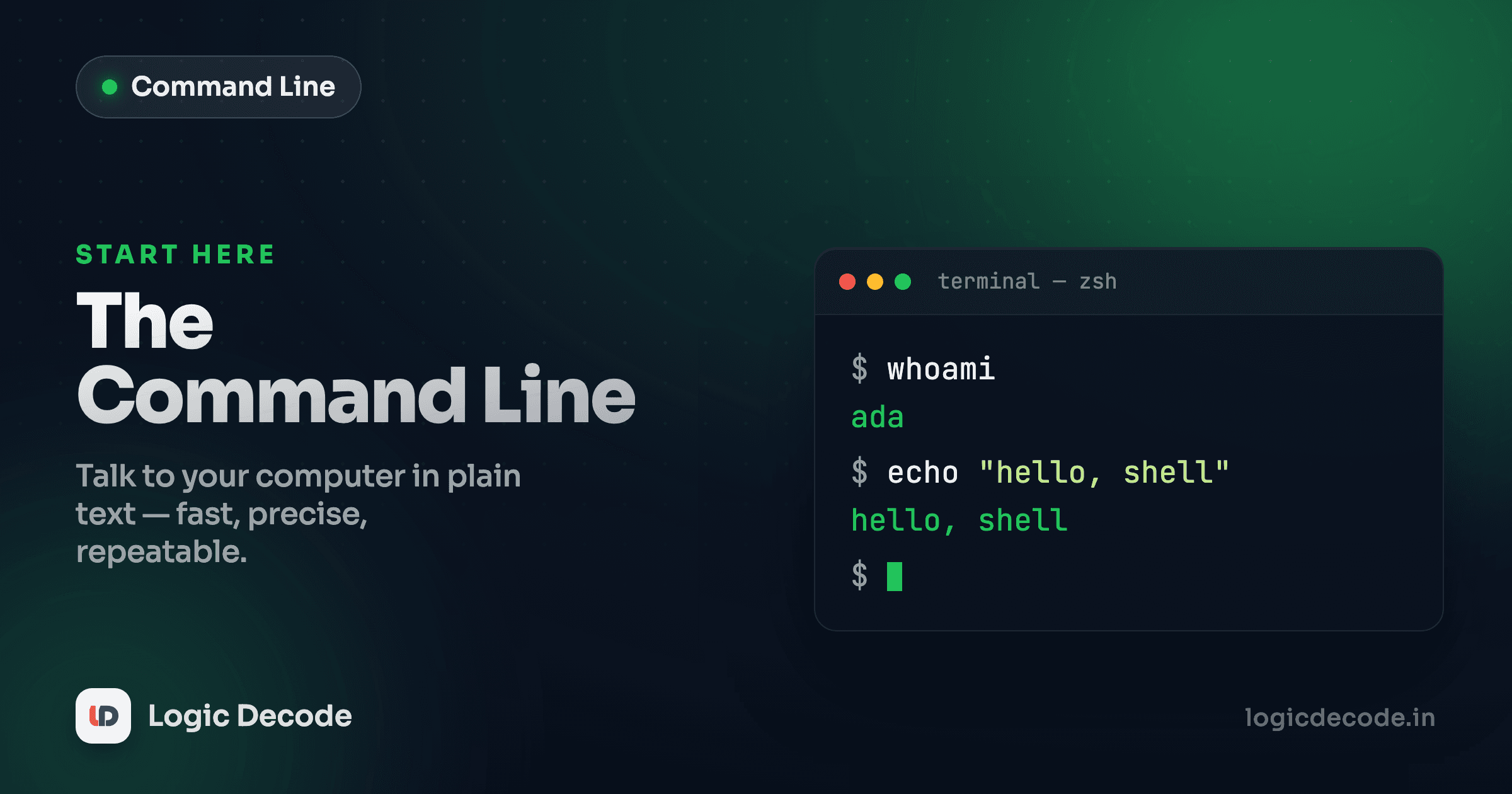
A black window with a blinking cursor and no buttons looks like the least friendly piece of software on your computer. It's actually the most capable. Watch a senior developer work for ten minutes and you'll notice they keep dropping into that window to do things you'd swear needed a whole app. This series teaches you to do the same. Before any commands, this first lesson gives you the mental model: what you're actually typing into, and why it's worth learning.
The win, before the theory
Say you've got a folder with 300 photos and you want to find the four that are bigger than 5 megabytes, the ones eating your disk. In a file manager that's a lot of clicking: sort by size, squint, scroll, eyeball each one. In the terminal it's one line.
find . -size +5M -name "*.jpg"
# ./vacation/IMG_2231.jpg
# ./vacation/IMG_2247.jpg
# ./screenshots/recording-final.jpg
# ./headshot-raw.jpg
Four files, instantly, no clicking. And here's the part that matters: that line is text. You can save it, tweak it (change 5M to 10M), schedule it to run every night, or paste it into a script that emails you the results. A button in a GUI does one thing once. A command is a reusable instruction you can build on. That difference is the whole reason the command line never dies.
Terminal vs shell (they're not the same thing)
People say "the terminal" to mean all of this, but two separate programs are involved, and knowing the split makes everything else clearer.
The terminal (or terminal emulator) is the window. It's the app: Terminal on macOS, Windows Terminal, GNOME Terminal, iTerm2. Its only job is to show text and capture your keystrokes. It draws the characters. It doesn't understand them.
The shell is the program running inside that window, the one that actually reads what you type, figures out what you mean, and runs it. When you type find . -size +5M, the terminal just passes those characters along. The shell is what interprets them and launches the find program.
So: terminal = the window, shell = the brain inside it. The reason this matters is that you can swap either one. The same shell runs in any terminal, and you can change which shell you use without changing your terminal at all.
bash and zsh
The shell is a real program with a name, and there are a few popular ones. The two you'll meet constantly are bash and zsh.
bash (the "Bourne Again Shell") is the workhorse. It's been the default on Linux for decades, it's what almost every tutorial and server script assumes, and it's what runs inside most Docker containers and CI pipelines. If you learn one shell, learn this one. It's thoroughly documented and it's everywhere.
zsh (the "Z shell") is bash's slicker cousin, with better autocomplete, nicer prompts, and easy theming with frameworks like Oh My Zsh. It's been the default on macOS since 2019. The good news: for everything in this series, bash and zsh behave the same. The commands you'll learn (moving around, listing files, piping output) are identical in both. You don't have to choose. Want to know which one you're running right now? Ask it.
echo $SHELL
# /bin/zsh    (or /bin/bash — either is fine for this series)
Windows folks
Native Windows uses PowerShell or cmd, which speak a different dialect. The cleanest way to follow along on Windows is WSL (Windows Subsystem for Linux), which gives you a real Linux shell (bash) right inside Windows. Install it and you're on the same page as everyone else.
Reading the prompt
Before you type a thing, the shell shows you a prompt, a little status line telling you where you are and that it's ready. It looks intimidating because it's dense, but every piece means something. A typical one:
maya@laptop:~/projects/blog$Read it left to right:
mayais your username, who you're logged in as.@laptopis the machine name. Trivial on your own computer, but a lifesaver when you're logged into three remote servers at once and need to know which window is which.~/projects/blogis your current directory, where commands will run. The~is shorthand for your home folder, so this is/home/maya/projects/blog.$is the ready signal. Everything you type goes after it. (A regular user gets$. The almighty admin "root" user gets#, a quiet warning to be careful.)
That's it. Once the prompt stops being noise and starts being information, the terminal feels a lot less hostile. You always know who you are, what machine you're on, and where you're standing.
Quick check
In the prompt maya@laptop:~/projects/blog$, what does ~/projects/blog tell you?
Why developers actually live here
The photo example was a taste. Here's why the command line is non-negotiable once you're building software, not just one nice trick.
It's faster for the things you do all day. Create a project folder, jump into it, and start your dev server in three short lines — no windows, no menus:
mkdir my-app && cd my-app
npm init -y          # creates package.json
npm run dev          # starts the server
Each is a few keystrokes, and crucially you can recall the last one by tapping the up arrow instead of clicking through a UI again.
It automates. Because commands are text, you can string them together and save them as a script, a file the computer runs for you. A task that's twelve manual steps becomes ./deploy.sh. Do something twice and you'll want to script it. The command line is where that lives. (We build a real script in the last lesson of this series.)
It's how you talk to servers. The computer running your website is in a data center somewhere with no screen and no mouse. You reach it over SSH, and what you get is a prompt. There is no GUI option. Same story for Docker containers, CI runners, and most cloud tooling: the command line isn't one way to operate them, it's the only way. That's also why the next series in this track, Git & GitHub, leans on the terminal so heavily. Version control was born on the command line.
It's everywhere and it's stable. The cd command worked in 1985 and works today. Learn these tools once and they pay off across every language, every framework, every operating system, for the rest of your career. Few skills in tech have that shelf life.
You will not break your computer
The fear that one wrong command nukes everything keeps a lot of people out of the terminal. Reality: the everyday commands (listing files, moving around, reading text) only look, they don't destroy. The genuinely dangerous ones are few, specific, and easy to recognize once you know them. We'll flag every sharp edge as we go. For now: poke around freely.
The mental model to carry forward
Strip away the intimidation and the command line is a simple loop. You type a command. The shell reads it and runs the matching program. The program does its job and prints the result back. You read it, and type the next thing. That's the entire game: a conversation, one line at a time.
ls               # you ask: what's in here?
# notes.txt  photos  todo.md
cat todo.md      # you ask: show me this file
# - learn the command line
# - automate the boring stuff
Every lesson from here just adds vocabulary to that conversation: words for moving around, for handling files, for searching, for chaining tools together. The loop never changes.
What's next
You now know what you're looking at: a terminal window running a shell (bash or zsh) that reads your commands, runs programs, and hands back output, and you can read the prompt to know where you stand. That's the foundation the rest of this series builds on.
Next up, the single most important skill in the terminal: moving around. Where am I, what's here, and how do I get somewhere else? See Navigating the filesystem. Open your terminal, get that prompt in front of you, and meet me there.

Written by
Rhythm Bhiwani
Engineer and relentless builder, happiest reverse-engineering hard problems until they click.
Enjoyed this?
Tap the heart to leave some love.
Be the first to react
Comments
Join the conversation.
Loading comments…