Viewing and Editing Files in the Terminal
Read files from the command line with cat, less, head and tail, then make quick edits with nano: the everyday tools for inspecting logs and config.

You SSH into a server, a request is failing, and the answer is sitting in a log file somewhere. There's no editor, no file browser, just a blinking prompt. Knowing how to read that file fast, and tweak a config line without leaving the terminal, is the difference between fixing it in thirty seconds and flailing for ten minutes. That's this whole lesson.
We'll use one sample file the whole way through. Create it so you can follow along:
cat > app.log <<'EOF'
2026-08-02 09:14:02 INFO  server started on :8080
2026-08-02 09:14:05 INFO  GET /health 200 3ms
2026-08-02 09:15:11 WARN  slow query took 812ms
2026-08-02 09:15:12 INFO  GET /users 200 121ms
2026-08-02 09:16:40 ERROR db connection refused
2026-08-02 09:16:41 INFO  retrying in 2s
2026-08-02 09:16:43 INFO  db connection restored
EOF
That cat > trick writes everything up to EOF into a new file. Handy, but mostly we use cat to read, which is next.
cat: dump a whole file
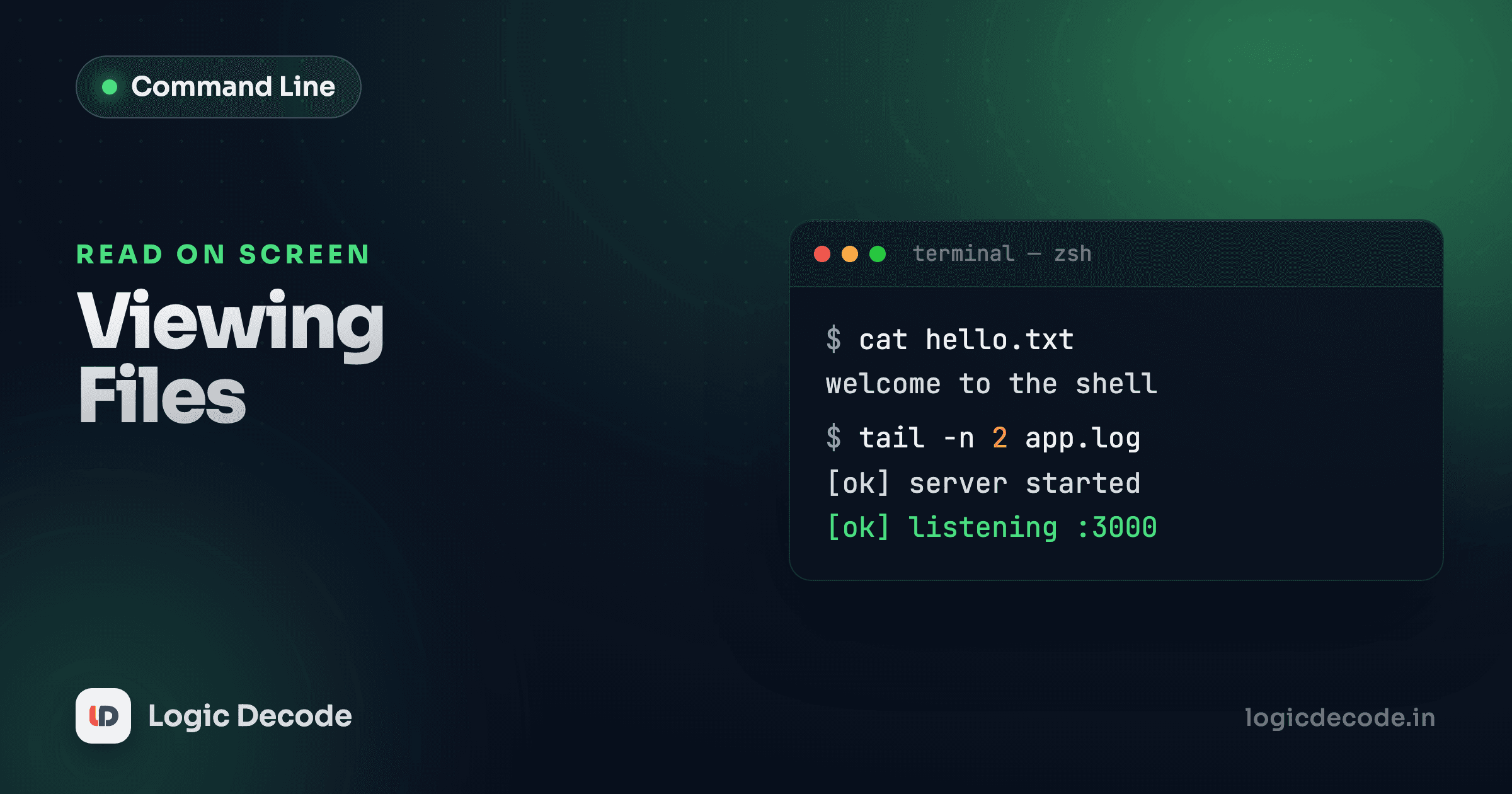
cat prints a file straight to the terminal. No paging, no fuss.
cat app.log2026-08-02 09:14:02 INFO server started on :8080
2026-08-02 09:14:05 INFO GET /health 200 3ms
2026-08-02 09:15:11 WARN slow query took 812ms
2026-08-02 09:15:12 INFO GET /users 200 121ms
2026-08-02 09:16:40 ERROR db connection refused
2026-08-02 09:16:41 INFO  retrying in 2s
2026-08-02 09:16:43 INFO db connection restoredThe name is short for concatenate, because its original job was joining files together. Pass it two and it prints them back to back:
cat header.txt body.txtThat's the whole feature. There's no separator, it just runs one file into the next. cat is perfect for short files: a .env, a small config, a seven-line log. But run it on a 50,000-line log and it'll fire the entire thing past your screen and dump you at the bottom, with no way to scroll back through it sanely. For anything that doesn't fit on one screen, you want a pager.
Don't cat a giant file
Running cat on a multi-megabyte log floods your terminal and can even lag your session over a slow SSH link. When in doubt about a file's size, reach for less instead. It loads lazily and shows you the top immediately.
less: read big files one screen at a time
less opens a file in a scrollable view instead of dumping it. You move around, you search, you quit. The file never scrolls off into nowhere.
less app.logNow you're inside less, and your keyboard drives it:
Spaceorfpages down,bpages up- arrow keys or
j/kscroll one line at a time gjumps to the top,Gjumps to the bottom/errorsearches forward for "error", thennfor the next match,Nfor the previousqquits and gets your prompt back
That search is the killer feature. Open a 10,000-line log, type /ERROR, hit Enter, and you're staring at the first error with n ready to walk you through the rest. Searches are case-sensitive by default. Add -i when you launch (less -i app.log) to make them case-insensitive.
The one key everyone forgets
The way out of less is q. New folks open a file, can't escape, and close the whole terminal in a panic. It's just q. (Yes, less is named as the better successor to an older pager called more, hence "less is more.")
head and tail: just the ends
Often you don't want the whole file, only a peek. head shows the first 10 lines, tail shows the last 10.
head app.log2026-08-02 09:14:02 INFO server started on :8080
2026-08-02 09:14:05 INFO GET /health 200 3ms
2026-08-02 09:15:11 WARN slow query took 812ms
2026-08-02 09:15:12 INFO GET /users 200 121ms
2026-08-02 09:16:40 ERROR db connection refused
2026-08-02 09:16:41 INFO retrying in 2s
2026-08-02 09:16:43 INFO db connection restoredOur file is only seven lines, so head shows all of it. Control the count with -n:
tail -n 3 app.log2026-08-02 09:16:40 ERROR db connection refused
2026-08-02 09:16:41 INFO retrying in 2s
2026-08-02 09:16:43 INFO db connection restoredtail is the one you'll reach for constantly, because the newest log lines are at the bottom of the file. The most recent thing your app did is the last line. And then there's the flag that earns tail its keep: -f, for follow.
tail -f app.logInstead of printing the end and quitting, tail -f parks at the bottom and prints new lines as they're written. It's a live feed of your log. Start it in one terminal, hit your app in another, and watch the requests stream in real time:
2026-08-02 09:16:43 INFO  db connection restored
2026-08-02 09:18:01 INFO  GET /orders 200 64ms
2026-08-02 09:18:09 WARN  cache miss for key user:42
This is how you debug a running service. No refreshing, no re-running cat. You watch the failure happen. Quit the follow with Ctrl-C. A common combo is tail -f plus a filter (you'll meet pipes in the next lesson): show me only the errors as they happen, and ignore the rest.
Quick check
You want to watch a server's log update live as new requests come in. Which command?
wc: count lines, words, bytes
wc (word count) is a tiny tool that tells you how big something is. By itself it prints lines, words, and bytes:
wc app.log 7 49 330 app.logThat's 7 lines, 49 words, 330 bytes. The flag you'll use most is -l for just the line count:
wc -l app.log7 app.logOn its own that's mildly useful. Where wc -l shines is on the end of a pipe. "How many lines mention ERROR?" becomes a one-liner once you can feed one command's output into the next. That's the next lesson's whole story.
Quick edits with nano
Reading is half the job. Sooner or later you need to change one line in a config file on a box that has no graphical editor. nano is the friendliest way to do it. It shows its shortcuts right on screen, so there's nothing to memorize.
nano app.logYou're now in the editor. Type and arrow around like any text box, and there's no weird "mode" to fight. At the bottom you'll see a bar like this:
^G Get Help   ^O Write Out   ^W Where Is   ^K Cut Text
^X Exit       ^R Read File   ^\ Replace    ^U Paste
The ^ means the Ctrl key. The only two you truly need:
Ctrl-Owrites out (saves). It asks you to confirm the filename, so press Enter to keep it.Ctrl-Xexits. If you have unsaved changes it'll prompt you to save first (Ythen Enter).
So the full edit loop is: open with nano file, change your line, Ctrl-O then Enter to save, Ctrl-X to leave. That's enough to fix a port number or flip a feature flag on a remote server, which covers most real edits you'll make from a terminal.
And then there's vim
You'll eventually land in vim by accident, because some tools open it as the default editor (a Git commit message, a crontab). It's capable and worth learning later, but it has modes, so typing does surprising things and there's no on-screen help. If you just need out: press Esc, then type :q! and hit Enter. That quits without saving and gets your prompt back. Remember those four keystrokes and vim can never trap you.
When to use what
Reach for the tool that matches the file:
catfor short files you want to see all of at once, or joining files together.lessfor anything big, or anything you need to search and scroll.head/tailfor just the start or end, withtail -fto watch a live log.wc -lto count lines (and it gets handy once you pipe into it).nanofor a quick, no-surprises edit, andvimwhen a tool forces it on you (escape with:q!).
These five cover nearly everything you'll do to a file from the command line day to day. For the exhaustive flag list, the GNU coreutils manual documents cat, head, tail, and wc in full.
The real jump is next. Right now each command works on a file and prints to your screen. The moment you can take one command's output and feed it straight into another (cat a log, filter it for errors, count the result, all in one line) the terminal stops being a set of separate tools and becomes a pipeline. That's exactly where we're headed in Pipes and redirection. And if you skipped it, the previous lesson on Files and directories is what got us the files we're now reading.

Written by
Rhythm Bhiwani
Engineer and relentless builder, happiest reverse-engineering hard problems until they click.
Enjoyed this?
Tap the heart to leave some love.
Be the first to react
Comments
Join the conversation.
Loading comments…