Pipes and Redirection in the Shell
Chain commands like Lego: pipes (|) pass output along, and redirection (>, >>, <) sends it to files. The idea that makes the command line click.

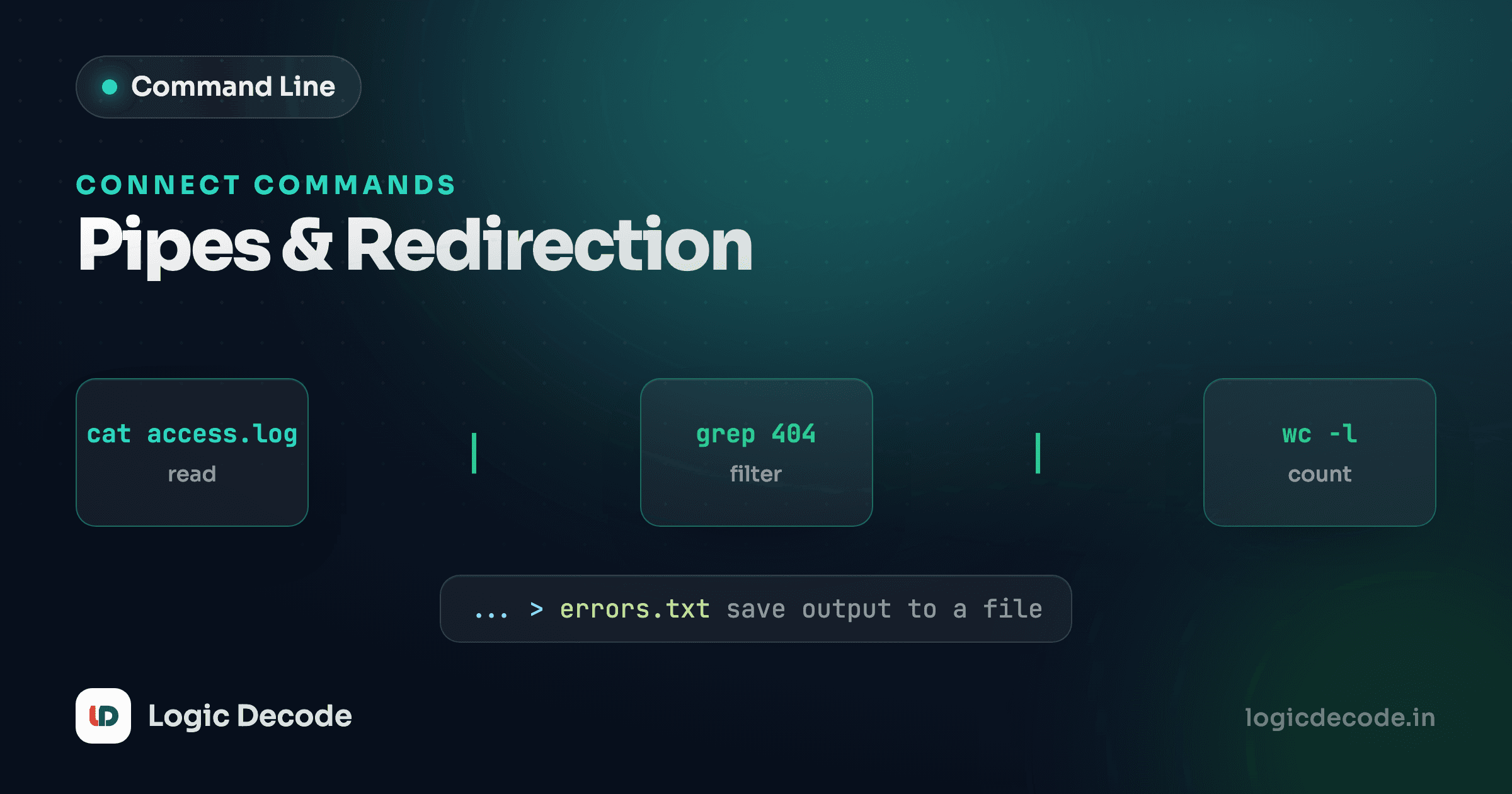
You want to know how many files are in a folder. There's no count-files command, and there doesn't need to be. There's ls, which lists files, and wc, which counts lines. Glue them together with a single | character and you've built the tool you needed:
ls | wc -lThat little | is the whole reason the command line stays useful decades after someone could've replaced it with a thousand buttons. You don't memorize ten thousand commands. You learn a few dozen small ones and snap them together to solve problems nobody anticipated.
The Unix philosophy: small tools, combined
The terminal isn't one giant program. It's a pile of tiny ones, each doing a single job and doing it well. ls lists. sort sorts. wc counts. grep filters. None of them know about each other, and that's the point. They all agree on one thing: text goes in, text comes out.
This is the Unix philosophy, written down by Doug McIlroy (who invented pipes) in 1978: write programs that do one thing well, and write programs to work together. A command that tried to list-and-count-and-sort-and-filter would be a bloated mess with forty flags. Instead you get four sharp tools and a way to chain them.
Think Lego. A single brick is boring. The reason Lego is Lego is that every brick clicks into every other brick. Shell commands are the same, and | is the stud that makes them click.
stdin, stdout, stderr in plain terms
Before the glue makes sense, you need to know what's flowing through it. Every command has three text channels:
- stdin (standard input) is where a command reads input from. By default, your keyboard.
- stdout (standard output) is where a command writes its normal results. By default, your screen.
- stderr (standard error) is where a command writes error messages. Also your screen by default, but it's a separate channel.
When you run ls and see a file list, that came out of stdout. When you run ls nonsense-folder and see "No such file or directory," that complaint came out of stderr.
Why two output channels? So you can split the good stuff from the complaints. You might want to save a command's real output to a file while still seeing errors on screen, and because stdout and stderr are separate pipes, you can. Hold onto that idea. It pays off at the end.
The pipe: stdout of one becomes stdin of the next
A pipe takes the stdout of the command on its left and wires it straight into the stdin of the command on its right. The text never touches your screen in between. It flows from one program into the next.
ls | wc -lls produces a list of names. Instead of printing them, the | feeds that list into wc -l, which counts lines and prints the total. One file per line, so the line count is the file count.
You're not limited to two commands. Pipe as many as you like, each one reshaping the stream before handing it on:
cat names.txt | sort | uniqRead that left to right. cat dumps the file's contents. sort puts the lines in order. uniq collapses adjacent duplicate lines into one. The result: a clean, sorted, de-duplicated list. (uniq only removes adjacent duplicates, which is exactly why sort comes first. Sorting groups the dupes together so uniq can see them.)
Each arrow is a pipe. Each box does one job. The stream gets a little more refined at every step, and only the final command's output reaches your screen.
Here's one you'll reach for constantly, finding that Git command you ran an hour ago and can't remember:
history | grep githistory prints every command you've typed. grep git keeps only the lines containing "git." Thousands of lines filtered down to the handful you care about, in one line. Once this clicks, you'll start seeing pipe-shaped problems everywhere.
Build a pipe one stage at a time
Stuck on a long pipe? Run the first command alone and look at its output. Then add | next-command and look again. Each | is just "now do this to what I've got." Building left to right, checking as you go, beats staring at a five-stage pipe wondering why it's empty.
Redirection: sending the stream to a file
Pipes connect commands to commands. Redirection connects commands to files. Same idea (you're steering the text stream somewhere other than its default), but the destination is a file on disk instead of another program.
The > operator sends stdout into a file, overwriting whatever was there:
ls > files.txtNothing prints to your screen now. The file list went into files.txt instead. Open that file and there's your listing. Run it again tomorrow and the old contents are gone, replaced. > doesn't ask, it overwrites.
When you want to add to a file instead of clobbering it, use >>, which appends:
echo "deploy finished at $(date)" >> deploy.logRun that ten times and you get ten lines in deploy.log, each stamped with when it ran. That single-vs-double character is the difference between a log file and a file that forgets everything but the last entry, so it's worth burning in: > replaces, >> adds.
`>` overwrites without warning
command > important.txt wipes important.txt before the command even runs. There's no "are you sure?" If the file mattered, you just lost it. When in doubt, reach for >>. Appending is the safe default, and it never destroys existing content.
Redirection runs the other way too. The < operator feeds a file into a command's stdin:
sort < names.txtThis hands the contents of names.txt to sort as its input. It does the same job as cat names.txt | sort, just without spinning up cat to do the reading, since sort pulls straight from the file. You'll see < less often than > in everyday use, but it's the same pattern in reverse: instead of where does the output go, it's where does the input come from.
Quick check
You run `ls > out.txt` on Monday, then `ls > out.txt` again on Tuesday. What's in out.txt?
Redirecting errors with 2>
Remember the two output channels? This is where they earn their keep. By default > only captures stdout, so error messages on stderr keep going to your screen. That's usually what you want, but sometimes you need to catch the errors too, and stdout and stderr have number labels for exactly this: stdout is 1, stderr is 2.
So 2> redirects just the error channel:
find / -name "*.conf" 2> errors.txtSearching the whole filesystem from /, you'll hit folders you're not allowed to read, and find will gripe about each one. Those "Permission denied" complaints come out on stderr, so 2> errors.txt shovels them into a file and leaves your screen showing only the actual matches. Clean results on screen, noise tucked away.
Want both streams in one file? Send stderr to wherever stdout is already going with 2>&1 (read it as "channel 2, go to where channel 1 is pointing"):
./build.sh > build.log 2>&1Now everything the build prints, successes and errors, lands in build.log, in the order it happened. That's the standard incantation for capturing a complete run of a script, and you'll copy-paste it for the rest of your life.
Pipes and redirection, together
Nothing stops you from using both in one command. Pipe a stream through a few tools to shape it, then redirect the polished result to a file:
history | grep git | sort | uniq > my-git-commands.txtTrace the flow: history dumps every command, grep git keeps only the Git ones, sort orders them, uniq removes adjacent duplicates, and > writes the final clean list to a file, all in one line, no temp files, no manual steps. Each piece does one small job, and the operators are just plumbing connecting them in sequence.
That's the entire mental model. Commands are tools. | connects tool to tool. > and >> connect a tool to a file. < feeds a file into a tool. 2> catches the error channel. Once you see every command as a stream of text you can redirect and reshape, the terminal stops being a list of things to memorize and becomes a workbench.
The takeaway
The command line earns its keep not because any one command is clever, but because they all speak the same language (text in, text out) and you can wire them together however a problem demands. Pipes (|) pass one command's output straight into the next. Redirection sends a stream to a file: > overwrites, >> appends, < reads in, and 2> peels off error messages. Learn a handful of small tools, learn the plumbing that connects them, and you can build the exact tool you need on the spot. If you want the full reference, the GNU Bash manual documents every operator in exhaustive detail.
This lesson built on Viewing files, where you learned to read file contents with cat, less, head, and tail, the same tools that make great pipe stages. Next, we go deep on the single most useful filter in the pipe toolkit: grep and find, for searching inside files and across whole directory trees.

Written by
Rhythm Bhiwani
Engineer and relentless builder, happiest reverse-engineering hard problems until they click.
Enjoyed this?
Tap the heart to leave some love.
Be the first to react
Comments
Join the conversation.
Loading comments…