
CSS Positioning and z-index, Demystified
Understand CSS position (static, relative, absolute, fixed, sticky) and how z-index stacking really works, with editable examples.

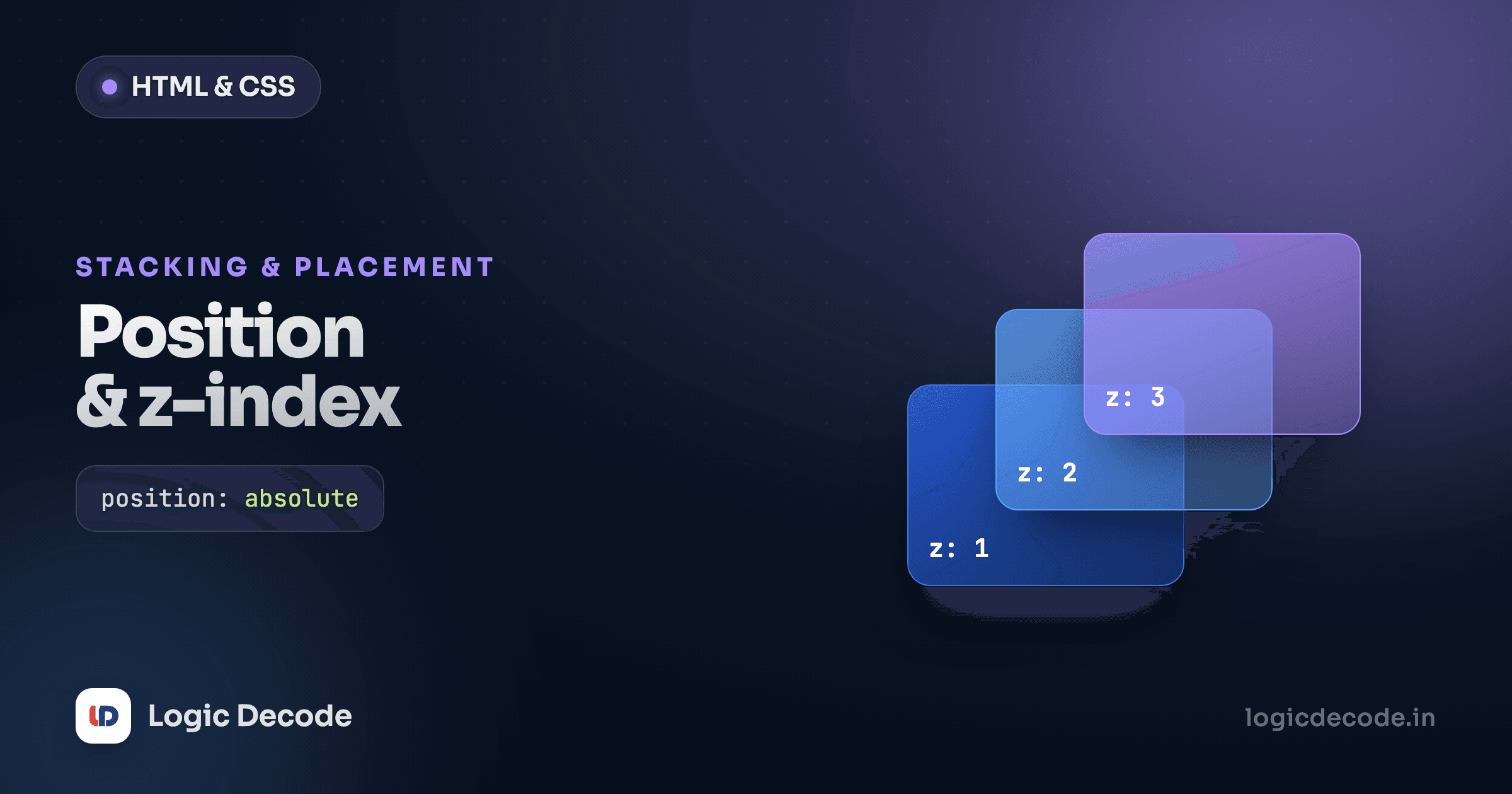
Most CSS layout is about arranging boxes in a flow. Positioning is about breaking out of that flow on purpose: pinning a header to the top of the screen, dropping a "Sale" badge onto the corner of a card, floating a tooltip over everything else. Five position values cover all of it, and once you know which one snaps to what, the whole thing stops feeling like guesswork.
Here's a card with a badge sitting in its top-right corner. The badge isn't shoved there with margins. It's positioned. Edit the top and right values in the preview and watch it move.
That pair (position: relative on the card, position: absolute on the badge) is the single most common positioning move in real CSS. We'll get to exactly why it works. First, the default.
static: the default flow
Every element starts as position: static. Static means "no positioning at all." The element sits wherever normal document flow puts it, and top, right, bottom, and left are completely ignored. You almost never write position: static yourself. It's just the state everything is in until you change it.
The thing to remember: those four offset properties (top/right/bottom/left) do nothing on a static element. They only wake up once you set a position value other than static. That trips people up constantly. They add top: 20px, nothing moves, and they assume CSS is broken.
relative: nudge, and become an anchor
position: relative does two jobs, and the second is the one that matters most.
First job: it lets you nudge an element from where it would normally sit, using the offset properties. top: 10px pushes it 10px down from its natural spot (think of top as "distance from the top edge inward"). Crucially, the space it originally occupied is kept. The element shifts visually but leaves a gap behind, and nothing else moves to fill it.
.note {
  position: relative;
  top: 10px;
  left: 20px;   /* shifted down-right, but its old slot stays empty */
}
Second job, and the real reason you reach for it: a relatively positioned element becomes the positioning context for any absolutely positioned children. That's the "anchor" in the badge example. On its own position: relative with no offsets looks like it does nothing (and visually it doesn't), but it quietly turns the element into the box that absolute children measure themselves against.
The relative/absolute combo
The pattern position: relative on the parent + position: absolute on the child is so common it's worth memorizing as a unit. The parent doesn't move. It just becomes the frame. The child then positions itself inside that frame.
absolute: relative to the nearest positioned ancestor
position: absolute rips the element out of normal flow entirely. It no longer takes up space (other elements behave as if it isn't there), and you place it with the offset properties.
Place it relative to what, though? Here's the rule that explains the badge: an absolute element positions itself against its nearest ancestor that has a position other than static. Walk up the tree from the element. The first ancestor with relative, absolute, fixed, or sticky wins. If there's no such ancestor, it falls all the way back to the page itself (the initial containing block).
So in the card, position: relative on .card made the card the anchor, and top: -8px; right: -8px on the badge measured from the card's corners, not the page's. Delete that one position: relative and the badge jumps to the top-right of the whole document instead. Try it: in the example above, remove position: relative; from .card and watch the badge fly to the page corner.
That's the answer to "why is my absolutely positioned thing in the wrong place?" Nine times out of ten the parent you expected to anchor it isn't positioned, so the element measured against something further up.
Quick check
An element with position: absolute positions itself relative to…
fixed: pinned to the viewport
position: fixed is like absolute (out of flow, placed with offsets), but it measures against the viewport (the visible window), not an ancestor. The result: it stays put when you scroll. A "back to top" button glued to the bottom-right corner, a cookie banner that won't go away, a chat widget, they're all fixed.
.to-top {
  position: fixed;
  bottom: 1rem;
  right: 1rem;     /* sticks to the window corner, ignores scroll */
}
Because it's pinned to the viewport, a fixed element sits on top of your content and can cover it. If you fix a header to the top, remember the content scrolls underneath it, so you'll usually add matching padding-top to the body so the first chunk of content isn't hidden.
sticky: the genuinely useful one
position: sticky is the hybrid everyone actually wants for headers. It behaves like a normal relative element (sitting in flow, taking up space) until you scroll past a threshold you set, at which point it "sticks" and behaves like fixed, staying on screen. Scroll far enough that its parent container ends, and it lets go.
The threshold is mandatory: a sticky element does nothing until you give it an offset like top: 0. That offset means "stick when you're this far from the top of the scroll area."
.header {
  position: sticky;
  top: 0;          /* sticks once it reaches the top edge */
  background: white;
}
Scroll the preview below. The section headers behave normally, then pin to the top as you scroll past each one, then get pushed off by the next. That's classic sticky-header behaviour, and it's three lines of CSS with no JavaScript.
Sticky's silent failures
If position: sticky does nothing, check two things. One: you set an offset (top, bottom, etc.), because without it sticky never activates. Two: no ancestor has overflow: hidden, auto, or scroll set, because that creates a separate scroll container and confines the sticking to it. Those two gotchas account for almost every "sticky isn't working" report.
z-index and stacking: why it sometimes "doesn't work"
Once elements overlap, you need to control which one is on top. That's z-index: higher numbers sit in front, lower numbers sit behind. Simple, except for the part that drives people up the wall.
First rule: z-index only works on positioned elements. Set it on a plain static element and it's ignored. The element needs relative, absolute, fixed, or sticky for z-index to mean anything.
Second rule, and this is the one that causes "my z-index: 9999 isn't working" tickets: z-index is only compared within the same stacking context. A stacking context is a self-contained layer group. Elements inside one context are stacked among themselves, but the whole context is then placed as a single unit relative to its siblings. So a child with z-index: 9999 can still sit behind another element if its parent's stacking context is lower. The 9999 only competes with its siblings inside that parent, never escapes it.
What creates a new stacking context? A positioned element with a z-index value, sure, but also plenty of innocent-looking properties: opacity less than 1, a transform, a filter, will-change, and a few others. This is the gotcha: you put opacity: 0.99 on a wrapper for a fade, and suddenly a child that used to layer over the page is trapped behind a sibling, because that opacity quietly created a new stacking context.
.modal-backdrop {
  position: fixed;
  inset: 0;
  z-index: 100;
}
.modal {
  position: fixed;
  z-index: 101;     /* compared against the backdrop — same context */
}
The mental model that fixes most z-index pain: don't think "bigger number always wins." Think "find which stacking context each element lives in, compare contexts first, then compare numbers within a context." When a high z-index mysteriously loses, go find the ancestor that started a stacking context and adjust that, not the child.
The z-index: 9999 trap
Cranking z-index to 9999 to "force it on top" almost never fixes a real stacking-context problem. The element is fighting in the wrong arena. Worse, the next person does the same thing and you end up with a z-index arms race. Find the offending stacking context instead.
Recap and what's next
Five values, and now they should map to jobs. static is the default, ignoring offsets. relative nudges an element and, more usefully, turns it into the anchor for absolute children. absolute pulls an element out of flow and places it against the nearest positioned ancestor (set position: relative on the parent you want it to anchor to). fixed pins to the viewport so it survives scrolling. sticky rides along in flow until a top threshold, then pins, the cleanest way to build a sticky header. And z-index only applies to positioned elements and only compares within a stacking context, which is the whole reason it sometimes seems to ignore you. The full reference, including the edge cases, lives in the MDN position docs.
You arrived here from responsive design with media queries, and positioning and responsiveness combine all the time, like a header that's sticky on desktop and static on mobile. Next we make these movements smooth: CSS transitions and animations, where a badge can fade in and a sticky header can slide rather than snap.

Written by
Rhythm Bhiwani
Engineer and relentless builder, happiest reverse-engineering hard problems until they click.
Enjoyed this?
Tap the heart to leave some love.
Be the first to react
Comments
Join the conversation.
Loading comments…