HTML Forms and Inputs: A Practical Guide
Build accessible HTML forms: inputs, labels, selects, checkboxes, validation attributes, and the submit flow, with a live preview.

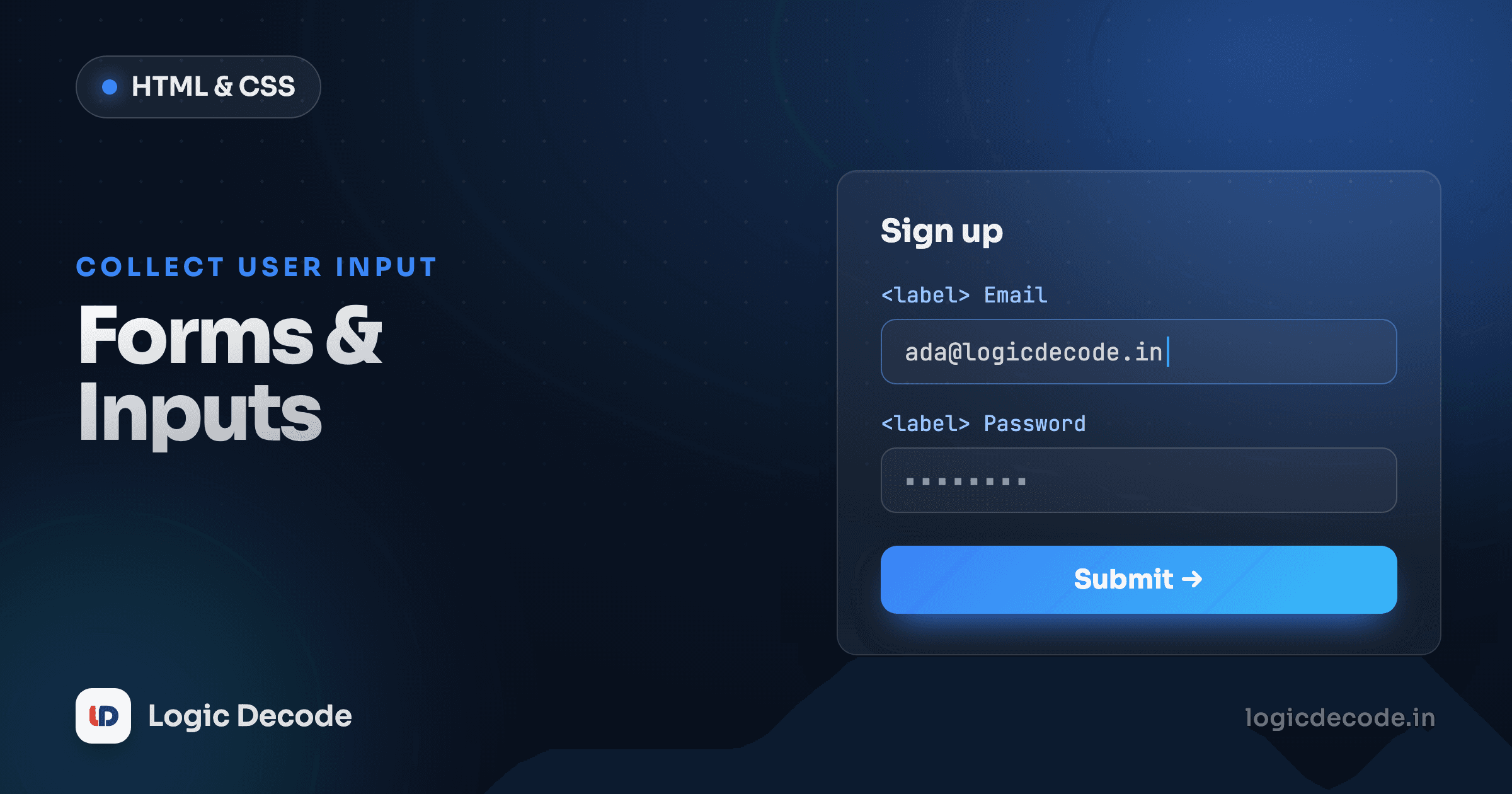
A form is how your page asks the user a question and gets an answer back: a login, a search box, a checkout, a comment. Get the markup right and the browser does a startling amount of work for you: keyboard navigation, validation, the right on-screen keyboard on phones, screen-reader support. Get it wrong and you end up rebuilding all of that by hand in JavaScript, badly. This lesson is the right way.
The <form> element
Everything starts with a wrapper. The <form> element groups your inputs and decides what happens when the user submits.
<form action="/signup" method="post">
  <!-- inputs go here -->
  <button type="submit">Create account</button>
</form>
Two attributes carry the weight. action is the URL the data gets sent to. method is how it's sent: get puts the values in the URL as a query string (good for searches and anything bookmarkable), post sends them in the request body (use it for logins, signups, anything that changes data or shouldn't show up in the address bar). When you submit, the browser gathers every named field inside the form, packages them up, and fires off the request. No JavaScript required, and that's the part people forget.
No backend? No problem for learning
The examples below have no server to receive the data, so submitting won't go anywhere real. That's fine. We're here to learn the markup and the browser's built-in behaviour, not to wire up a database.
Inputs and the types that matter
<input> is the workhorse. One tag, and the type attribute completely changes what it does: the on-screen keyboard, the validation, even the widget the browser draws.
<input type="text" name="username" />
<input type="email" name="email" />
<input type="password" name="password" />
<input type="number" name="age" min="13" max="120" />
<input type="date" name="dob" />
<input type="checkbox" name="newsletter" />
<input type="radio" name="plan" value="free" />
Pick the type that matches the data and you get free behaviour. type="email" makes the browser reject not-an-email before it ever submits, and on a phone it brings up a keyboard with @ ready to go. type="number" respects min and max. type="date" draws a real date picker. type="password" hides the characters. You don't write any of that. You just name the type honestly.
A couple of these have quirks worth knowing. Checkboxes are independent on/off toggles. Radio buttons are mutually exclusive within a group, and the group is defined by sharing the same name. Give three radios name="plan" and the browser only lets one be selected at a time. Each radio needs its own value so the form knows which one was picked.
Labels: the part nobody should skip
Here's the single most important habit in this whole lesson. Every input needs a <label>, and the label has to be connected to its input. You do that by matching the label's for attribute to the input's id.
<label for="email">Email address</label>
<input type="email" id="email" name="email" />
The for="email" points at the input whose id="email". That link does real work. Click the label text and the input focuses, a bigger tap target on mobile, which alone is worth it. More importantly, a screen reader now announces "Email address, edit text" when the user lands on the field. Without the pairing it just says "edit text," and a blind user has no idea what to type. Placeholder text doesn't fix this. Placeholders vanish the moment you start typing and many screen readers ignore them. A floating placeholder is not a label.
for and id, every single time
If you remember one rule from this post: <label for="x"> matched to <input id="x">. It's the difference between a form anyone can use and one that locks out keyboard and screen-reader users. The name attribute is what gets submitted. The id is what the label points at. They often have the same value, but they do different jobs.
Quick check
What connects a <label> to its <input> so clicking the label focuses the field?
Select menus and multi-line text
Two more controls round out most forms. <select> is a dropdown of fixed choices, built from <option> tags. Reach for it instead of a pile of radio buttons when there are more than a handful of options. <textarea> is for free-form, multi-line text like a message or a bio.
<label for="country">Country</label>
<select id="country" name="country">
  <option value="">Choose…</option>
  <option value="in">India</option>
  <option value="us">United States</option>
  <option value="de">Germany</option>
</select>

<label for="bio">About you</label>
<textarea id="bio" name="bio" rows="4"></textarea>
Each <option> has a human-readable label (the text between the tags) and a value that's the actual submitted data. That first empty option is a nice touch. It forces a real choice instead of silently defaulting to whatever's on top. Note that <textarea> is a paired tag with a real closing tag, unlike <input>, and you size it with rows.
Validation you get for free
Browsers ship a validation engine. You opt in with attributes, and the browser blocks submission and shows a message until the data is valid, no script.
required: the field can't be empty.type:email,url, andnumberenforce their own formats.min/max: bounds for numbers and dates.minlength/maxlength: length limits for text.pattern: a regular expression the value must match.
<input
  type="text"
  name="zip"
  pattern="[0-9]{6}"
  required
  title="Enter a 6-digit PIN code"
/>
That pattern="[0-9]{6}" demands exactly six digits. Anything else and the form won't submit. The title is what the browser shows when the value fails, so make it a useful instruction, not a restatement of the rule. Treat all of this as the first line of defence, though. It's for catching honest mistakes and giving instant feedback. A user can disable it or send a request directly, so a real server still has to validate everything again. Convenience on the front, never trust on the back.
A complete form, running
Here's everything stitched into one signup form. Edit it, try submitting with fields empty or a bad email, and watch the browser's built-in messages fire. The CSS is just enough to make it readable.
Notice two things in there. The <fieldset> with a <legend> groups related controls and gives the group an accessible name, exactly what you want for checkbox and radio sets. And <button type="submit"> is what kicks off the whole send. A bare <button> inside a form defaults to submitting too, but spelling out type saves you from surprises (a type="button" does nothing on its own, which is what you'd use for a JavaScript-only action).
The submit flow in one breath
When the user hits that button: the browser runs validation on every field, and if anything fails it stops, focuses the first bad field, and shows the message. If everything passes, it collects each control by its name, builds the request, and sends it to the action URL using the method you chose. The page navigates to the response. That's the default round trip. On a real project a framework or a fetch call usually intercepts it, but it's all built on this exact sequence.
Recap and what's next
A <form> wraps your controls and its action and method decide where the data goes and how. The right type on each <input> buys you keyboards, pickers, and format checks for free. <label for> paired with <input id> is non-negotiable for accessibility. <select> and <textarea> handle choices and long text, validation attributes like required and pattern catch mistakes before submit, and a type="submit" button fires the whole thing off. For the complete reference, MDN's Learn: Web Forms is the best free resource going.
This builds straight on HTML structure and semantics from the last lesson, since forms are just more semantic elements doing specific jobs. Your markup is solid now. Next we make it look good. Up next: CSS selectors and the box model, where you learn how to target any element on the page and control its size and spacing.

Written by
Rhythm Bhiwani
Engineer and relentless builder, happiest reverse-engineering hard problems until they click.
Enjoyed this?
Tap the heart to leave some love.
Be the first to react
Comments
Join the conversation.
Loading comments…