React Forms and Controlled Components
Build forms in React the right way: controlled inputs, handling change, simple validation, and submitting, with runnable examples.

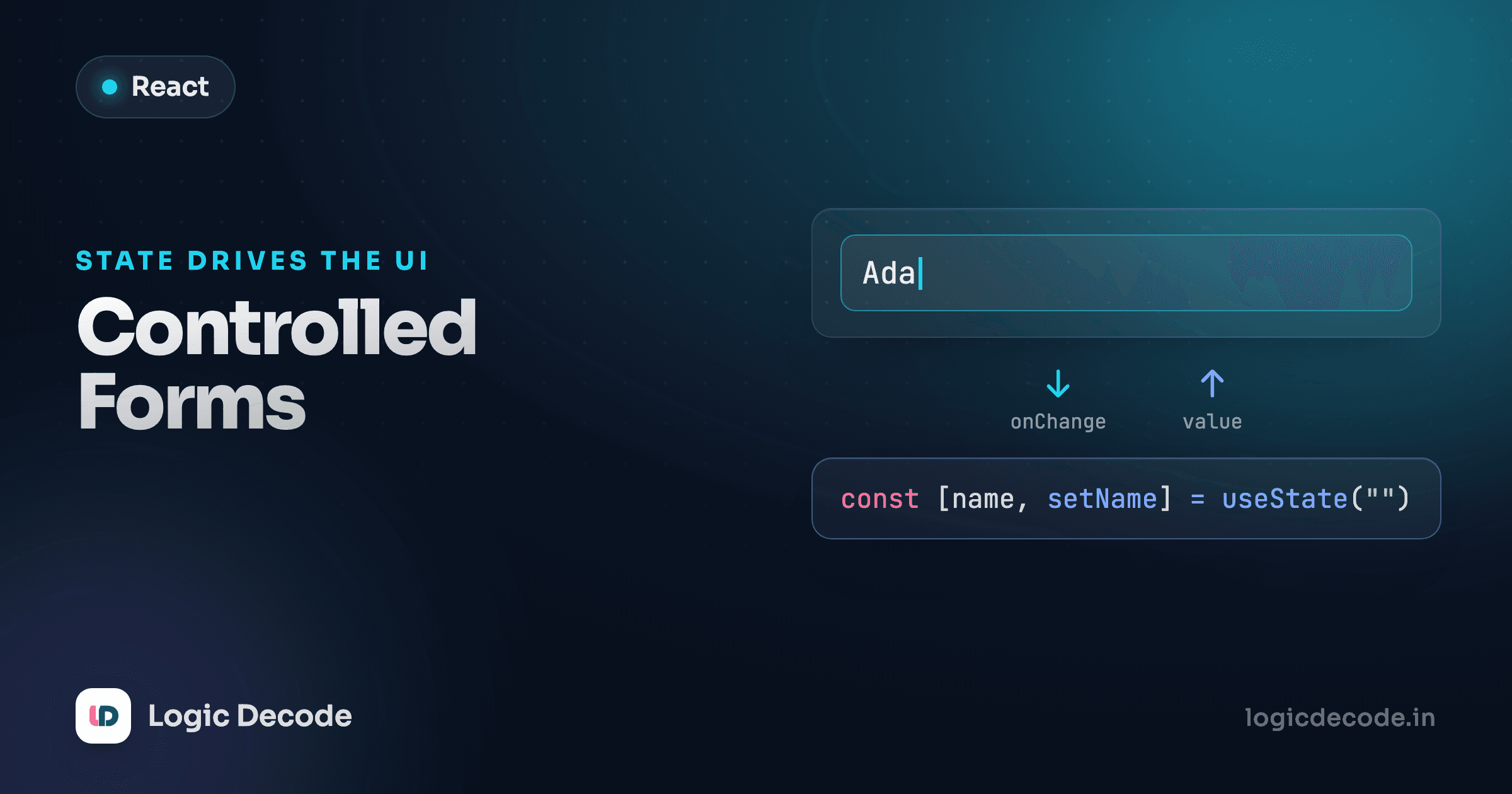
A plain HTML input keeps its own value in the DOM. React likes to keep values in state. When those two disagree about what's in the box, you get the classic "I typed but nothing updates" or "the value won't reset" bugs. The fix is one idea, making state the single source of truth, and once it clicks, every form you build gets predictable. Let's wire one up.
A controlled input in three pieces
A controlled input is just an input whose value comes from state, and whose onChange writes back to that state. State drives what you see, typing updates state, and React re-renders. Here's the whole loop in one box. Type in it and watch the live echo below.
Three things make this "controlled." The value={name} prop says the input's content is always whatever name is. The onChange fires on every keystroke, reads e.target.value (the new text the browser has), and calls setName with it. That triggers a re-render, the input gets the fresh name, and the cycle repeats. React is now in charge of the field, not the DOM.
Drop the onChange and you get a read-only input that you can't type into, because React keeps slamming it back to the old name. Drop the value and React stops controlling it. You need both.
Why bother?
Because state is the truth, you can do things the DOM can't easily: show a live character count, disable submit until a field is filled, transform input as it's typed (uppercase a code, strip spaces from a username), or reset the whole form by setting state back to empty. The value lives somewhere you can read and change at any time.
Many fields, one state object
One useState per field works, but it gets noisy at five fields. The common pattern is a single object holding the whole form, plus one change handler that uses the input's name attribute to know which key to update.
The trick is spreading the old object and overwriting just the field that changed: { ...form, [name]: value }. The computed key [name] reads the input's name attribute, so one handler covers every field.
Two details worth pausing on. The name="username" on the input is what makes the generic handler work, since e.target.name reads it back. And setForm((prev) => ({ ...prev, [name]: value })) uses the updater function form, so you're always spreading the latest state, not a possibly-stale copy. Without the spread you'd replace the whole object and wipe out every other field on each keystroke.
Quick check
In one shared change handler, how does setForm({ ...prev, [name]: value }) know which field to update?
Handling submit
Forms submit. By default a <form> submit reloads the whole page, which throws away your React state and is almost never what you want in a single-page app. Put onSubmit on the form, call e.preventDefault() first, then do your thing: log it, validate it, send it to an API.
Use onSubmit on the <form>, not onClick on the button, so the Enter key works too. A submit button inside a form triggers the form's submit handler for free.
function handleSubmit(e) {
  e.preventDefault();          // stop the full-page reload
  console.log("submitting", form);
  // ...send `form` to your server here
}

// <form onSubmit={handleSubmit}> ... <button type="submit">Sign up</button> </form>
Adding validation and an error message
Validation is just a check you run before accepting the submit. Keep an errors object in state, fill it when something's wrong, and only proceed when it's empty. The error text is regular JSX, shown conditionally next to the field.
Here's a complete sign-up-style form: two fields, validation on submit, inline errors, and a success message. Try submitting it empty, then with a bad email, then with both filled in.
The flow: on submit, validate returns an object of problems (empty if all good). We store it in errors so the messages render, and only flip done to true when there are zero problems. Each {errors.username && <p>...</p>} shows its message only when that key exists. This is the same conditional-rendering pattern from the previous lesson: an error message is just UI you render when a condition holds.
This validates on submit, which is the friendliest default. Validating on every keystroke yells at people before they've finished typing. If you want live feedback, run the check in handleChange instead, or only show an error once a field has been "touched."
The escape hatch: uncontrolled inputs
You don't always need controlled inputs. An uncontrolled input lets the DOM hold the value, and you grab it with a ref only when you need it, usually at submit. It's less code for simple cases like a search box where you don't care about the value until the user hits enter.
import { useRef } from "react";

function Search() {
  const inputRef = useRef(null);
  function handleSubmit(e) {
    e.preventDefault();
    console.log(inputRef.current.value); // read it on demand
  }
  return (
    <form onSubmit={handleSubmit}>
      <input ref={inputRef} defaultValue="" />
      <button>Go</button>
    </form>
  );
}
Note defaultValue instead of value, which sets the initial text without taking control. The official guidance is to prefer controlled inputs for anything with validation, live feedback, or interdependent fields, and reach for refs when you genuinely just need the final value. React's <input> reference lays out both paths in detail.
Recap and what's next
A controlled component ties an input's value to state and writes changes back through onChange, so state is the single source of truth. Hold multiple fields in one object and update them with { ...prev, [name]: value }, handle submission with onSubmit plus e.preventDefault(), and validate by computing an errors object and rendering messages only when keys exist. Refs and uncontrolled inputs are the lighter-weight escape hatch when you only need a value once.
This builds straight on conditional rendering: those error messages are conditional UI. If you want a refresher on the underlying markup, the HTML forms and inputs lesson covers the elements React is wrapping. Next up: side effects, where we sync our components with the outside world in useEffect.

Written by
Rhythm Bhiwani
Engineer and relentless builder, happiest reverse-engineering hard problems until they click.
Enjoyed this?
Tap the heart to leave some love.
Be the first to react
Comments
Join the conversation.
Loading comments…