HTML Structure and Semantic Tags, Explained
Build a real web page with semantic HTML: headings, lists, links, images, and landmark tags like header, main and article, with a live preview.

Every site you've ever used (your bank, your inbox, this page) is, underneath, a tree of HTML tags. Strip away the styling and the JavaScript and you're left with HTML: the structure that says "this is a heading, this is a paragraph, this is a link." Get the structure right and screen readers, search engines, and the next developer all understand your page for free. Get it wrong and you've built a pile of <div>s that only looks like a website.
This is the first lesson of the series, so we start at the foundation. By the end you'll have a real, runnable page in front of you. Edit it and watch it change.
The skeleton of an HTML document
Here's the smallest complete page. Open the preview and you'll see it render.
Four pieces do all the work here, and every page you write has them:
<!DOCTYPE html>is the very first line. It tells the browser "use modern HTML rules." It looks like a tag but isn't one, so just leave it there.<html lang="en">wraps the whole document. Thelangattribute matters more than it looks: it tells screen readers which language to pronounce and helps search engines.<head>holds information about the page, not content you see. The<title>(what shows in the browser tab) and<meta charset="UTF-8">(so accented characters and emoji don't break) live here.<body>is everything the visitor actually sees. Try moving the<p>up into the<head>in the preview. It vanishes, because the head isn't for visible content.
A tag has an opening (<p>) and a closing (</p>) with content between them. The closing tag is the same name with a slash. Some tags, like <img> and <meta>, have nothing between them and don't get a closing tag.
Indentation is for you, not the browser
HTML doesn't care about whitespace. The browser ignores extra spaces and line breaks. Indent your tags anyway. A page where nested tags line up is one you can actually read six months later.
Headings and the document outline
Headings run from <h1> (most important) down to <h6> (least). They're not just "big text." Together they form the document outline, the same way chapter and section titles outline a book.
<h1>Roast Guide</h1>
<h2>Light roasts</h2>
<h3>Flavor notes</h3>
<h2>Dark roasts</h2>
That reads as one page about roasting, split into two sections, with a sub-point under the first. One <h1> per page is the convention, since it's the page's title. Don't skip levels to get a smaller font (jumping <h1> straight to <h4>). That breaks the outline that screen readers and search engines rely on to navigate. If you want smaller text, that's CSS's job, which is the next lesson. Pick the heading by meaning, style it later.
Paragraphs, lists, links, and images
These are the everyday tags you'll reach for constantly. Edit the preview below to make them yours.
A few things worth slowing down on:
<p>is a paragraph. Each one is its own block, and the browser puts space between them.<ul>is an unordered list (bullets),<ol>is an ordered list (numbers). Both hold<li>(list item) elements. Order doesn't matter for the beans, so<ul>. The brewing steps have an order, so<ol>.<a href="...">is an anchor, a link. Thehrefis where it goes. Use a fullhttps://URL for other sites, or a path like/aboutfor your own pages.<img>shows an image. Thesrcis the file, and thealtis a text description.
That alt text isn't optional busywork. Screen readers read it aloud to people who can't see the image, search engines use it to understand the picture, and it's what shows if the image ever fails to load. Write what the image actually shows (alt="A pour-over dripper on a glass carafe"), not alt="image" and not the filename. If an image is purely decorative, give it an empty alt="" so screen readers skip it.
Quick check
Which list should you use for the steps of a recipe, where order matters?
Semantic landmark tags (and why they matter)
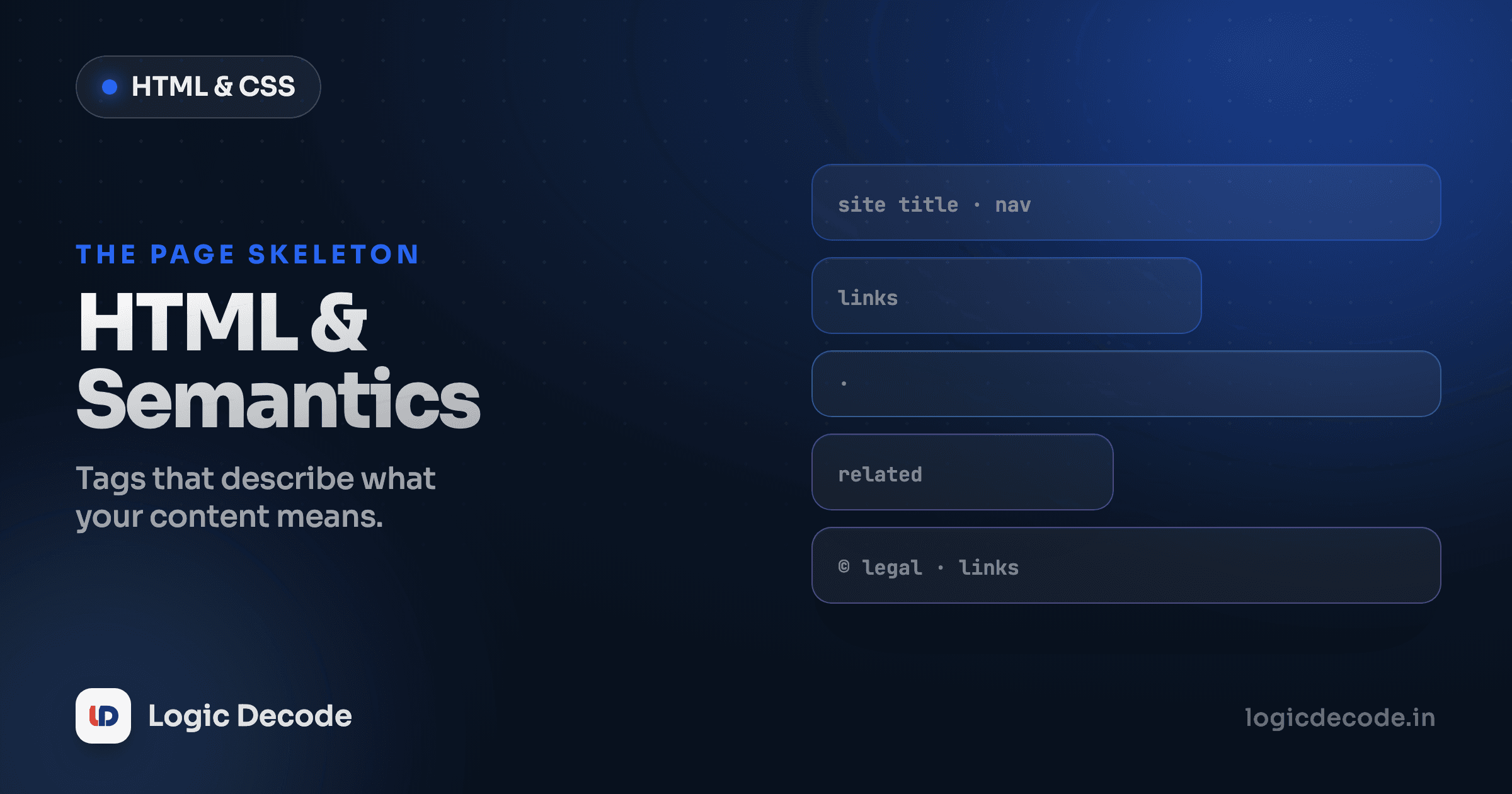
Here's the part that separates a sloppy page from a solid one. You could build an entire site out of <div>, a generic box with no meaning. Browsers would render it fine. But a <div> tells nobody anything. Semantic tags say what a region of the page is:
<header>: the top of a page or section (logo, site title, intro).<nav>: a block of navigation links.<main>: the one main content area. There's exactly one per page.<section>: a thematic grouping, usually with its own heading.<article>: a self-contained piece that would make sense on its own (a blog post, a product card, a comment).<aside>: content tangential to the main flow (a sidebar, a related-links box).<footer>: the bottom of a page or section (copyright, contact, fine print).
Same page, two ways. The <div> soup works visually but means nothing. The semantic version says exactly what each region is.
<header>
  <h1>Aarav's Blog</h1>
  <nav>
    <a href="/">Home</a>
    <a href="/about">About</a>
  </nav>
</header>

<main>
  <article>
    <h2>Why I switched editors</h2>
    <p>Last month I finally moved off...</p>
  </article>
</main>

<footer>
  <p>© 2026 Aarav</p>
</footer>
Both look identical once styled. So why bother? Two concrete payoffs:
Accessibility. Screen readers turn <nav>, <main>, and <header> into landmarks a user can jump straight to. "Skip to main content" works because <main> exists. With <div class="main"> there's nothing to jump to, so the user wades through everything. Roughly one in six people has a disability, and a lot of them rely on this.
SEO. Search engines read your tags to understand the page. An <article> with a real heading hierarchy tells Google "this is a standalone piece of content about X." Generic <div>s leave the crawler guessing. Semantic HTML is one of the cheapest SEO wins there is. You're already writing the markup, so write the meaningful version.
There's a third payoff that pays you back personally: the semantic version is readable. Six months later, <nav> tells you what that block is at a glance. <div class="nav"> makes you trust a class name that might be a lie.
Don't over-section
Not every box needs a semantic tag. A <div> is the right choice when you genuinely just need a styling wrapper with no special meaning. That's what it's for. Use <section> and <article> for real content groupings, and reach for <div> when there's nothing meaningful to say.
A runnable mini page
Let's put it all together: skeleton, headings, lists, a link, an image, and landmark tags in one real page. This is roughly the shape of a blog post page anywhere on the web. Edit it and watch the preview update.
Notice there's no styling at all yet, and it still works. The structure stands on its own. That's the whole idea: HTML carries the meaning, CSS handles the looks. Try changing an <h2> to an <h3>, or swapping the <aside> to a <section>, and see how nothing breaks visually but the meaning shifts.
Recap and what's next
You've got the foundation now. A page is <!DOCTYPE html>, then <html> wrapping a <head> (info about the page) and a <body> (what you see). Headings <h1>–<h6> form the outline. Paragraphs, ordered and unordered lists, links, and images fill it in, always with real alt text on images. And landmark tags (<header>, <nav>, <main>, <section>, <article>, <aside>, <footer>) give your page meaning that pays off in accessibility, SEO, and your own sanity. When you want the full reference for any tag, MDN's HTML docs are the canonical source.
Right now your pages are correct but plain. Next up is making them look the way you want: HTML forms and inputs shows how to collect data from visitors (text boxes, checkboxes, dropdowns, and buttons) before we move on to CSS and styling. And if you haven't touched the behavior side of the web yet, Why Learn JavaScript is the other half of how pages come alive.

Written by
Rhythm Bhiwani
Engineer and relentless builder, happiest reverse-engineering hard problems until they click.
Enjoyed this?
Tap the heart to leave some love.
Be the first to react
Comments
Join the conversation.
Loading comments…