Git Merging and Resolving Conflicts
Merge branches in Git: fast-forward vs merge commits, how to read and resolve a merge conflict, and finishing the merge, with gitGraph diagrams.

You finished the work on your branch. The tests pass, the feature looks good, and now you want it back in main with everyone else's code. That's a merge: taking the commits from one branch and folding them into another. Most of the time Git does it for you in a second and you barely notice. Sometimes two people edited the same line and Git stops to ask which version wins. That's a conflict, and it's the part everyone dreads for no good reason.
Merging a branch into main
Say you built a feature on a branch called feature and it's ready. You merge it into main by standing on main and pulling feature in:
git checkout main
git merge feature
Read that as a direction: "I'm on main, bring feature into me." The branch you name is the one being absorbed, and the branch you're standing on is the one that grows. After this, main contains everything feature had, and feature still exists (you can delete it later with git branch -d feature).
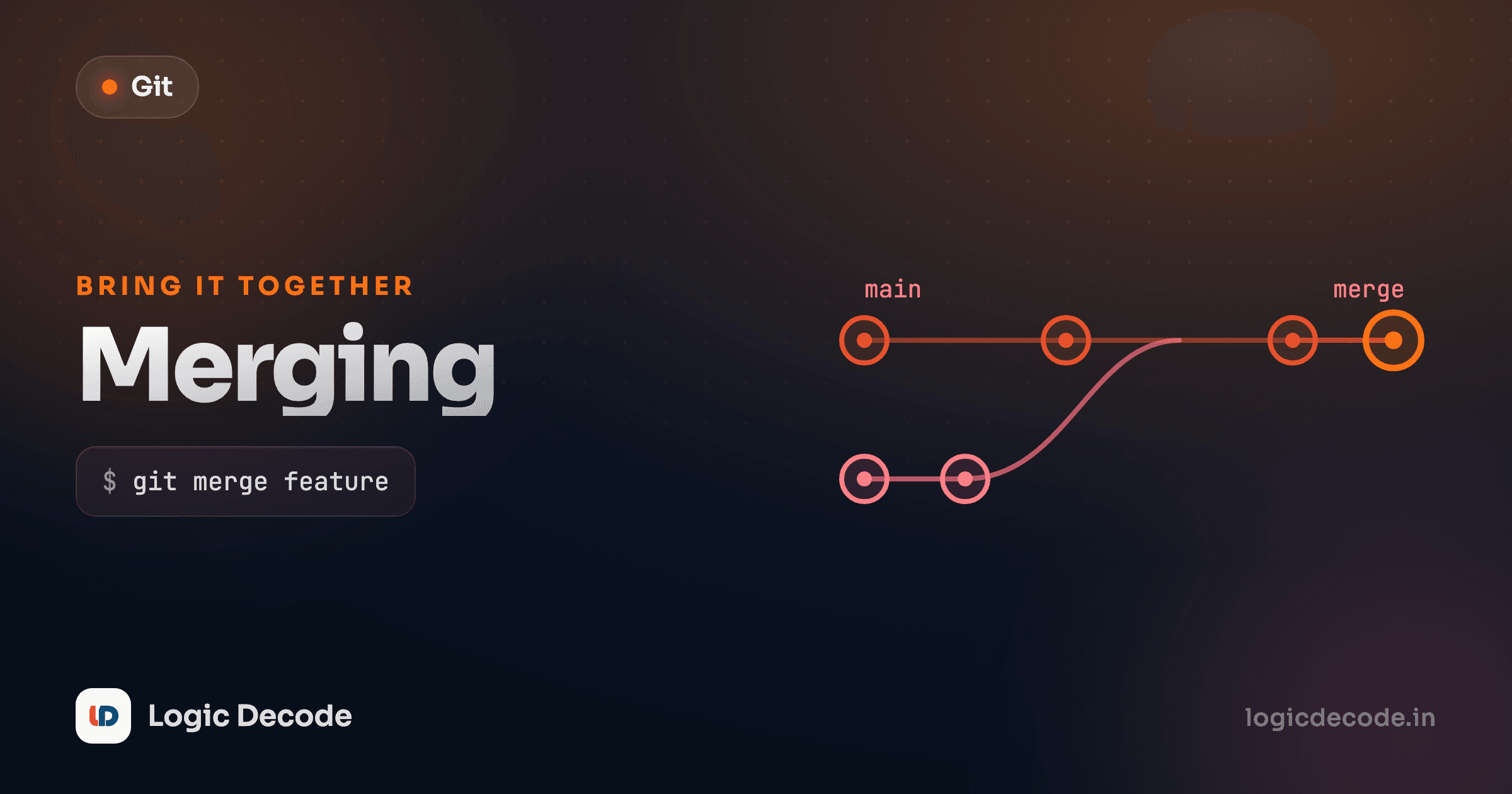
Here's what that looks like. feature split off, got a commit of its own, main moved on too, and the merge ties them back together:
That join point on the far right is the merge. Both lines of work now live in main.
Fast-forward vs a real merge commit
Git has two ways to do this, and which one you get depends entirely on whether main moved while you were off on your branch.
If main hasn't changed since feature branched off (nobody else committed), there's nothing to combine. Git just slides the main label forward to point at the latest commit on feature. That's a fast-forward merge. No new commit, no extra node in the graph, just a pointer moving up. It happens when your branch is simply ahead of main.
# main is at commit A, feature added B and C on top
git checkout main
git merge feature
# Updating A..C
# Fast-forward
But if main did move (someone else merged their own work while you were busy), the two branches have genuinely diverged. There's your line of commits and their line, and Git can't just slide a label forward because that would throw one of them away. So it creates a brand-new commit, a merge commit, that has two parents: the tip of main and the tip of feature. That commit is the knot that joins both histories. The gitGraph above shows exactly this case. main had its own commit, so the merge produced a real join.
Forcing one or the other
Want the merge commit even when a fast-forward is possible (so the history shows that a branch existed)? Use git merge --no-ff feature. Want to refuse anything but a clean fast-forward? Use git merge --ff-only feature. It fails loudly instead of making a merge commit you didn't expect.
Quick check
When does Git create a merge commit instead of fast-forwarding?
What a merge conflict actually is
A conflict isn't an error and it isn't your fault. It happens for one specific reason: two branches changed the same lines of the same file in different ways, and Git refuses to guess which one you meant.
That's the key thing to internalize. Git merges automatically all day long: different files, different functions, different lines of the same file, all fine. It only stops when two changes physically overlap and picking one would silently lose the other. At that point it would rather pause and ask a human than throw away someone's work.
When it happens, the merge halts and Git tells you:
git merge feature
# Auto-merging config.js
# CONFLICT (content): Merge conflict in config.js
# Automatic merge failed; fix conflicts and then commit the result.
Run git status and it lists the conflicted files under "Unmerged paths." Nothing is broken. The merge is just paused, waiting for you.
Reading the conflict markers
Open the conflicted file and you'll see Git has marked the clashing section with three lines of <, =, and >:
const timeout = 3000;
<<<<<<< HEAD
const retries = 5;
=======
const retries = 3;
>>>>>>> feature
const debug = false;
Decode it once and you'll never be confused again:
<<<<<<< HEADopens the conflict. Everything below it, down to the=======, is your version, the code already on the branch you're merging into (here,main, labelledHEAD).=======is the divider. Above it is your side, below it is theirs.>>>>>>> featurecloses the conflict. Everything between the divider and this line is the incoming version from the branch you're merging (feature).
So this file disagrees on one thing: main says 5 retries, feature says 3. The line above (timeout) and below (debug) merged cleanly. Only the overlapping line got wrapped in markers.
Resolving it: edit, add, commit
Resolving a conflict is just editing the file into the state you actually want, then deleting the markers. There's no magic command. You decide. Keep your line, keep theirs, combine them, or write something new entirely. The only hard rule: when you're done, the <<<<<<<, =======, and >>>>>>> lines must all be gone.
Say you decide feature's value of 3 is correct. Edit the file down to:
const timeout = 3000;
const retries = 3;
const debug = false;
Then tell Git this file is settled, and finish the merge:
git add config.js
git commit
git add on a conflicted file is how you signal "I've resolved this one." Once every conflicted file is added, git commit completes the merge. Git pre-fills a sensible commit message, so you can usually just save and close. The merge commit lands, and main now holds both histories with your chosen resolution baked in.
Don't commit the markers
The classic rookie mistake is committing a file that still has <<<<<<< in it. Before you git add, search your project for leftover markers. git diff --check flags any conflict markers Git can still see. A line of ======= shipped to production is a very public way to announce you rushed a merge.
When you just want out: git merge --abort
Sometimes you start a merge, see a wall of conflicts, and realize you're not ready: wrong branch, wrong time, or you need to ask the person who wrote the other side. You don't have to fight through it. One command rewinds everything back to the moment before you ran git merge:
git merge --abortIt throws away the in-progress merge entirely and drops you back on a clean branch, exactly as if you never started. No commits, no half-resolved files, no trace. This is your safety net, and knowing it's there is half of why conflicts stop being scary. You can always bail and try again with a clearer head.
Quick check
You've opened a conflicted file. What has to be true before you run git add and git commit?
Conflicts are normal, really
Here's the mindset shift worth more than any command above: conflicts are a routine, expected part of working with other people, not a sign something went wrong. Two people touched the same line. Git noticed and asked you to choose. That's the system working correctly. It's protecting you from silently overwriting a teammate's change. The more active a project, the more often you'll see them, and experienced developers resolve a conflict and move on without a second thought.
The whole loop is small once it's not mysterious:
git merge <branch>, and either it just works (fast-forward or a clean merge commit) or it stops.- If it stops, open each conflicted file, edit to what you want, remove the markers.
git addeach resolved file, thengit committo finish.- Changed your mind?
git merge --abortrewinds it all.
Merging is how separate lines of work become one shared history. Last lesson we created those separate lines in Git branches, and now you can bring them back together. Next up: what to do when a merge (or any commit) goes sideways and you need to undo it, in Undoing changes. For the deeper reference, the Pro Git book's chapter on basic branching and merging walks the same ground with more examples.

Written by
Rhythm Bhiwani
Engineer and relentless builder, happiest reverse-engineering hard problems until they click.
Enjoyed this?
Tap the heart to leave some love.
Be the first to react
Comments
Join the conversation.
Loading comments…