Free HTTPS with Let's Encrypt
Get a real TLS certificate for your domain with Certbot, have Nginx terminate HTTPS automatically, and see how renewal keeps it from ever expiring.

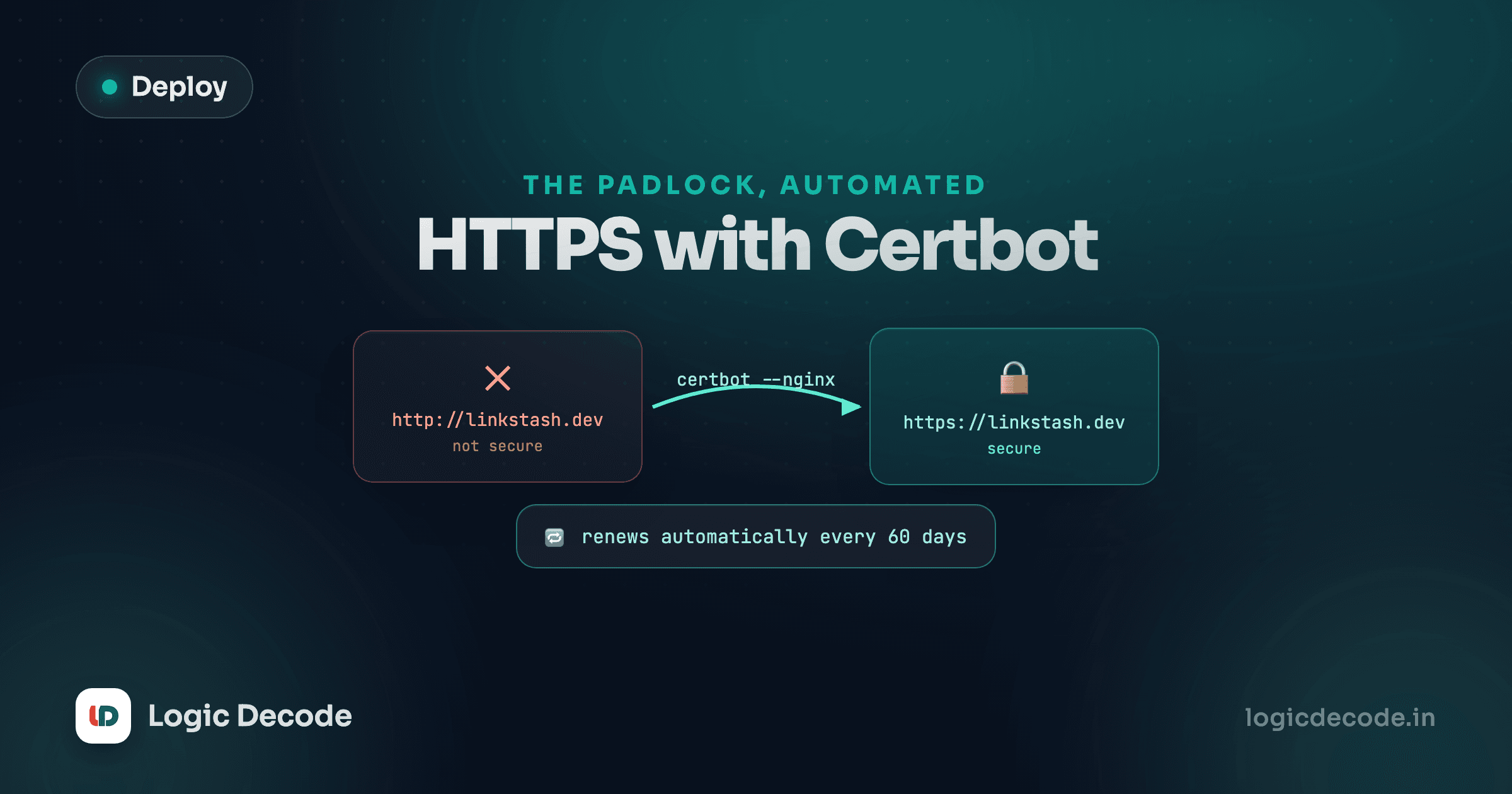
Visit http://linkstash.example.com right now in a real browser, and depending on what you're sending over that connection, it might quietly show a "not secure" warning. Every request and response, including the password your users type into /auth/login, travels as plain text that anything sitting on the network path can read. That's not acceptable for a login form, ever, and fixing it used to mean paying a certificate authority every year and manually swapping files before each one expired. Let's Encrypt made that free and automatic, and this lesson is about actually turning it on.
What a certificate does here, briefly
The HTTPS and TLS lesson already covers the handshake in full: how a certificate proves your server is who it claims to be, and how a symmetric key gets negotiated so the rest of the connection is encrypted. That mechanism doesn't change here. What this lesson adds is the how do I actually get one part: a tool called Certbot that talks to Let's Encrypt, an automated certificate authority, proves you control linkstash.example.com, and hands you a real certificate for free.
If you want to see the negotiation itself play out step by step, this interactive walkthrough is the same handshake your browser will run against Linkstash once the certificate is live:
Supported ciphers, plus a key share guessed up front. That guess is what saves the round trip. The SNI extension here names the host in cleartext, which is why Encrypted Client Hello exists.
Installing Certbot
Certbot ships as a snap package on Ubuntu, which keeps it self-updating without you managing it through apt:
sudo snap install --classic certbot
sudo ln -s /snap/bin/certbot /usr/bin/certbot
The symlink puts certbot on your normal PATH so you don't have to type the full snap path every time. You'll also want the Nginx plugin, which is bundled with the classic snap install, so no separate step there.
Getting the certificate
Before running Certbot, confirm two things are true: your domain's A record resolves to this server (from the last lesson), and port 80 is reachable from the internet, since Let's Encrypt's automated check connects to your server over HTTP to prove you control the domain.
sudo certbot --nginx -d linkstash.example.com--nginx tells Certbot to use its Nginx plugin, which does two things for you: it edits your existing server block to add the certificate paths, and it can reload Nginx automatically once done. -d specifies the domain to issue the certificate for. Certbot will ask for an email address (used for renewal and security notices) and ask you to agree to Let's Encrypt's terms.
Certbot then asks whether to redirect all HTTP traffic to HTTPS. Say yes. There's rarely a reason to keep serving plain HTTP once you have a certificate, and redirecting closes off the plaintext version of every route, including /auth/login.
When it finishes, look at what it changed:
sudo cat /etc/nginx/sites-available/linkstashserver {
server_name linkstash.example.com;
location / {
proxy_pass http://127.0.0.1:3000;
proxy_http_version 1.1;
proxy_set_header Host $host;
proxy_set_header X-Real-IP $remote_addr;
proxy_set_header X-Forwarded-For $proxy_add_x_forwarded_for;
proxy_set_header X-Forwarded-Proto $scheme;
}
listen 443 ssl;
ssl_certificate /etc/letsencrypt/live/linkstash.example.com/fullchain.pem;
ssl_certificate_key /etc/letsencrypt/live/linkstash.example.com/privkey.pem;
include /etc/letsencrypt/options-ssl-nginx.conf;
ssl_dhparam /etc/letsencrypt/ssl-dhparam.pem;
}
server {
if ($host = linkstash.example.com) {
return 301 https://$host$request_uri;
}
listen 80;
server_name linkstash.example.com;
return 404;
}Certbot added the listen 443 ssl block with paths to the certificate and private key it just obtained, plus a second server block that redirects any lingering HTTP request on port 80 straight to HTTPS. This is Nginx terminating TLS: the encrypted connection ends at Nginx, and the plain HTTP hop from Nginx to Node on 127.0.0.1:3000 stays as it was, which is fine because that hop never leaves the machine.
Open the firewall for HTTPS if you haven't already:
sudo ufw allow 443/tcpNow curl -I https://linkstash.example.com/links and check the response headers, or just open it in a browser and look for the padlock. It's a real certificate, issued by an actual certificate authority, trusted by every major browser without any warning.
Check the certificate directly
curl -vI https://linkstash.example.com 2>&1 | grep -A2 "subject:" prints who the certificate was issued to and by whom, straight from the TLS handshake itself, useful for confirming it's really Let's Encrypt's certificate and not something stale.
Renewal happens without you
Let's Encrypt certificates are deliberately short-lived, 90 days, which is a feature, not a limitation: it forces the renewal process to be automated rather than something a human remembers once a year and inevitably forgets. Certbot installs a systemd timer during setup that checks twice a day and renews any certificate within 30 days of expiring. Confirm it exists:
systemctl list-timers | grep certbotYou can also force a dry run, which does everything except actually replace the certificate, to confirm renewal would succeed without waiting weeks to find out:
sudo certbot renew --dry-runIf that dry run fails, fix it now. A renewal failure that goes unnoticed for 90 days means your certificate silently expires and every visitor gets a broken-lock warning with no notice.
Quick check
Why does Let's Encrypt issue certificates that only last 90 days instead of a year or more?
Linkstash now serves real HTTPS, with a certificate that renews itself before you'd ever notice it was close to expiring. Next: environment variables and config in production, where you clean up how the app gets its settings instead of hardcoding them into a systemd unit.

Written by
Rhythm Bhiwani
Engineer and relentless builder, happiest reverse-engineering hard problems until they click.
Enjoyed this?
Tap the heart to leave some love.
Be the first to react
Comments
Join the conversation.
Loading comments…