JavaScript Events: Clicks, Input and Listeners
Respond to users with JavaScript events: addEventListener, the event object, clicks and input. Build interactivity, live in your browser.

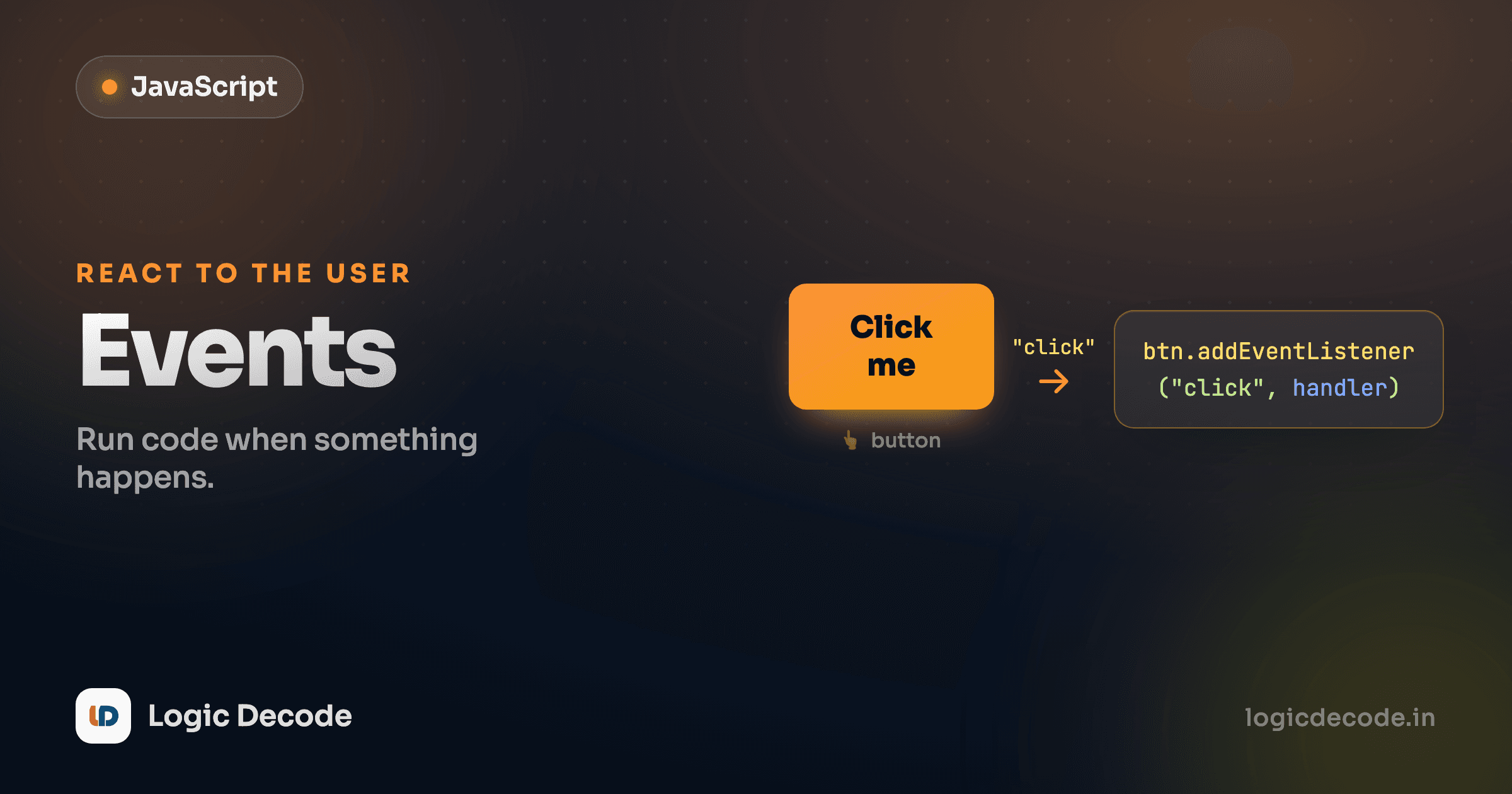
In the DOM lesson you learned to grab elements and change them. But a page that only changes when it first loads isn't interactive. It's a poster. The thing that makes a page do something when a person clicks a button or types in a box is an event. Your code says "when this happens, run that," and the browser handles the waiting.
That "when this happens" wiring is the whole game today. Click a button, fill in a field, submit a form. Each is an event you can listen for and react to.
An event doesn't just appear on the element you clicked. It travels down from the document to the target (the capture phase), then back up again (the bubble phase), and your handler can catch it along the way.
addEventListener: the one you'll actually use
You attach a reaction to an element with addEventListener. You give it two things: the name of the event to listen for, and a function to run when it fires. Click the button below and watch the count climb.
Read the listener line out loud: "on button, add an event listener for click, and when it happens, run this function." The function is the handler. It doesn't run now, it runs later, every time someone clicks. Each click bumps taps and writes the new number back into the page. That's the full loop of interactivity: an event happens, your handler runs, the page updates.
You may have seen the older way to do this, onclick right in the HTML:
<!-- the old inline way — avoid it -->
<button onclick="doSomething()">Tap me</button>
It works, but addEventListener beats it for real reasons. You can attach many listeners to the same element, where onclick only holds one (a second onclick silently overwrites the first). It keeps your JavaScript out of your HTML, so behaviour and markup stay separate. And you can remove a listener later with removeEventListener when you no longer need it. Reach for addEventListener every time.
Pass the function, don't call it
Write addEventListener("click", handleClick), not addEventListener("click", handleClick()). The version with parentheses runs handleClick immediately and hands its return value to the listener, almost never what you want. You're passing the function itself so the browser can call it later.
The events you'll meet most
click is just one name. There are dozens, but a handful cover most of what you'll build:
click: a button, link, or any element gets clicked.input: the value of a text field changes, firing on every keystroke.submit: a form is submitted (by a button or the Enter key).keydown: a key goes down, anywhere you're listening for it.
The pattern is identical for all of them: same addEventListener, different event name. Here's keydown reacting to what you press. Click into the box and type.
Notice the handler now takes a parameter, event. That's the part that makes events genuinely useful, so let's stop there.
The event object
Every time an event fires, the browser hands your handler an object packed with details about what just happened. By convention it's called event (or just e). It tells you which element was involved, what key was pressed, where the mouse was, and more.
Two pieces of it you'll use constantly:
event.target is the element the event happened on. Instead of grabbing an element by ID up top, you can read it straight off the event, handy when one listener covers several elements.
event.preventDefault() cancels the browser's default reaction to an event. The classic case: a form's default behaviour is to reload the page when submitted. Back in the early web that made sense. In a modern app it throws away your JavaScript's work. preventDefault() stops it so you decide what happens.
Quick check
Inside a form's submit handler, what does event.preventDefault() do?
Reading input and handling a form
Time to put it together. Reading what someone typed is just input.value, a plain string of the current contents. To do something as they type, listen for input. To do something when they're done, listen for the form's submit.
This little form takes a name and greets you, without ever reloading the page. Type a name and hit the button (or press Enter).
Walk through it. The listener is on the form, not the button, so it catches both the click and the Enter key. That's the point of submit. The first line of the handler is event.preventDefault(), which kills the page reload. Then we read field.value, trim() off stray spaces, bail out early with a message if it's empty, and otherwise write the greeting and clear the box. No reload, no lost state, instant feedback. That shape (listen, prevent the default, read values, update the page) is most of front-end work.
value is always a string
input.value hands you text even from a number field. Type 5 and you get the string "5", not the number 5. So "5" + 1 is "51", not 6. When you need to do math, convert first with Number(input.value). This catches almost everyone once.
A live character counter
Here's the kind of thing you see everywhere, a counter that updates on every keystroke, like the one under a tweet box. It's just the input event plus a tiny bit of .length. Start typing in the box and watch both the number and the colour respond.
The input event fires on every change to the field: every letter typed, every character deleted, even a paste. Each time, we read event.target.value (using the event object instead of grabbing msg again), measure its .length, and update the count. The if flips the colour red once you go over 80. There's no "update" button anywhere. The page just keeps pace with you. That immediacy is exactly why input is the event behind search-as-you-type, live validation, and counters like this one.
Try editing the code: change limit to 20, or make the warning colour something else. The page re-runs the moment you stop typing.
Where this leaves you
Events are how a static page becomes an app. You attach a handler with addEventListener(name, fn), always that over inline onclick. The common events are click, input, submit, and keydown, and they all wire up the same way. The browser hands your handler an event object, where event.target is the element involved and event.preventDefault() cancels default behaviour like a form's page reload. Read what users typed with input.value, update the page in response, and you've built interactivity. The full reference lives in MDN's addEventListener docs when you want the edge cases.
One catch you'll hit fast: a lot of what happens after an event (fetching data, waiting on a timer) doesn't finish instantly, and your code can't just stand around waiting for it. That's the world of asynchronous JavaScript. Next up: callbacks and promises, where you learn to handle work that takes time without freezing the page.

Written by
Rhythm Bhiwani
Engineer and relentless builder, happiest reverse-engineering hard problems until they click.
Enjoyed this?
Tap the heart to leave some love.
Be the first to react
Comments
Join the conversation.
Loading comments…