The JavaScript DOM: Select and Change the Page
Use JavaScript to read and change a web page: select elements, edit text and styles, and create nodes, all with a live preview.

Up to now your JavaScript has talked to the console. That's fine for learning, but nobody visits a website to read console.log. The whole reason JS runs in browsers is this: it can reach into the page and change what people see. Swap text, restyle a button, add a row to a list, all live and without reloading. The bridge that makes that possible is the DOM, and once it clicks, plain web pages turn into things you can program.
The page is a tree of objects
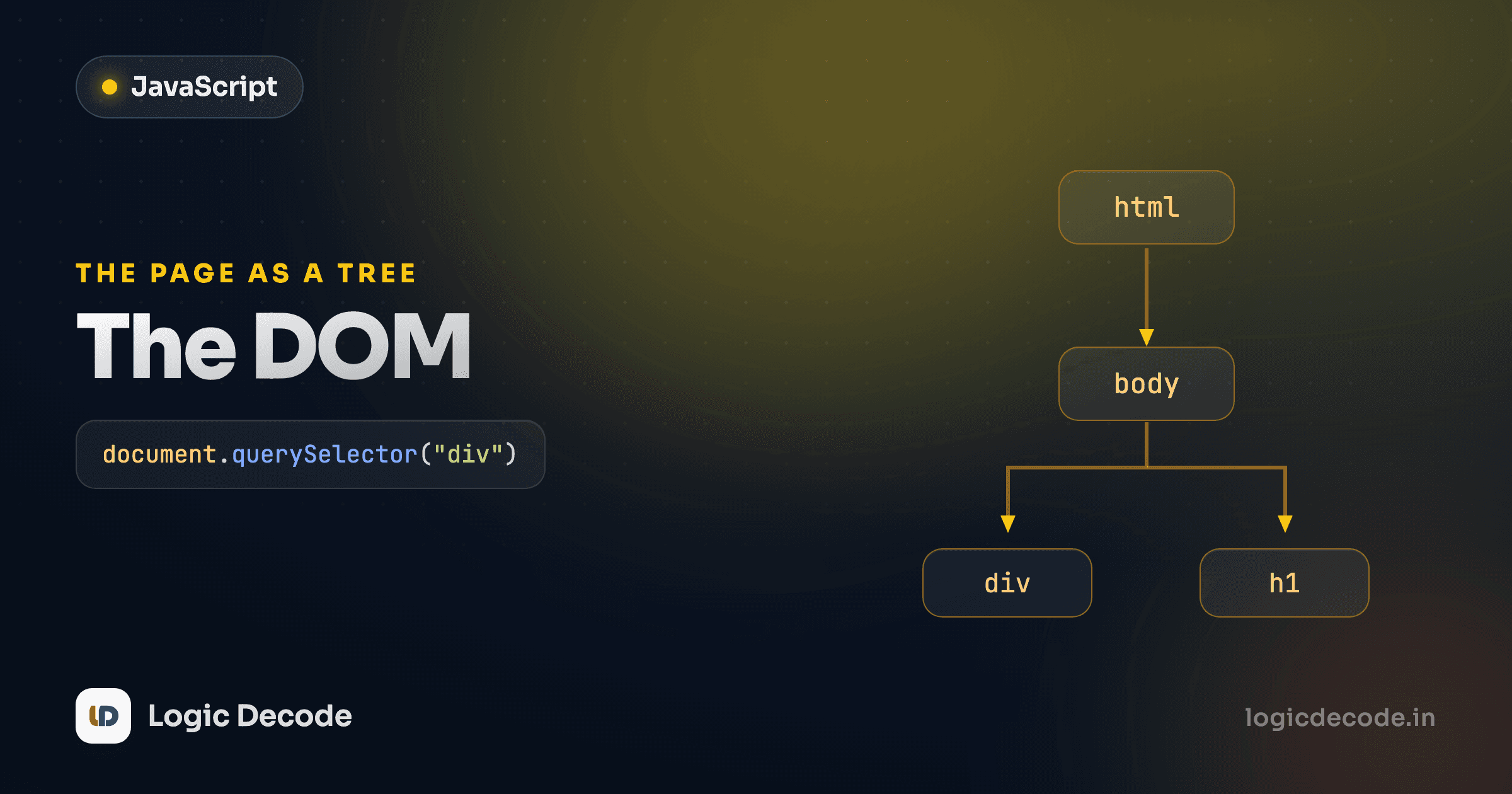
When the browser loads your HTML, it doesn't keep it as text. It parses every tag into a live object and arranges those objects in a tree that mirrors your nesting. That tree is the Document Object Model, the DOM. An <h1> inside a <body> becomes an object whose parent is the body object. Each one has properties you can read and write from JavaScript.
A small page nests into a shape like this:
The entry point is a global object called document. It is the page, and every element hangs off it. The MDN intro to the DOM is the canonical reference, but you'll learn it faster by changing a real page. Run this. It edits the heading the moment it loads:
Two lines did real work. The first grabbed the <h1> as an object, the second rewrote its text. Edit the string, watch the preview update. No reload, no server. JavaScript reached into the live tree and changed a node.
Selecting elements
You can't change an element until you've got a reference to it. There are three selectors worth knowing, and one of them covers almost everything.
// By id — returns one element (or null if there's no match)
const title = document.getElementById("title");

// CSS selector — returns the FIRST match (or null)
const firstBtn = document.querySelector(".btn");
const heading  = document.querySelector("h1");

// CSS selector — returns ALL matches as a NodeList
const allBtns = document.querySelectorAll(".btn");
querySelector and querySelectorAll take any CSS selector you already know: #id, .class, tag, nav a, whatever you'd write in a stylesheet. That's why they're the two I reach for by default: one syntax, and it does ids, classes, and complex selectors all at once. getElementById is a touch faster and reads clearly when you genuinely want one element by id, so it's still worth keeping around.
The big gotcha: querySelector gives you only the first match. If three buttons share a class and you want all of them, you need querySelectorAll, which hands back a NodeList, an array-like collection you loop over.
const items = document.querySelectorAll("li");
items.forEach((item) => {
  console.log(item.textContent);
});
Run your script after the elements exist
If your <script> runs before the element it's looking for has been parsed, the selector returns null and you get Cannot read properties of null. The fix: put your <script> tag at the end of the <body>, or wrap your code so it runs after the page is parsed. In the Playgrounds here the script loads after the markup, so selectors find their targets.
Reading and changing content
Once you hold an element, three properties do most of the day-to-day work.
textContent reads or sets the plain text inside an element. Assigning to it replaces everything between the tags with text, safely, as text, never as markup.
innerHTML reads or sets the HTML inside an element. Assign a string with tags and the browser parses them into real elements. Handy, and the source of a real security hole if you misuse it (more below).
style and classList change how an element looks. style sets one inline CSS property at a time. classList adds or removes whole classes, which is the cleaner way to restyle.
const box = document.querySelector("#box");

box.textContent = "Just text, safe.";        // sets plain text
box.innerHTML = "<strong>Bold</strong> text"; // parses real HTML
box.style.color = "crimson";                  // one inline CSS property
box.style.backgroundColor = "#fef3c7";        // note: camelCase, not background-color

box.classList.add("active");      // add a class
box.classList.remove("hidden");   // remove one
box.classList.toggle("open");     // flip it on/off
One detail that bites everyone once: CSS properties become camelCase on the style object. background-color is backgroundColor, font-size is fontSize. The hyphen is gone and the next letter is capitalized.
innerHTML and untrusted input
Never assign user-supplied text to innerHTML. If someone types <img src=x onerror=alert(1)> into a field and you drop it into innerHTML, the browser runs it, and that's a cross-site scripting (XSS) bug. Rule of thumb: use textContent for anything a user typed, and reach for innerHTML only with markup you wrote yourself.
Quick check
You want to display a comment a user typed, exactly as text, with no risk of it running as HTML. Which property should you set?
Creating and adding elements
Selecting and editing covers existing elements. To grow the page (add a list item, render a result, build a card), you create new nodes and attach them.
It's a three-step rhythm: make the element with createElement, fill it in, then appendChild it to a parent that's already on the page. Nothing shows up until that last step, because a created element floats free until you attach it.
const list = document.querySelector("#list");

const li = document.createElement("li"); // make it
li.textContent = "A brand-new item";     // fill it
list.appendChild(li);                     // attach it — now it's visible
Here's all of it together, select, read, restyle, and create, running against a real page. The script loops over a small array and builds a list item for each entry, then highlights the heading.
Read that JS top to bottom and you've used everything in this lesson. getElementById grabs two elements. createElement plus textContent plus appendChild builds a list item per task. classList.add strikes through the first one. And the heading gets new text plus an inline color. Notice the text is glued together with + instead of backtick template literals. That's deliberate inside these Playgrounds, but in your own files use `${index + 1}. ${task}` for the same result, more readably.
Build a chunk, attach once
Appending inside a loop is fine for a handful of items. When you're adding hundreds, building them in a DocumentFragment and appending that once is noticeably faster, because the browser only re-renders a single time instead of on every insert. Worth knowing the day a list feels sluggish.
Recap and what's next
The DOM is the page rebuilt as a tree of objects, all reachable from document. You select with getElementById or, more often, querySelector and querySelectorAll. You read and change content with textContent (always safe) and innerHTML (handy, but never with user input). You restyle with style (camelCased properties) and the cleaner classList. And you grow the page by creating elements with createElement and attaching them with appendChild.
You can now change a page on command, but right now it only happens once, on load. The real magic is making changes happen when the user does something: a click, a keypress, a form submit. That's next: JavaScript events. If you skipped here, the previous lesson on JavaScript objects is worth a look first, since every DOM element is itself an object with properties you set. And the Python functions lesson shows the same "break it into named pieces" habit from the other half of programming.

Written by
Rhythm Bhiwani
Engineer and relentless builder, happiest reverse-engineering hard problems until they click.
Enjoyed this?
Tap the heart to leave some love.
Be the first to react
Comments
Join the conversation.
Loading comments…