Users, groups and permissions on a real server
Create a non-root user to run your app, understand sudo, and see why root running a public web server is a real security risk, not a formality.

You just proved you can log in as root over SSH with a key. Good. Now stop doing that for anything except emergencies, because every command you run as root can touch every file on the machine, and a single bug in your app running as root can become a bug that touches every file on the machine too. This lesson is about creating the account that will actually run Linkstash, one with exactly the power it needs and nothing more.
Why root is the wrong account for an app
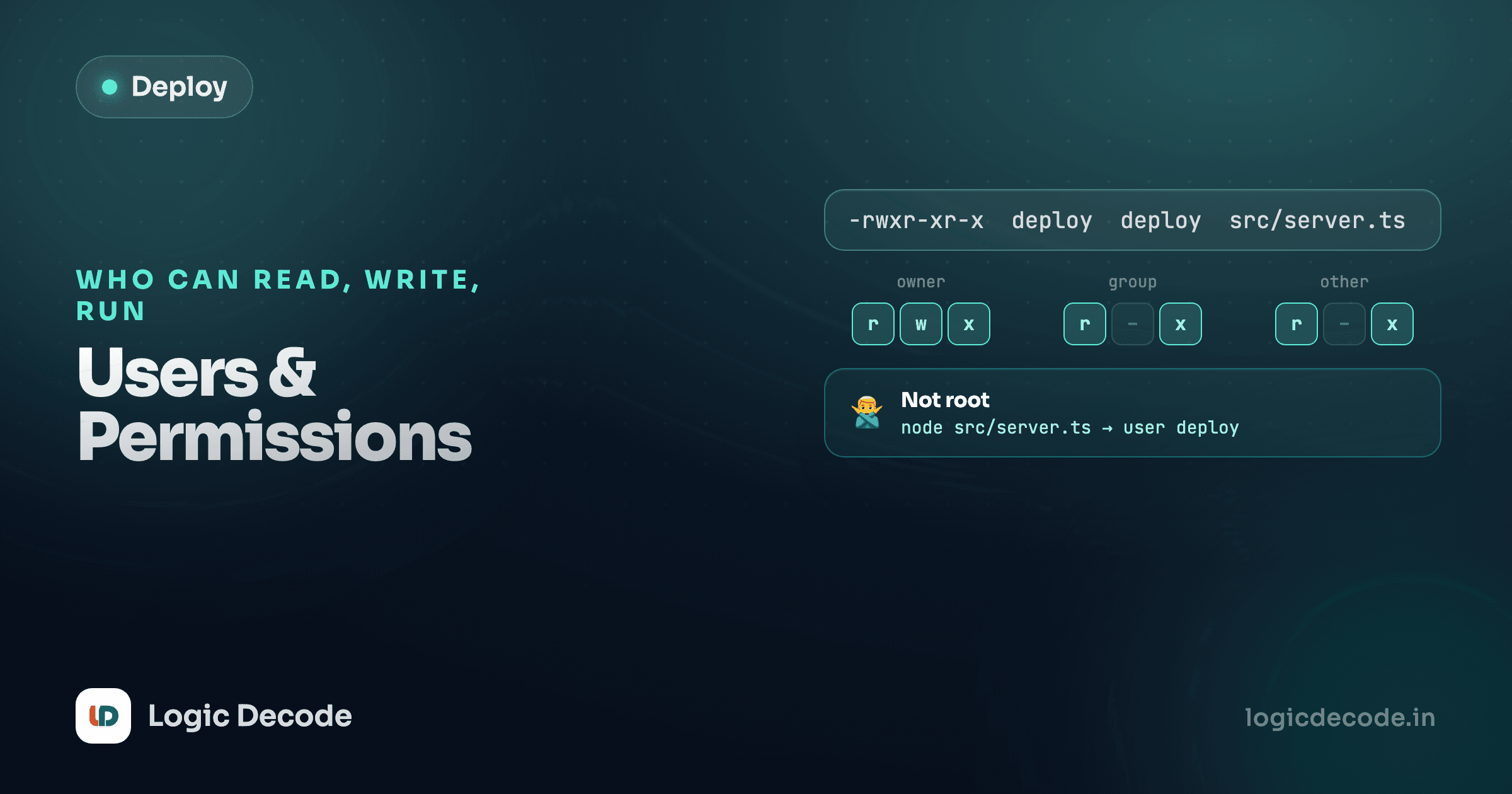
Root is the Linux superuser. No permission check applies to it: it can read any file, kill any process, install anything, delete anything. That power is exactly why you don't want your web app running as root. If Linkstash has a bug that lets an attacker execute arbitrary code (through a dependency vulnerability, a bad input, anything), the blast radius of that bug is capped by what the account running the process can do. Run it as root, and a code execution bug in your Express app becomes full control of the server. Run it as a limited user, and the same bug is contained to whatever that user can touch.
It's the same principle of least privilege that shows up all over application security, just applied one layer down, at the operating system instead of the API: give an account exactly the power its job requires, and a small bug stays a small bug instead of becoming a total compromise.
Creating a user for the app
Log in with the key you set up last lesson, and create a dedicated user:
sudo adduser deployadduser (the friendlier Debian/Ubuntu wrapper around useradd) walks you through setting a password and some optional details like full name. You can leave the optional fields blank. Set a real password anyway even though this user will log in with SSH keys, since some tools still expect one to exist.
Copy your public key into this new user's account so you can SSH in directly as deploy instead of switching from root each time:
sudo rsync --archive --chown=deploy:deploy ~/.ssh /home/deployThat copies your .ssh directory, including the authorized_keys file you already set up for root, and hands ownership to the new user. Test it from your laptop in a fresh terminal before moving on:
ssh deploy@203.0.113.10Giving deploy just enough power with sudo
deploy can't do anything privileged yet, which is correct, but you'll need it to install packages, manage systemd services, and edit config in /etc. sudo lets a permitted user run specific commands as root, one command at a time, instead of living in a root shell.
Add deploy to the sudo group, which on Ubuntu is pre-configured to allow full sudo access:
sudo usermod -aG sudo deploy-aG means append to this group without removing the user from any other group they're already in, a common gotcha since -G alone replaces the whole group list. Log out and back in as deploy for the group change to take effect, then check it worked:
sudo whoamirootThat single command asked for your password (the account's own password, not root's) and confirmed you can act as root when you explicitly ask to. The difference from being logged in as root directly is that every sudo command is deliberate and, by default, logged to /var/log/auth.log. You leave a trail. Root doesn't have to.
Reading permissions on the app's files
You'll deploy Linkstash's code into a directory owned by deploy, so its own files need to make sense too. Say the code lives at /home/deploy/linkstash. Check what you're looking at with a long listing:
ls -l /home/deploy/linkstash/src/server.ts-rw-r--r-- 1 deploy deploy 245 Sep 18 10:02 server.tsThat's a regular file (-), owned by user deploy and group deploy, readable and writable by the owner, and readable (but not writable) by everyone else. That's the right shape for source code: deploy can edit it, nothing else needs to. If the command-line series covered chmod and the read/write/execute bits already, this is the same model, just applied to the files your production app actually runs from.
Ownership matters as much as the bits
chmod changes what the permission bits allow. chown changes who they apply to. A file owned by root with permissive bits still isn't editable by deploy unless deploy is in the right group. When something you expect to work throws "permission denied" on a server, check ls -l for the owner before you touch the bits.
Locking the database file down
Linkstash reads a DATABASE_FILE environment variable for where its SQLite file lives (lesson 8 covers setting that properly). Whatever path you choose, make sure only deploy can read it:
ls -l /home/deploy/linkstash/linkstash.db-rw-r----- 1 deploy deploy 24576 Sep 18 11:40 linkstash.db640 here removes the world-readable bit entirely: owner reads and writes, group reads, everyone else gets nothing. That file holds password hashes and every user's saved links. There's no reason any other account on this machine, or a process running under a different user, should be able to open it.
Quick check
Why run Linkstash as a dedicated 'deploy' user instead of root, even though root can do everything root would need?
You now have an account built for the job: real sudo access when you ask for it, and a home directory it actually owns. Next: keeping your app running with systemd, where deploy gets its first real job, running Linkstash itself.

Written by
Rhythm Bhiwani
Engineer and relentless builder, happiest reverse-engineering hard problems until they click.
Enjoyed this?
Tap the heart to leave some love.
Be the first to react
Comments
Join the conversation.
Loading comments…