Keeping your app running with systemd
Write a systemd unit that runs Linkstash as a non-root user, restarts it if it crashes, and starts it automatically on every server reboot.

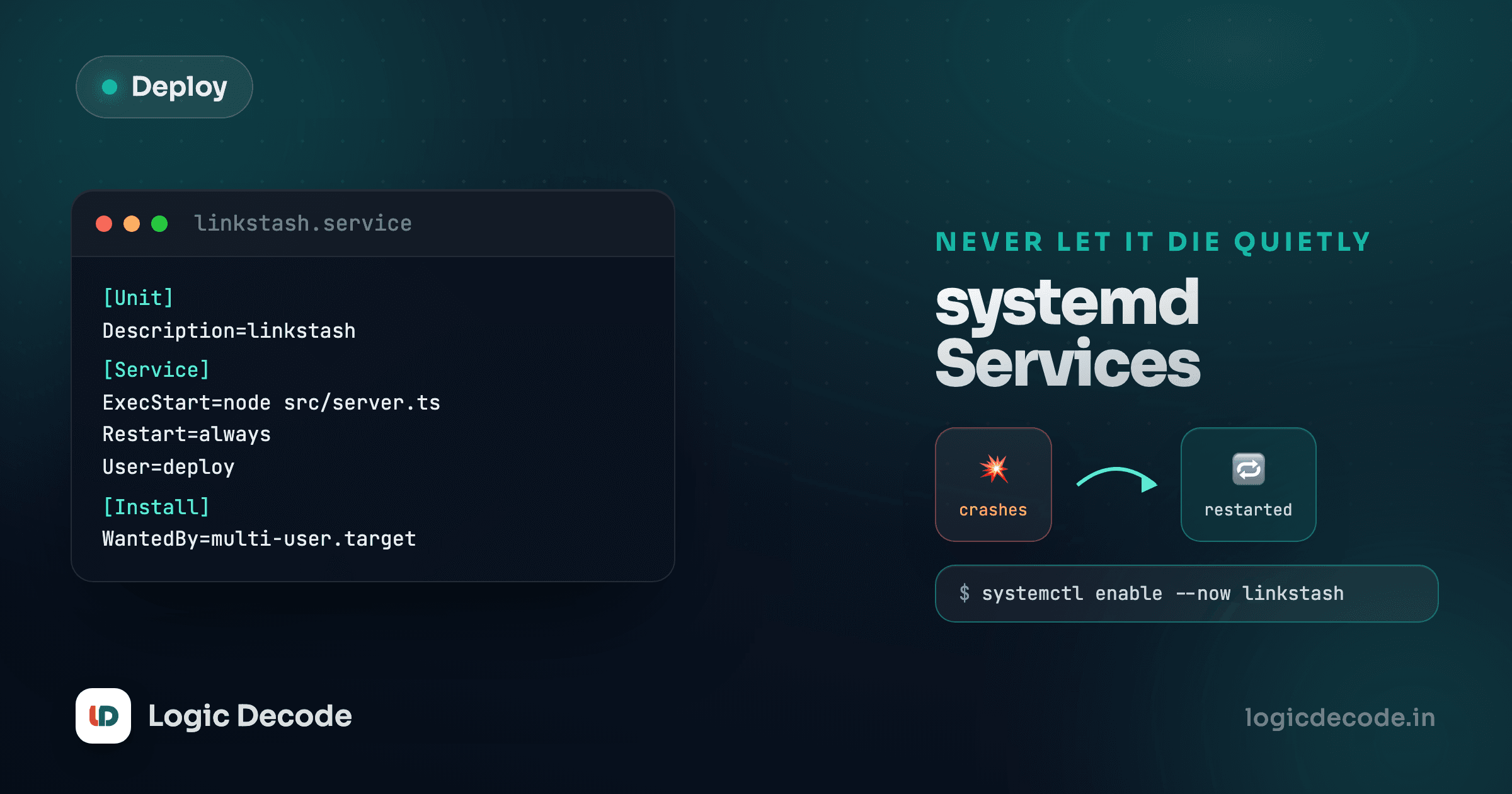
SSH into the server, run node src/server.ts, and Linkstash starts. Close your laptop lid and it dies, because the terminal session it was attached to just ended. Reboot the server for a routine update and it doesn't come back on its own either. Neither of those is acceptable for something you're calling "deployed." You need the app running as a proper background service that the operating system itself is responsible for, and on Ubuntu that service manager is systemd.
What systemd is actually doing
systemd is the first process Linux starts on boot (PID 1) and it manages everything else from there: starting services in the right order, restarting ones that crash, and giving you one consistent way to check on any of them. Instead of babysitting a terminal with a running Node process, you describe the service once in a small config file called a unit, hand it to systemd, and it handles starting, stopping, restarting, and logging for you.
That's a real trade you're making. You give up the interactive terminal where you can watch console.log output scroll by, and get in return a service that survives reboots, restarts itself after a crash, and reports its state with one command. Every push-to-deploy platform is doing exactly this underneath, just with their own tooling wrapped around it.
Writing the unit file
Unit files for services live in /etc/systemd/system/. Create one for Linkstash:
sudo nano /etc/systemd/system/linkstash.serviceHere's the full unit. It runs the same command you'd run by hand, node src/server.ts, no build step, because Node 24 strips TypeScript's types at run time.
[Unit]
Description=Linkstash API
After=network.target

[Service]
Type=simple
User=deploy
WorkingDirectory=/home/deploy/linkstash
ExecStart=/usr/bin/node src/server.ts
Environment=PORT=3000
Environment=DATABASE_FILE=/home/deploy/linkstash/linkstash.db
Restart=on-failure
RestartSec=5

[Install]
WantedBy=multi-user.target
Walk through what each block is doing.
[Unit] describes the service to systemd in general terms. After=network.target tells systemd to wait until networking is up before starting this, since an API server started before the network exists would just fail its first bind.
[Service] is the part that matters most. User=deploy is the whole point of the last lesson: this process runs as the non-root user you created, not root. WorkingDirectory sets where relative paths (like the default linkstash.db) resolve from. ExecStart is the exact command systemd runs, the real node src/server.ts your app actually needs, with an absolute path to the node binary since systemd doesn't load your shell's PATH by default. Environment lines set PORT and DATABASE_FILE directly in the unit, which is fine for these two, though lesson 8 covers a cleaner way to manage a longer list of production config. Restart=on-failure with RestartSec=5 means if the process exits with a non-zero code, systemd waits five seconds and starts it again, which is what actually protects you from a 3am crash going unnoticed.
[Install] tells systemd when to start this automatically. WantedBy=multi-user.target means "start this during normal system boot," which is what makes the app come back after a reboot.
Find your real node path first
Run which node on the server and use whatever it prints for ExecStart, in case Node isn't installed at /usr/bin/node on your setup (a version manager like nvm often installs it elsewhere, under your home directory, which systemd won't see by default anyway). A path that's wrong here fails silently from your perspective: the service just won't start.
Starting it and making it permanent
Whenever you add or edit a unit file, tell systemd to reread it:
sudo systemctl daemon-reloadStart the service and check it took:
sudo systemctl start linkstash
sudo systemctl status linkstash● linkstash.service - Linkstash API
Loaded: loaded (/etc/systemd/system/linkstash.service; enabled)
Active: active (running) since Sat 2026-09-19 14:02:11 UTC; 4s ago
Main PID: 8842 (node)active (running) is what you want to see. If it says failed instead, jump to the debugging section below before doing anything else.
Starting it now doesn't mean it starts on the next reboot. That's a separate step, deliberately, so you can test a service without committing to it surviving a restart:
sudo systemctl enable linkstashNow confirm the whole loop actually works. Reboot the server:
sudo rebootWait a few seconds, SSH back in, and check status again. If it says active (running) without you touching anything, the service is doing its job.
Quick check
What does Restart=on-failure with RestartSec=5 actually protect against?
The commands you'll reach for constantly
A handful of systemctl and journalctl commands cover almost everything you'll do with this service day to day:
sudo systemctl restart linkstash   # apply a code change or config change
sudo systemctl stop linkstash      # take it down deliberately
sudo systemctl status linkstash    # is it up, and since when
journalctl -u linkstash -f         # follow its logs live
journalctl -u linkstash --since "10 min ago"
That journalctl -u linkstash line is worth remembering now. systemd captures everything the process writes to stdout and stderr, including the console.log("Linkstash listening on...") line from server.ts itself, and stores it as structured, searchable logs. Lesson 9 goes deeper on reading and reasoning about that log.
When status says failed
The most common cause is a wrong path or a port already in use. journalctl -u linkstash -n 50 --no-pager shows the last 50 log lines, which almost always includes the actual error (a stack trace, an EADDRINUSE, a "cannot find module" if WorkingDirectory is wrong). Fix the unit file, then sudo systemctl daemon-reload and sudo systemctl restart linkstash again. Editing the file alone does nothing until you reload.
Linkstash now survives logouts, crashes, and reboots without you lifting a finger, which is the actual bar for "running in production," not just "running." Next up: Nginx as a reverse proxy, where you stop hitting port 3000 directly and put a real front door on it.

Written by
Rhythm Bhiwani
Engineer and relentless builder, happiest reverse-engineering hard problems until they click.
Enjoyed this?
Tap the heart to leave some love.
Be the first to react
Comments
Join the conversation.
Loading comments…