Nginx as a reverse proxy
Put Nginx in front of Linkstash so it answers on port 80 under a real hostname, and understand what a reverse proxy buys you over exposing Node directly.

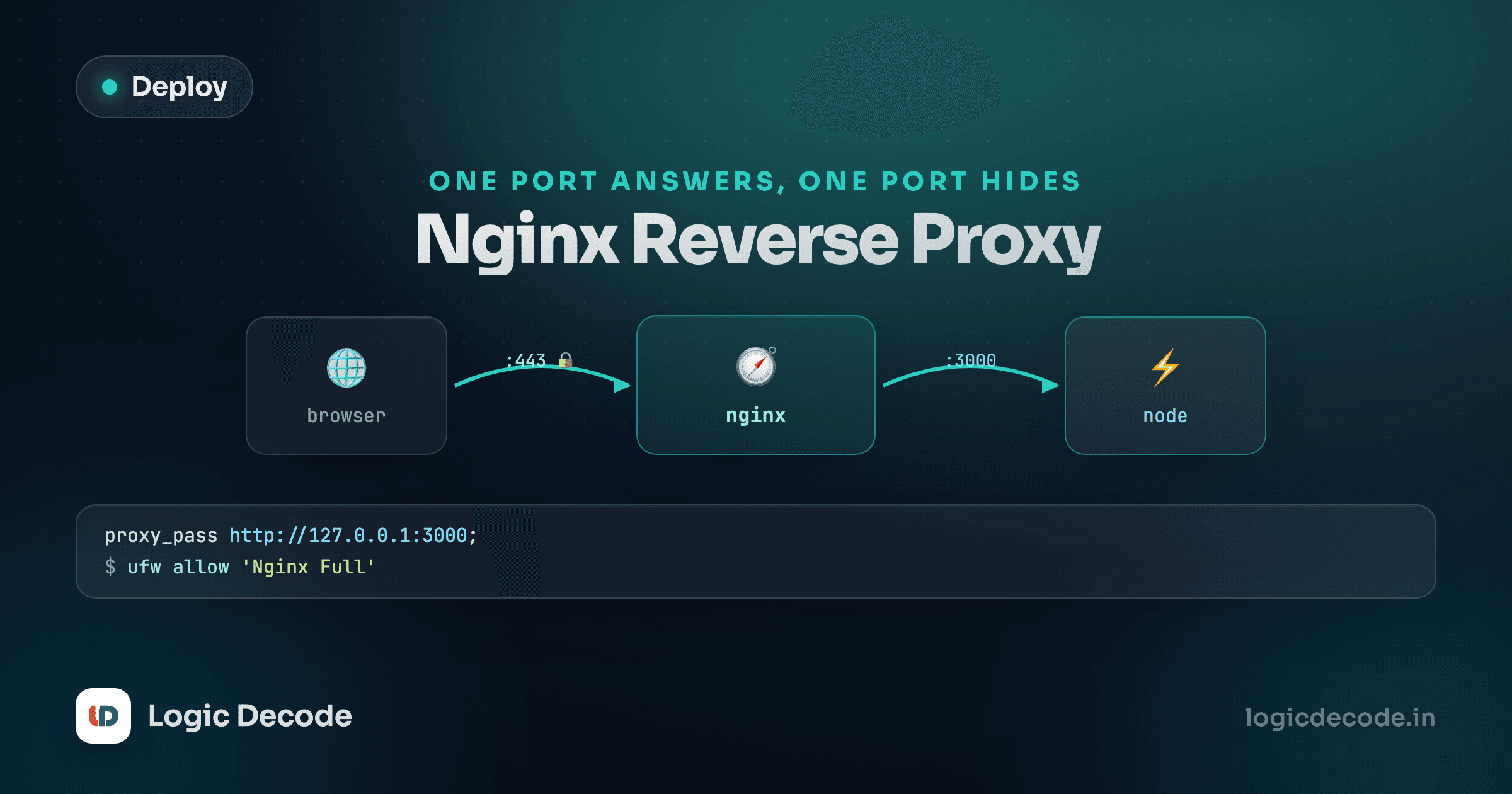
Linkstash is up, managed by systemd, and answering on port 3000. You could stop there and tell people to visit http://your-server-ip:3000. Nobody will. Real URLs don't have port numbers in them, browsers expect port 80 for HTTP and 443 for HTTPS, and you'll want more than one app on this server eventually. The fix for all three is the same piece of software sitting in front of Node: Nginx, working as a reverse proxy.
What a reverse proxy is doing
A normal proxy sits in front of clients, forwarding their requests out to the internet on their behalf. A reverse proxy is the mirror image: it sits in front of your server, and the internet talks to it instead of talking to your app directly. Nginx receives every request on port 80, decides what to do with it, and forwards it internally to Linkstash listening privately on 3000. The client never sees port 3000 at all.
That one extra hop buys you a surprising amount. Nginx can serve multiple domains from one server, each routed to a different app, so this same box could run Linkstash and something else side by side. It handles the low-level ugliness of real HTTP traffic (slow clients, connection buffering, request size limits) far better than a Node process built to focus on your app's logic. It's where HTTPS gets terminated, which lesson 7 covers. And it gives you one consistent front door regardless of what's running behind it, in whatever language.
Installing Nginx
sudo apt update
sudo apt install nginx
Ubuntu starts and enables Nginx automatically after install. Confirm it's up:
sudo systemctl status nginxVisit http://<server-ip> in a browser right now and you'll see the default "Welcome to nginx!" page. That's Nginx serving its own default site, not talking to Linkstash yet. Fixing that is the rest of this lesson.
Writing a server block
Nginx's config for a single site is called a server block. Site configs live in /etc/nginx/sites-available/, and get activated by a symlink into /etc/nginx/sites-enabled/. Create one for Linkstash:
sudo nano /etc/nginx/sites-available/linkstashserver {
listen 80;
server_name linkstash.example.com;
location / {
proxy_pass http://127.0.0.1:3000;
proxy_http_version 1.1;
proxy_set_header Host $host;
proxy_set_header X-Real-IP $remote_addr;
proxy_set_header X-Forwarded-For $proxy_add_x_forwarded_for;
proxy_set_header X-Forwarded-Proto $scheme;
}
}listen 80 is the port Nginx accepts connections on. server_name is the hostname this block answers for, replace linkstash.example.com with your own domain once you have one from lesson 6 (for now, an IP address alone will match Nginx's default_server, which is close enough to test with).
Inside location /, proxy_pass is the whole job: forward everything matching this path to Linkstash on 127.0.0.1:3000, the loopback address, meaning Nginx and Node are talking to each other on the same machine without going out over the real network. The four proxy_set_header lines matter more than they look. Without them, every request Linkstash sees would appear to come from 127.0.0.1 (Nginx itself), not the real visitor. X-Real-IP and X-Forwarded-For preserve the client's actual IP address. X-Forwarded-Proto tells your app whether the original request was HTTP or HTTPS, since Nginx will be the one terminating TLS later, not Node.
Enabling the site
Symlink it into sites-enabled to activate it, and remove the default site so it doesn't compete for unmatched requests:
sudo ln -s /etc/nginx/sites-available/linkstash /etc/nginx/sites-enabled/
sudo rm /etc/nginx/sites-enabled/default
Before reloading, always test the config. This catches typos before they take your site down:
sudo nginx -tnginx: the configuration file /etc/nginx/nginx.conf syntax is ok
nginx: configuration file /etc/nginx/nginx.conf test is successfulOnly reload once that says ok:
sudo systemctl reload nginxreload re-reads config without dropping active connections, which is why it's preferred over restart for a config change on a live server.
Now curl the server on port 80, no port number needed:
curl http://<server-ip>/links{"error":"Unauthorized"}That JSON is coming from Linkstash's own auth middleware, not from Nginx. The request went browser or curl to Nginx on 80, Nginx to Node on 3000, Node's response back through Nginx to you. The proxy is transparent. From the outside, there's just one server answering on the normal HTTP port.
The firewall still needs to allow this
If you haven't opened port 80 in the server's firewall yet (ufw on Ubuntu, or your cloud provider's security group), this curl will hang instead of connecting. sudo ufw allow 80/tcp and sudo ufw allow 22/tcp (never lock out SSH) are the two rules almost every server needs at minimum. Lesson 7 adds 443 once HTTPS is in place.
Quick check
Why do the proxy_set_header lines (X-Real-IP, X-Forwarded-For) matter in the Nginx config?
Nginx also fronts static assets and rate limits, later
Two things worth flagging now, without diving in: location blocks can match more than just /, so a real deployment often has a separate block for static files served directly by Nginx (faster than round-tripping through Node for a file that never changes), and limit_req directives can throttle abusive traffic before it ever reaches your app. Neither is needed for Linkstash's current shape, but it's why Nginx configs in the wild look bigger than this one.
Linkstash now answers on the normal web port, through a proxy built to handle real traffic properly. Next: pointing a domain at your server, so linkstash.example.com stops being a placeholder and starts being a real, resolvable name.

Written by
Rhythm Bhiwani
Engineer and relentless builder, happiest reverse-engineering hard problems until they click.
Enjoyed this?
Tap the heart to leave some love.
Be the first to react
Comments
Join the conversation.
Loading comments…