Pointing a domain at your server
Buy a domain, add an A record pointing at your server's IP, wire it into the Nginx config, and understand why DNS changes take time to show up.

Every server_name line you've typed so far has been a placeholder: linkstash.example.com isn't a real address, it's a stand-in for one you don't have yet. Time to fix that. This lesson is short on purpose, because how DNS actually resolves a name to an address is a whole topic the DNS lesson already covers in depth. Here you're just doing the practical, five-minute task of pointing a real domain at a real server.
What you're actually configuring
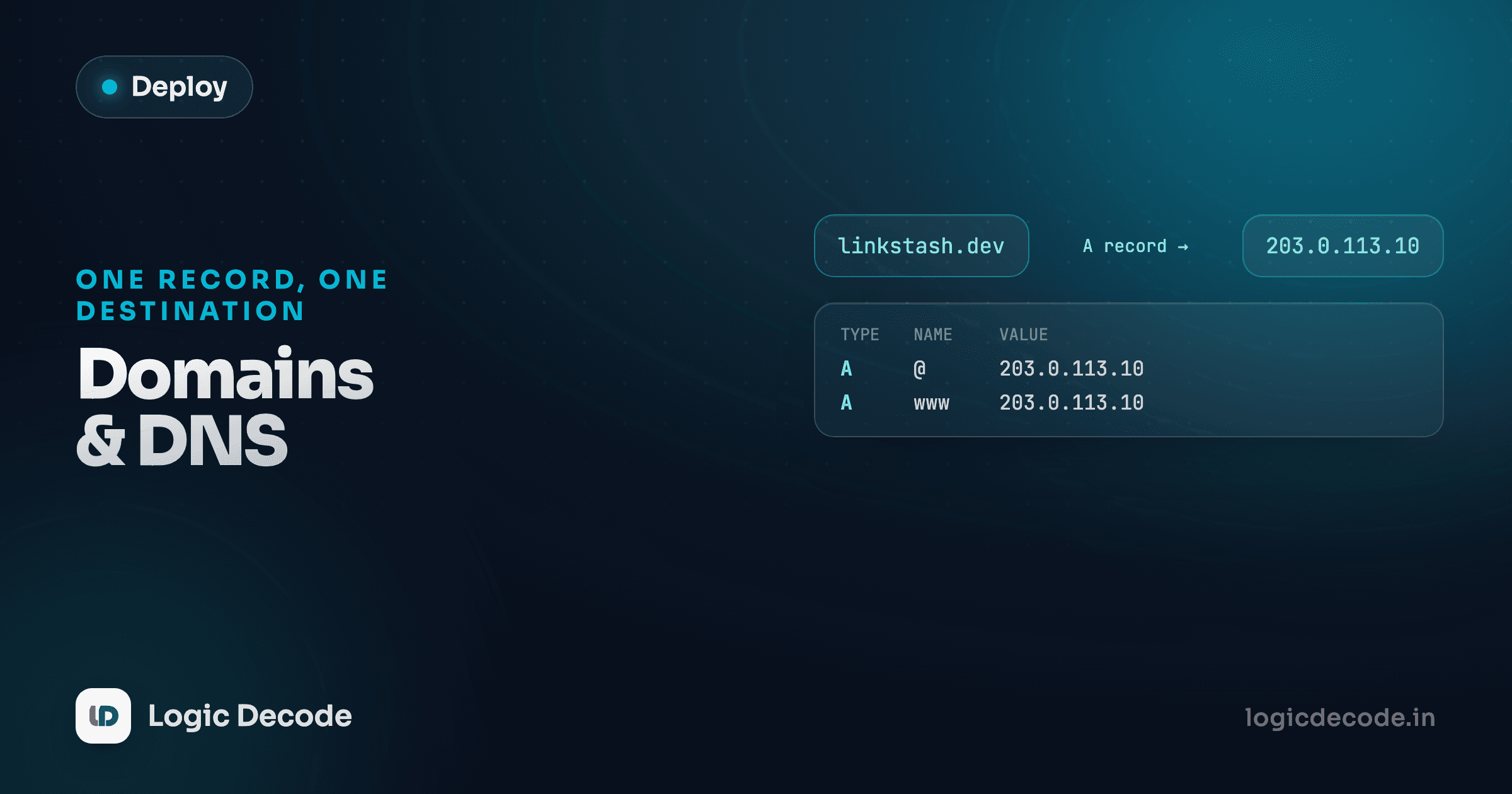
You own a domain, or you're about to buy one, from a registrar (Namecheap, Cloudflare, Google Domains, whichever). Owning it means you control its DNS records, the entries that tell the internet what a name like linkstash.example.com actually points to. The one record type you need for this lesson is an A record, which maps a hostname directly to an IPv4 address.
That's the entire mental model this lesson needs: one line in a table somewhere, saying "when someone looks up this name, the answer is this IP address." If your domain needs to serve IPv6 traffic too, the equivalent is an AAAA record, same idea, different address format. Everything about how a browser turns that record into an actual connection (recursive resolvers, TTLs, the whole resolution chain) is exactly what the DNS lesson walks through, so it isn't repeated here.
Adding the A record
Log into your registrar or DNS provider's dashboard and find the DNS management section for your domain. You're adding one record:
| Type | Host | Value | TTL |
|---|---|---|---|
| A | linkstash (or @ for the bare domain) | 203.0.113.10 | 3600 |
Host is the subdomain part. linkstash here means the full name becomes linkstash.example.com. Using @ instead points the bare example.com itself at your server. Value is your server's public IPv4 address, the same one you've been SSHing into all series. TTL (time to live) is how long, in seconds, other resolvers are allowed to cache this answer before checking again. 3600 (an hour) is a reasonable default. You can lower it temporarily while you're actively changing things, and raise it back up once the setup is stable.
Why DNS changes aren't instant
That TTL is also why a fresh A record doesn't show up everywhere immediately. Resolvers around the internet that already cached an old answer, or a "no such record" answer, keep serving it until their cached copy expires. Propagation isn't magic delay, it's just caches expiring on their own schedules. A short TTL while you're setting up means you wait less if you need to change the IP again.
Verifying it resolved
Don't guess whether it worked. Ask directly:
dig +short linkstash.example.com203.0.113.10dig queries DNS directly and +short trims the output to just the answer. Once that command prints your server's IP, the record is live from at least the resolver you queried. If it prints nothing, either the record hasn't propagated yet or it's misconfigured. Wait a few minutes and try again before assuming it's broken.
You can also check with the interactive resolver below. Type your domain in and it walks through the same lookup:
The browser asks the operating system, which asks the resolver it was configured with.
Pointing Nginx at the real hostname
Go back to the server block you wrote in the Nginx lesson and replace the placeholder:
server {
    listen 80;
    server_name linkstash.example.com;

    location / {
        proxy_pass http://127.0.0.1:3000;
        proxy_http_version 1.1;
        proxy_set_header Host $host;
        proxy_set_header X-Real-IP $remote_addr;
        proxy_set_header X-Forwarded-For $proxy_add_x_forwarded_for;
        proxy_set_header X-Forwarded-Proto $scheme;
    }
}
Test and reload the same way as before:
sudo nginx -t
sudo systemctl reload nginx
Now curl http://linkstash.example.com/links instead of the raw IP, and you should get the same {"error":"Unauthorized"} response Linkstash sends for an unauthenticated request. That's the full chain working end to end: your domain's A record resolves to the server's IP, Nginx recognizes the hostname in server_name, and forwards the request to Node exactly as before.
Quick check
You add an A record and dig immediately returns nothing for your domain. What's the most likely explanation?
One domain, multiple apps
Worth knowing now, even though Linkstash is the only thing on this server: you can add another A record for a different subdomain (status.example.com, say) pointing at the same IP, then add a second Nginx server block with a different server_name matching it. Nginx picks the right block per request based on the Host header, so one server can quietly host several independent apps without any of them knowing the others exist.
Linkstash has a real name now, not just an IP address to memorize. The one thing missing is the padlock. Next: free HTTPS with Let's Encrypt, where http:// becomes https:// and browsers stop warning visitors that the connection isn't secure.

Written by
Rhythm Bhiwani
Engineer and relentless builder, happiest reverse-engineering hard problems until they click.
Enjoyed this?
Tap the heart to leave some love.
Be the first to react
Comments
Join the conversation.
Loading comments…