SQL WHERE: Filtering Rows with Conditions
Filter rows in SQL with WHERE: comparison and logical operators, BETWEEN, IN, LIKE, and IS NULL, with live, runnable queries in your browser.

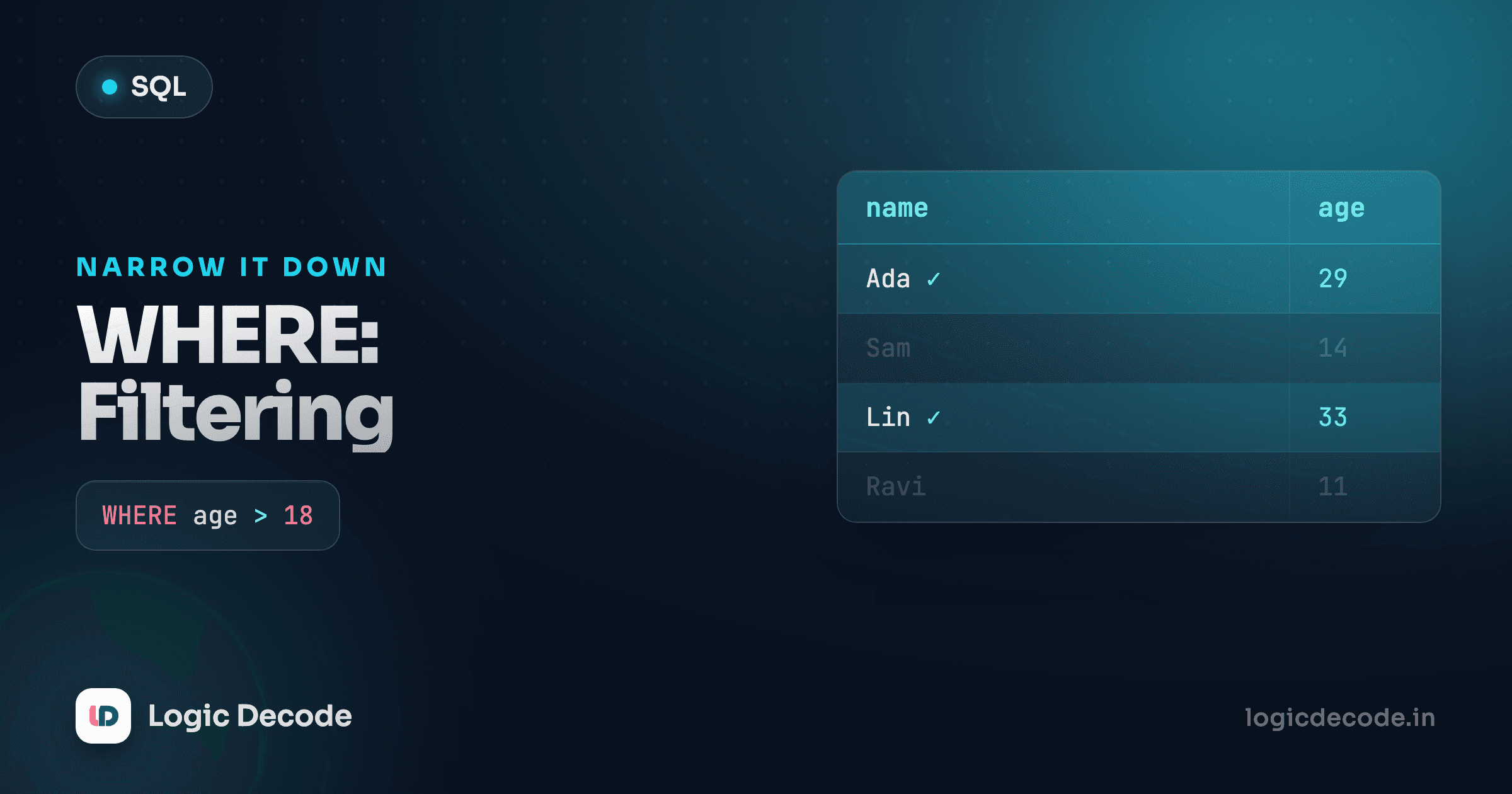
SELECT hands you the whole table. That's fine when there are eight rows, but useless when there are eight million. What you almost always want is some of the rows: the orders from last week, the products under twenty bucks, the customers in Mumbai. WHERE is how you say which ones. It's the single most-used clause in SQL, and once it clicks, you can ask a database real questions.
Here's the shape of it. Run this and you get only the customers whose city is Mumbai, not all eight:
WHERE goes right after the table name. Behind it you write a condition, an expression that's either true or false for each row. The database walks every row, checks the condition, and keeps only the rows where it's true. Three of our customers live in Mumbai, so three rows come back. Change 'Mumbai' to 'Pune' and rerun. You'll get a different set.
That single quote matters. In SQL, text values go in single quotes: 'Mumbai'. Double quotes mean something else (they're for column names), and getting this wrong is the first error every beginner hits.
Comparison operators
= is just the start. You've got the full set of comparisons, and they work on numbers, text, and dates alike:
| Operator | Means | Example |
|---|---|---|
= | equal to | price = 9.99 |
<> or != | not equal to | category <> 'Home' |
< | less than | price < 20 |
> | greater than | quantity > 2 |
<= | less than or equal | price <= 50 |
>= | greater than or equal | price >= 100 |
Say you want the cheap stuff, everything under twenty:
You get the Mouse, the Notebook, the Coffee Mug, and the Pen Set. Flip it to >= 50 and you'll see the pricey end of the catalogue instead. Notice we didn't put quotes around 20. It's a number, not text, so no quotes.
<> and != both mean "not equal," and they're interchangeable. <> is the official SQL standard. != is what you'll reach for out of habit if you came from another language. Pick one and move on.
Combining conditions with AND, OR, NOT
One condition is rarely enough. Real questions sound like "Electronics under fifty dollars," and that's two conditions glued together. AND keeps rows where both are true:
The Keyboard and the Mouse make the cut. The Monitor is Electronics but costs 179, so AND drops it. Both halves have to pass.
OR is looser. It keeps a row if either side is true. "Anything from Stationery, or anything cheaper than ten dollars":
NOT flips a condition. WHERE NOT category = 'Home' gives you everything that isn't Home.
Here's the trap. When you mix AND and OR in one WHERE, AND binds tighter than OR. It's evaluated first, just like * before + in maths. So this:
WHERE category = 'Electronics' OR category = 'Home' AND price < 10does not mean "Electronics or Home, both under ten." It means "all Electronics, or Home items under ten," because the AND groups with 'Home' first. Almost never what you wanted. Use parentheses to say exactly what you mean:
Now the parentheses force "Electronics or Home" to be one unit, then the price filter applies to both. Only the Coffee Mug survives. When in doubt, add the parentheses. They cost nothing and they save you from a class of bug that's miserable to spot later.
Parentheses are free, debugging isn't
The moment a WHERE clause has both AND and OR, wrap your OR group in parentheses. Even when the default precedence happens to be right, the parentheses make your intent obvious to the next person reading the query — often future you.
BETWEEN, IN, and LIKE: the shortcuts
You could write price >= 10 AND price <= 100 for a range. But there's a cleaner way. BETWEEN does exactly that, and it's inclusive on both ends:
That's identical to price >= 10 AND price <= 100, just shorter and easier to read. It works on dates too: order_date BETWEEN '2026-03-01' AND '2026-03-31' grabs a whole month.
IN is for "is it one of these?" Instead of chaining ORs, you give a list:
That beats city = 'Mumbai' OR city = 'Pune', and the gap only widens with more options. There's also NOT IN for the inverse: everyone not in those cities.
LIKE is pattern matching for text, and it uses two wildcards: % matches any run of characters (including none), and _ matches exactly one. Want every product whose name starts with a capital M?
'M%' means "M, then anything," so Mouse and Monitor. Some patterns to keep in your back pocket:
'%book': ends with "book" (Notebook).'%a%': contains an "a" anywhere.'B__': exactly three characters, starting with B (_is a single character each).
In SQLite (the engine running these queries) LIKE is case-insensitive for plain ASCII letters, so 'm%' finds the same rows as 'M%'. Other databases differ. Postgres is case-sensitive with LIKE and gives you ILIKE for the insensitive version. Worth knowing before you move a query to production.
Quick check
Which pattern matches names that are exactly four characters long and start with 'P'?
IS NULL: the absence of a value
NULL is SQL's way of saying "no value here": unknown, missing, not filled in. It is not zero, and it is not an empty string. It's the absence of any value at all. And it breaks the rules you just learned, because you cannot compare it with =.
This query looks right and returns nothing:
SELECT name FROM customers WHERE city = NULL; -- always emptyWhy? Because NULL means "unknown," and the database can't say whether an unknown value equals NULL. The answer is itself unknown, which is neither true nor false. So the row never matches. = NULL is a silent bug: no error, just zero rows, every time.
The fix is a dedicated operator: IS NULL (and its partner IS NOT NULL). Let's add a customer whose city we never recorded, then find them:
Nadia comes back, because her city genuinely has no value. Swap to IS NOT NULL and you'll get the other eight, everyone who does have a city on file:
The NULL rule
Never use = or <> with NULL. Use IS NULL and IS NOT NULL. This catches people for years. If a filter mysteriously returns nothing, check whether the comparison is against a value that might be NULL. SQLite's full set of operators, including how NULL behaves, is laid out in the SQLite expression docs.
Putting it together
A real WHERE clause often stacks several of these. Here's one that finds Electronics priced between twenty and two hundred, whose name doesn't start with "Mo":
Read it top to bottom and it's almost English: Electronics, in this price range, not starting with "Mo." The Keyboard and Monitor are the Electronics that fall in range, but the Monitor starts with "Mo," so NOT LIKE 'Mo%' drops it, leaving just the Keyboard. Remove that last line and rerun to watch the Monitor reappear.
Recap and what's next
WHERE filters rows by a condition that's true or false per row. You've got comparisons (=, <>, <, >, <=, >=), the logical glue AND / OR / NOT (with parentheses to control grouping), and the readable shortcuts BETWEEN for ranges, IN for lists, and LIKE with % and _ for text patterns. And NULL plays by its own rules: always reach for IS NULL and IS NOT NULL, never =.
If you skipped it, the previous lesson on SELECT basics covers choosing columns, which WHERE builds straight on top of. Next we'll sort and trim the results we've been filtering, with ORDER BY and LIMIT, so you can ask for "the five cheapest products" in one line.

Written by
Rhythm Bhiwani
Engineer and relentless builder, happiest reverse-engineering hard problems until they click.
Enjoyed this?
Tap the heart to leave some love.
Be the first to react
Comments
Join the conversation.
Loading comments…