Your First Docker Container: docker run
Install Docker and run your first containers with docker run (hello-world and a real web server), then list, stop and remove them with the core commands.

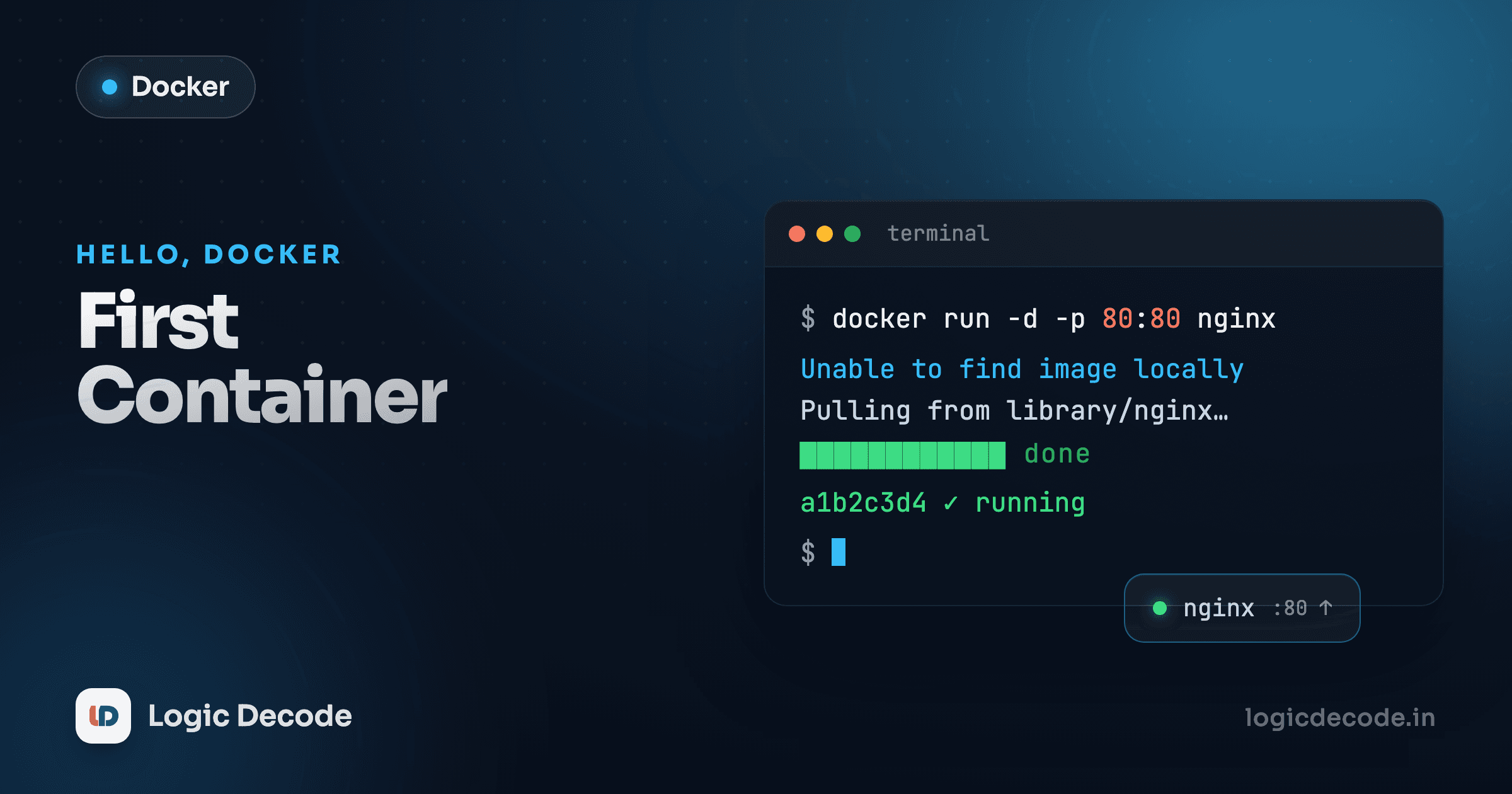
One command, and you've got nginx serving web pages on your machine. No installer, no config files, no version conflicts with whatever else is running. That's the promise from the last lesson, and in the next ten minutes you're going to feel it. We'll install Docker, run two containers (a tiny one and a real web server), and learn the five commands you'll type every single day after this.
Install Docker and prove it works
The easiest path on a laptop is Docker Desktop, one app that bundles the Docker engine, the CLI, and a dashboard. Grab it for Mac, Windows, or Linux from docs.docker.com and run the installer. On Linux servers you'd usually install Docker Engine directly instead, but for learning, Desktop is the least friction.
Once it's installed, launch the app (the engine has to be running before the CLI can talk to it, and this trips up everyone once), then open a terminal and check the version:
docker --version
# Docker version 27.3.1, build ce12230
See a version number? You're in business. If instead you get command not found or Cannot connect to the Docker daemon, the engine isn't running. Open Docker Desktop and wait for its whale icon to go steady, then try again.
The daemon has to be up
Docker is split in two: a background service (the daemon) that actually runs containers, and the docker CLI that sends it orders. If the daemon's asleep, every command fails. "Is Docker Desktop running?" is the first thing to check when something won't work.
docker run hello-world
Time for the traditional first container. This image exists for exactly one reason: to confirm your whole setup works end to end.
docker run hello-world
# Unable to find image 'hello-world:latest' locally
# latest: Pulling from library/hello-world
# c1ec31eb5944: Pull complete
# Digest: sha256:d000bc569937abbe195e20322a0bde6b2922d805332fd6d8a68b19f524b7d21d
# Status: Downloaded newer image for hello-world:latest
#
# Hello from Docker!
# This message shows that your installation appears to be working correctly.
A lot just happened in those few lines, so let's slow down. docker run is "go get this image and start a container from it." Docker looked for the hello-world image on your machine, didn't find it (Unable to find image ... locally), so it pulled it from Docker Hub, the default public registry, like npm or PyPI but for container images. Then it started a container from that image, which printed its message and exited.
That pull only happens once. Run the same command again and the "Hello from Docker!" line shows up instantly, because the image is already sitting on your disk.
Image vs container, in one line
An image is the frozen blueprint, the filesystem and instructions. A container is a running (or stopped) instance of that image. One image, many containers, the same way one class makes many objects. We'll dig into this in the next lesson. For now, "image is the template, container is the thing running" is enough.
Run something real: nginx
hello-world prints and quits. Let's run something that keeps running, the nginx web server, and actually visit it in a browser.
docker run -d -p 8080:80 nginx
# Unable to find image 'nginx:latest' locally
# latest: Pulling from library/nginx
# 9c704ecd0c69: Pull complete
# ...
# a8f2e... done
# 3f9b1c2a4e7d8c0f1a2b3c4d5e6f7a8b9c0d1e2f3a4b5c6d7e8f9a0b1c2d3e4f
That long string at the end is the container's ID. Now open http://localhost:8080 in your browser. You'll see the "Welcome to nginx!" page, served by a real web server running inside a container. Two new flags made that work:
-d(detached) runs the container in the background and hands your terminal back. Without it, the container takes over your terminal and you'd have to open a new one to do anything else.-p 8080:80publishes a port. nginx listens on port 80 inside the container, but that's sealed off by default. This maps port8080on your machine to port80in the container. The format is alwayshost:container. Visit8080on your side, traffic lands on80inside.
Why two different ports
8080:80 confuses people at first. The right number (80) is fixed. It's where nginx listens inside its container. The left number (8080) is your choice, the door on your machine. Pick -p 3000:80 and you'd visit localhost:3000 instead. Same container, different doorbell.
The lifecycle: ps, logs, stop, rm
You've got nginx running in the background. How do you see it, inspect it, and shut it down? These four commands are the daily bread of working with Docker.
See what's running with docker ps:
docker ps
# CONTAINER ID   IMAGE     COMMAND                  CREATED         STATUS         PORTS                  NAMES
# 3f9b1c2a4e7d   nginx     "/docker-entrypoint.…"   2 minutes ago   Up 2 minutes   0.0.0.0:8080->80/tcp   gifted_lamarr
Note the NAMES column. You didn't name this container, so Docker made up a friendly one (gifted_lamarr). You can use that name or the first few characters of the ID in any command below. By default docker ps shows only running containers. Add -a to see everything, including stopped ones. That's where your exited hello-world container is hiding:
docker ps -a
# CONTAINER ID   IMAGE         COMMAND                  STATUS                     PORTS                  NAMES
# 3f9b1c2a4e7d   nginx         "/docker-entrypoint.…"   Up 3 minutes               0.0.0.0:8080->80/tcp   gifted_lamarr
# 7a1c9e2b4d6f   hello-world   "/hello"                 Exited (0) 8 minutes ago                          nice_turing
Read its output with docker logs. Refresh localhost:8080 a couple of times, then check what nginx recorded:
docker logs gifted_lamarr
# 172.17.0.1 - - [06/Aug/2026:09:14:22 +0000] "GET / HTTP/1.1" 200 615 "-" "Mozilla/5.0 ..."
# 172.17.0.1 - - [06/Aug/2026:09:14:25 +0000] "GET /favicon.ico HTTP/1.1" 404 555 "-" "Mozilla/5.0 ..."
docker logs shows whatever the container wrote to its output, your single best debugging tool when something inside a container misbehaves. Add -f to follow it live, like tail -f.
Stop it with docker stop (it takes the name or ID):
docker stop gifted_lamarr
# gifted_lamarr
Refresh localhost:8080 now and the page is gone. The server's stopped. But the container isn't deleted. It's just sitting there exited. docker ps -a still lists it, and docker start gifted_lamarr would bring it right back. Remove it for good with docker rm:
docker rm gifted_lamarr
# gifted_lamarr
Now it's truly gone. (The image is still cached on disk, so a fresh docker run nginx won't need to re-download. That's a separate cleanup with docker rmi.)
Quick check
You ran `docker run -d -p 8080:80 nginx`, then `docker stop` it. Why does `docker ps` show nothing but `docker ps -a` still lists the container?
Get a shell inside a container
So far the container ran something for you. Sometimes you want to step inside one and poke around, like SSH-ing into a tiny throwaway Linux box. That's what -it is for:
docker run -it ubuntu bash
# Unable to find image 'ubuntu:latest' locally
# latest: Pulling from library/ubuntu
# ...
# root@a3f5c1d29b04:/#
That prompt change is the point. You're now a shell inside a fresh Ubuntu container. Look around like it's a real machine:
cat /etc/os-release
# PRETTY_NAME="Ubuntu 24.04.2 LTS"
# ...

whoami
# root

ls /
# bin  boot  dev  etc  home  lib  media  mnt  opt  proc  root  run  sbin  ...
The two flags work together: -i keeps the input stream open so you can type into it, and -t gives you a proper terminal (a TTY) with a real prompt and formatting. People just memorize -it as the pair you use for an interactive session. The bash at the very end is the command to run inside the container. Here, that starts a Bash shell instead of Ubuntu's default. Type exit and the shell ends, which ends the container's main process, so the container stops. It'll still show in docker ps -a until you rm it.
Throwaway sandboxes are a superpower
Want to test a sketchy install script, try a Linux command you're unsure about, or check how something behaves on Ubuntu without touching your real OS? docker run -it ubuntu bash, break whatever you want, exit, docker rm it. Your actual machine never knew.
The whole flow at a glance
Here's the lifecycle you just walked through, from run to gone:
Recap and what's next
You installed Docker and verified it with docker --version. You ran hello-world and watched Docker pull an image and start a container from it. You ran a real web server with docker run -d -p 8080:80 nginx and hit it in your browser. And you've got the five commands that carry you day to day:
docker run: start a container (with-dto detach,-pto publish a port,-it ... bashfor an interactive shell)docker ps/docker ps -a: list running / all containersdocker logs: read a container's outputdocker stop: stop a running containerdocker rm: delete a stopped container
For the full set of docker run options, keep the official run reference handy. It's the page you'll come back to.
One thing we kept hand-waving: the difference between an image and a container, and why pulling happens once but you can spin up ten containers from it. That's the mental model everything else builds on, so it's next: images vs containers.

Written by
Rhythm Bhiwani
Engineer and relentless builder, happiest reverse-engineering hard problems until they click.
Enjoyed this?
Tap the heart to leave some love.
Be the first to react
Comments
Join the conversation.
Loading comments…