Git History: log, diff and show
Read your project's history in Git: git log and its useful flags, git diff for unstaged and staged changes, git show, and what HEAD really means.

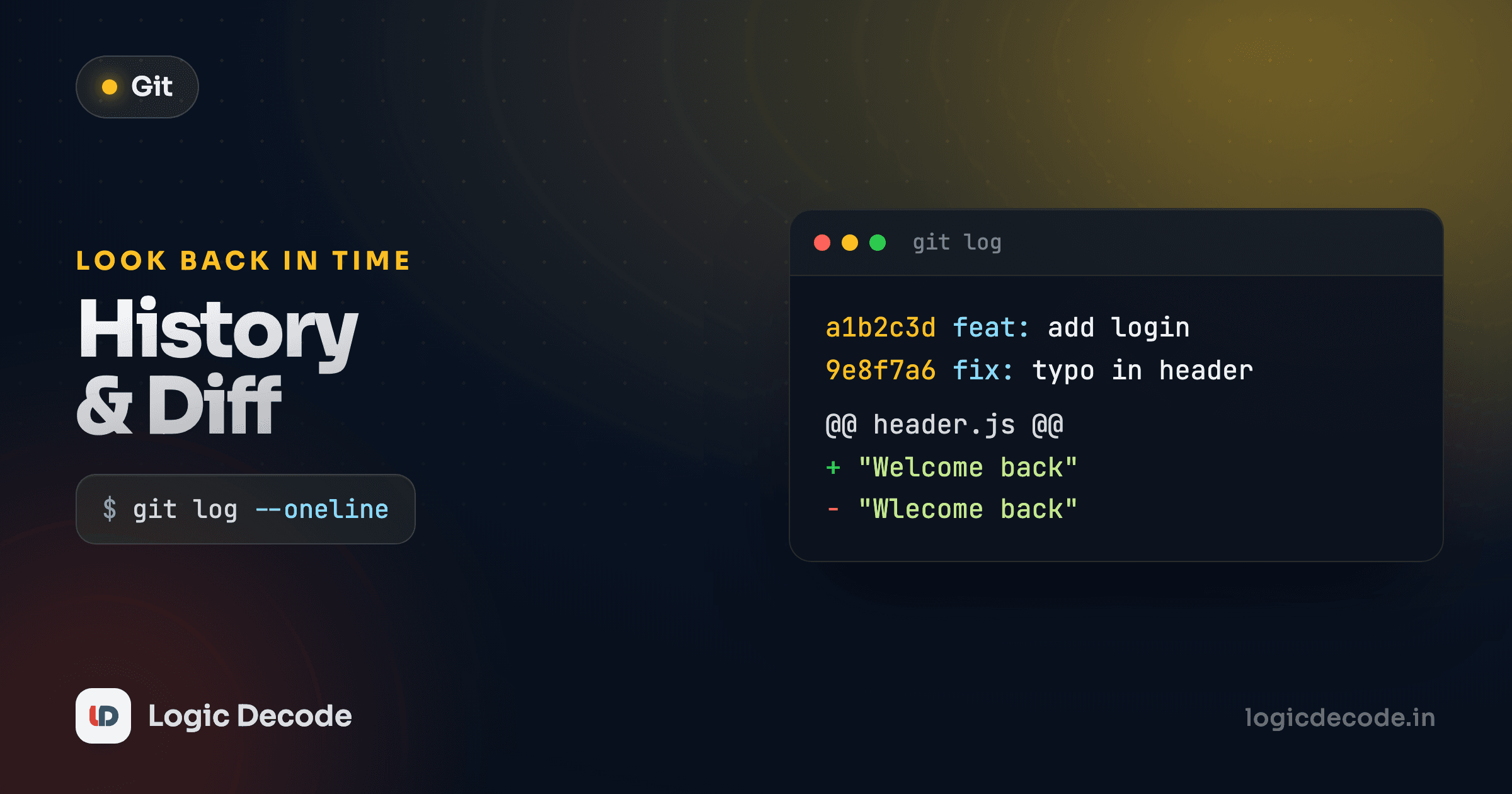
You've made a few commits. Good. But a commit you can't find later is almost useless. The whole point of saving snapshots is being able to look back at them. This lesson is about reading: walking your history with git log, seeing exactly what changed with git diff, and inspecting a single commit with git show. Master these three and Git stops being a black box you push code into and becomes a record you can actually query.
See the history: git log
git log prints your commits, newest first. Run it in any repo with a few commits:
git log
# commit 9f2c1ab7e4d3a8b6c5f0e1d2a3b4c5d6e7f8a9b0 (HEAD -> main)
# Author: Maya Okonkwo <maya@example.com>
# Date:   Sun Jul 27 10:14:02 2026 +0530
#
#     Add price filter to product list
#
# commit 3a1b2c4d5e6f7a8b9c0d1e2f3a4b5c6d7e8f9a0b
# Author: Maya Okonkwo <maya@example.com>
# Date:   Sat Jul 26 18:40:11 2026 +0530
#
#     Fix total calculation for empty carts
Each entry has four parts: the commit hash (that long hex string), the author, the date, and the commit message. The hash is the commit's unique ID. Git generates it from the commit's contents, so no two commits share one.
This full view gets noisy fast. Once you have more than a handful of commits, you almost never want it.
--oneline: one commit per line
This is the flag you'll type the most:
git log --oneline
# 9f2c1ab Add price filter to product list
# 3a1b2c4 Fix total calculation for empty carts
# 7e8d9c0 Set up product list page
# 1f2e3d4 Initial commit
Each commit shrinks to a short hash and its message. That short hash (9f2c1ab) is just the first 7 characters of the full one, and it works anywhere Git asks for a commit, because 7 characters is plenty to be unique in a normal repo.
--graph, -n, and --stat
A few more. --graph draws the branch structure on the left with ASCII lines (dull on a single branch, essential once you're merging branches). -n limits how many commits you see, so git log -n 3 shows the last three. --stat adds a per-commit summary of which files changed and by how much.
git log --oneline --graph -n 2
# * 9f2c1ab Add price filter to product list
# * 3a1b2c4 Fix total calculation for empty carts

git log --stat -n 1
# commit 9f2c1ab7e4d3a8b6c5f0e1d2a3b4c5d6e7f8a9b0 (HEAD -> main)
# Author: Maya Okonkwo <maya@example.com>
# Date:   Sun Jul 27 10:14:02 2026 +0530
#
#     Add price filter to product list
#
#  templates/products.html |  9 +++++++--
#  app/filters.py          | 14 ++++++++++++++
#  2 files changed, 21 insertions(+), 2 deletions(-)
These flags stack. git log --oneline --graph is a combination worth burning into muscle memory. It's the fastest way to get your bearings in an unfamiliar repo.
Press q to get out
git log opens in a pager (usually less), so the output scrolls instead of dumping. Use arrow keys or the space bar to move, and press q to quit back to your prompt. The first time this catches everyone, but you are not stuck.
What HEAD really means
You keep seeing HEAD in that output. It's not magic, and it's worth getting straight now because it shows up everywhere in Git.
HEAD is a pointer to the commit you're currently on, usually the latest commit on your current branch. Think of your history as a chain of snapshots. HEAD is the "you are here" marker. When you make a new commit, HEAD moves forward to point at it. When you switch branches, HEAD moves to that branch's latest commit.
Because HEAD always points at "now," you can talk about earlier commits relative to it. HEAD~1 means "one commit before HEAD" (the parent), HEAD~2 means "two before," and so on. So in the history above, HEAD~1 is 3a1b2c4 and HEAD~2 is 7e8d9c0. This is far easier than copying hashes around, and it's how you'll point at commits in nearly every later command: diffing, undoing changes, resetting.
Quick check
Your latest commit is 9f2c1ab. What does HEAD~1 refer to?
See what changed: git diff
git log tells you that something changed. git diff tells you what. By default, with no arguments, it shows changes in your working directory that you haven't staged yet, the edits you've made since the last git add.
Say you tweak a tax rate in app/filters.py but haven't staged it:
git diff
# diff --git a/app/filters.py b/app/filters.py
# index a1b2c3d..d4e5f6a 100644
# --- a/app/filters.py
# +++ b/app/filters.py
# @@ -12,7 +12,7 @@ def apply_tax(price):
# -    return price * 1.05
# +    return price * 1.08
Read the two key lines from the bottom: a line starting with - was removed, a line starting with + was added. Here the old rate 1.05 is being replaced by 1.08. The @@ -12,7 +12,7 @@ line is a hunk header telling you where in the file the change sits (around line 12). You don't need to decode every line. The -/+ pairs are the whole story.
Staged vs unstaged: the diff that confuses everyone
Here's the gotcha. Once you run git add, that change is staged, and plain git diff shows you nothing for it, because git diff only reports the unstaged stuff. To see what you've staged (what's about to go into your next commit), add --staged:
git add app/filters.py
git diff            # shows nothing — the change is now staged
git diff --staged   # shows the staged change vs the last commit
So the two diffs answer two different questions:
git diff, working directory vs the staging area: "what have I changed but not staged?"git diff --staged, staging area vs the last commit (HEAD): "what's about to be committed?"
git diff --staged is the one to run right before you commit. It's a final proofread of exactly what's going in. (--cached is an older alias for the same thing, and you'll see both in tutorials.)
Empty output isn't a bug
If git diff prints nothing, it doesn't mean there are no changes. It means there are no unstaged changes. You may have already staged everything. Check git diff --staged and git status before assuming your edits vanished.
Inspect one commit: git show
git diff compares two states. git show zooms in on a single commit (its metadata and the exact changes it introduced) in one view. Hand it a commit and it tells you the whole story of that snapshot:
git show 3a1b2c4
# commit 3a1b2c4d5e6f7a8b9c0d1e2f3a4b5c6d7e8f9a0b
# Author: Maya Okonkwo <maya@example.com>
# Date:   Sat Jul 26 18:40:11 2026 +0530
#
#     Fix total calculation for empty carts
#
# diff --git a/app/cart.py b/app/cart.py
# @@ -8,6 +8,8 @@ def cart_total(items):
# +    if not items:
# +        return 0
#      return sum(i.price for i in items)
You can reference that commit a few different ways and they all work the same:
git show 3a1b2c4          # by short hash
git show HEAD             # the latest commit
git show HEAD~1           # the commit before the latest
That last form is the everyday move: "what was that change I made just before the current one?" Run git show HEAD~1, no hash-hunting required. Combine it with git log --oneline to find a commit, then git show <hash> to read it in full, and you can reconstruct exactly when and why any line of code came to be.
Quick check
You want to see the full changes introduced by a single past commit, including its message. Which command fits best?
Recap and what's next
Three commands cover almost all of reading history. git log lists your commits. Reach for --oneline by default, add --graph, -n, and --stat for shape, a limit, or a file summary. git diff shows uncommitted changes: plain for unstaged (working vs staging), --staged for what's about to be committed (staging vs the last commit). And git show <commit> opens up one commit in full. Tying it together is HEAD, the pointer to where you are now, which lets you name commits relatively with HEAD~1, HEAD~2 and skip copying hashes.
For more on the log format and the options it accepts, the Pro Git book's chapter on viewing the commit history is the authoritative reference.
You can now read your history. Next you'll start branching it, working on changes in isolation without touching main. That's where Git goes from a personal undo button to a real collaboration tool: Git branches. And if you need a refresher on how those snapshots get made in the first place, revisit staging and commits.

Written by
Rhythm Bhiwani
Engineer and relentless builder, happiest reverse-engineering hard problems until they click.
Enjoyed this?
Tap the heart to leave some love.
Be the first to react
Comments
Join the conversation.
Loading comments…