Git Staging and Commits, Explained
Master the Git staging area: git add, what staging is for, and writing good commits with git commit, the core save-your-work loop, with diagrams.

You changed five files. Two of them are a clean bug fix, the other three are a half-finished experiment you don't want to record yet. Git lets you commit exactly the first two and leave the rest alone. The thing that makes that possible is the staging area, and it's the part of Git that confuses almost everyone on day one. Once it clicks, the whole "save my work" loop stops feeling like magic.
The three places your code lives
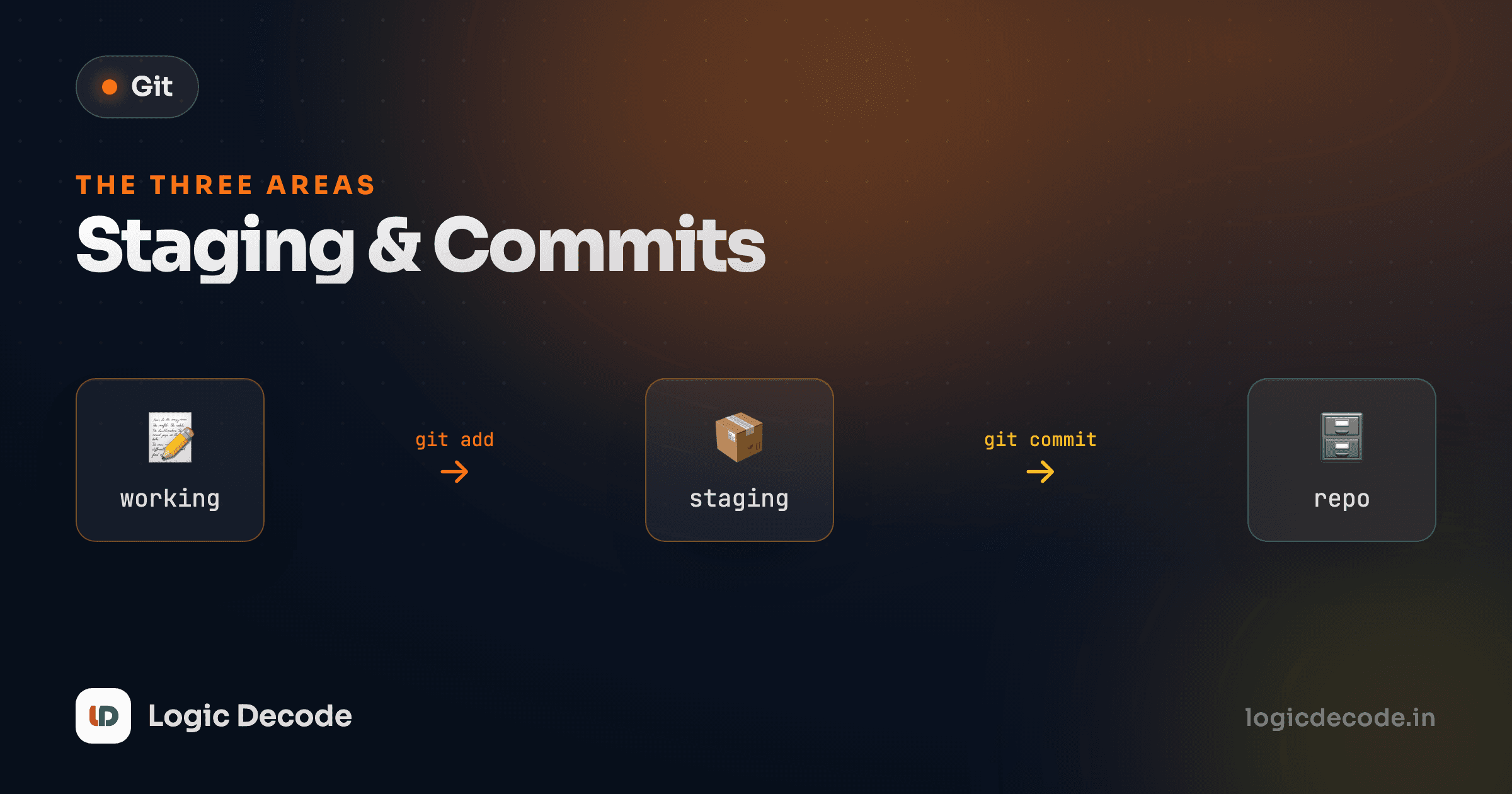
When you work in a Git repo, a file can be in one of three places at once, and Git tracks them separately:
- Working directory: the actual files on disk, the ones your editor opens. This is where you make changes.
- Staging area (also called the index): a holding pen for the changes you've decided belong in your next commit.
- Repository: the permanent history. Once something is committed here, it's saved forever (well, recoverable forever).
You move changes between them with two commands. git add copies changes from the working directory into the staging area. git commit takes everything staged and records it as a permanent snapshot in the repository.
That's the entire loop. Edit files, stage the ones you want, commit them. Everything else in this lesson is detail on those two arrows.
One full cycle, start to finish
Say you're in a project and you just fixed a typo in README.md. Here's the whole thing.
First, check what Git sees:
git statusIt tells you README.md is modified but not staged. Now stage it:
git add README.mdRun git status again and README.md has moved to "Changes to be committed." It's staged. Now commit it:
git commit -m "Fix typo in README"Git records the snapshot and prints something like 1 file changed, 1 insertion(+), 1 deletion(-). That fixed typo is now part of your history. Run git status one more time and it says "nothing to commit, working tree clean." Your three areas are back in sync.
That's a complete commit. Everything below is about doing it with more control.
git add: choosing what goes in
You don't have to stage everything at once. git add takes whatever you point it at.
Stage a single file:
git add app.pyStage everything that changed (the . means "the current directory and below"):
git add .git add . is the one you'll type most. But reach for the specific-file form when you've touched several files and only some of them belong together.
There's a third mode worth knowing about: staging part of a file. Say you fixed a bug and added a print debug line in the same file, and you only want to commit the fix. -p (for patch) walks you through each chunk of changes and asks whether to stage it:
git add -p app.pyFor each hunk you answer y to stage it, n to skip it, or ? to see all the options. It feels fiddly the first time and indispensable the tenth. Don't worry about mastering it now. Just know it exists for when you need surgical control.
Why a staging area exists at all
Plenty of version-control tools skip the staging area entirely: you change files, you commit, done. So why does Git make you do the extra git add step?
Because a good commit is a deliberate unit, not "whatever happened to be on disk." The staging area is the workbench where you assemble that unit before it goes into permanent history. It lets you:
- Commit a coherent slice of your work and leave unrelated changes for a separate commit.
- Review exactly what you're about to record before you record it.
- Split one messy work session into several clean, well-described commits.
Imagine you fixed a bug, renamed a variable, and started a new feature, all in one sitting. Without staging you'd be forced to dump all three into a single commit with a vague message. With it, you stage and commit the bug fix on its own, then the rename, then leave the half-built feature uncommitted. Future-you, reading the history, will thank present-you.
A commit is a story, not a backup
Think of each commit as one sentence in the story of your project: "fixed the login redirect," "renamed usr to user everywhere." If a commit needs the word "and" to describe it, it's probably two commits.
Seeing what's staged before you commit
Never commit blind. Two commands show you the truth.
git status is the overview: what's modified, what's staged, what's untracked:
git statusgit diff --staged is the detail: the exact lines you're about to commit, green for added, red for removed:
git diff --stagedThe distinction trips people up, so it's worth nailing down: plain git diff shows changes that are not staged yet (working directory vs. staging area). Add --staged and you see what is staged (staging area vs. last commit). When you're about to commit, git diff --staged is the one that answers "what exactly am I recording?"
Quick check
You ran `git add app.py`, then changed app.py again without re-staging. What does plain `git diff` (no flags) show?
Writing a commit message that earns its place
The -m flag attaches a message inline:
git commit -m "Add email validation to signup form"A few rules that hold up across every team:
- Write in the imperative: "Add email validation," not "Added" or "Adds." It reads as a command, matching Git's own auto-generated messages ("Merge branch...").
- Summarize the why or the what, not the obvious. "Fix crash when cart is empty" beats "update code."
- Keep the summary under ~50 characters. If you need more, run
git commitwith no-m, and Git opens an editor where you can write a longer body after a blank line.
Compare these two histories. One tells you what happened, the other tells you nothing:
# Useful
git commit -m "Fix off-by-one in pagination links"

# Useless
git commit -m "stuff"
Six months from now, scanning a list of commits to find where a bug crept in, the message is all you've got. Make it count.
The git commit -am shortcut
Staging then committing is two commands. When you're only touching files Git already tracks, you can fold them into one with -a, which auto-stages every tracked file that changed:
git commit -am "Tidy up error messages"That's git add (for tracked files) plus git commit -m in a single line. It's a real time-saver for the common case of "I edited a couple of existing files and want to commit all of them."
The one catch: -a does not add new files Git has never seen. A brand-new utils.py stays untracked until you git add utils.py explicitly at least once. So -am is for tweaking existing files. New files still need a plain git add first.
-am skips the workbench
Because -am stages and commits in one shot, you lose the chance to review with git diff --staged first. Handy for quick, obvious changes, but for anything non-trivial, stage deliberately and look before you commit.
The takeaway
The whole loop is three places and two commands: edit in the working directory, git add to move changes into the staging area, git commit to record them in the repository. The staging area isn't busywork. It's what lets you craft each commit as a clean, self-contained unit instead of a dump of everything on disk. Use git status and git diff --staged to look before you leap, write messages your future self can actually use, and lean on git commit -am for the quick edits where you don't need the extra control.
If you want to go deeper on the mechanics, the Pro Git book covers this in Recording Changes to the Repository.
This lesson built on Your first repository, where you initialized a repo and made your first commit. Next up: now that you've got a few commits, you'll want to read your project's story. Git history: log, diff and show walks through exploring exactly what changed and when.

Written by
Rhythm Bhiwani
Engineer and relentless builder, happiest reverse-engineering hard problems until they click.
Enjoyed this?
Tap the heart to leave some love.
Be the first to react
Comments
Join the conversation.
Loading comments…