Git Remotes and GitHub: push, pull, clone
Connect Git to GitHub: remotes and origin, clone an existing repo, push your commits, and pull others' work, plus how local and remote history stay in sync.

Everything you've done so far lives in one place: the .git folder on your laptop. Lose the laptop, lose the history. Want a teammate to see your work? They can't. A remote fixes both at once. It's a copy of your repository on a server, usually GitHub, that you sync with. This lesson connects your local repo to GitHub and teaches the four commands that move history back and forth: clone, push, fetch, and pull.
What a remote actually is
A remote is just another copy of your repository, sitting on a server instead of your disk. That's the whole idea. It has the same commits, the same branches, the same history, and Git keeps the two copies in sync when you tell it to. GitHub is the most popular place to host that copy, but a remote is any reachable repo: GitLab, Bitbucket, a server in your office, even another folder on your own machine.
The key thing to hold onto: your local repo and the remote are independent. You commit locally as often as you like, and nothing leaves your machine until you push. The remote doesn't change under your feet either. You only get its latest commits when you fetch or pull. Two copies, synced on demand, never automatically.
By convention, the main remote is named origin. It's not a magic word. It's just the default nickname Git gives to "the place I cloned from" or "the server I set up." When you type git push origin main, you're saying "send my main branch to the remote nicknamed origin." You could name a remote github or upstream instead, but origin is what everyone uses for the primary one, so stick with it.
The sync model, in one picture
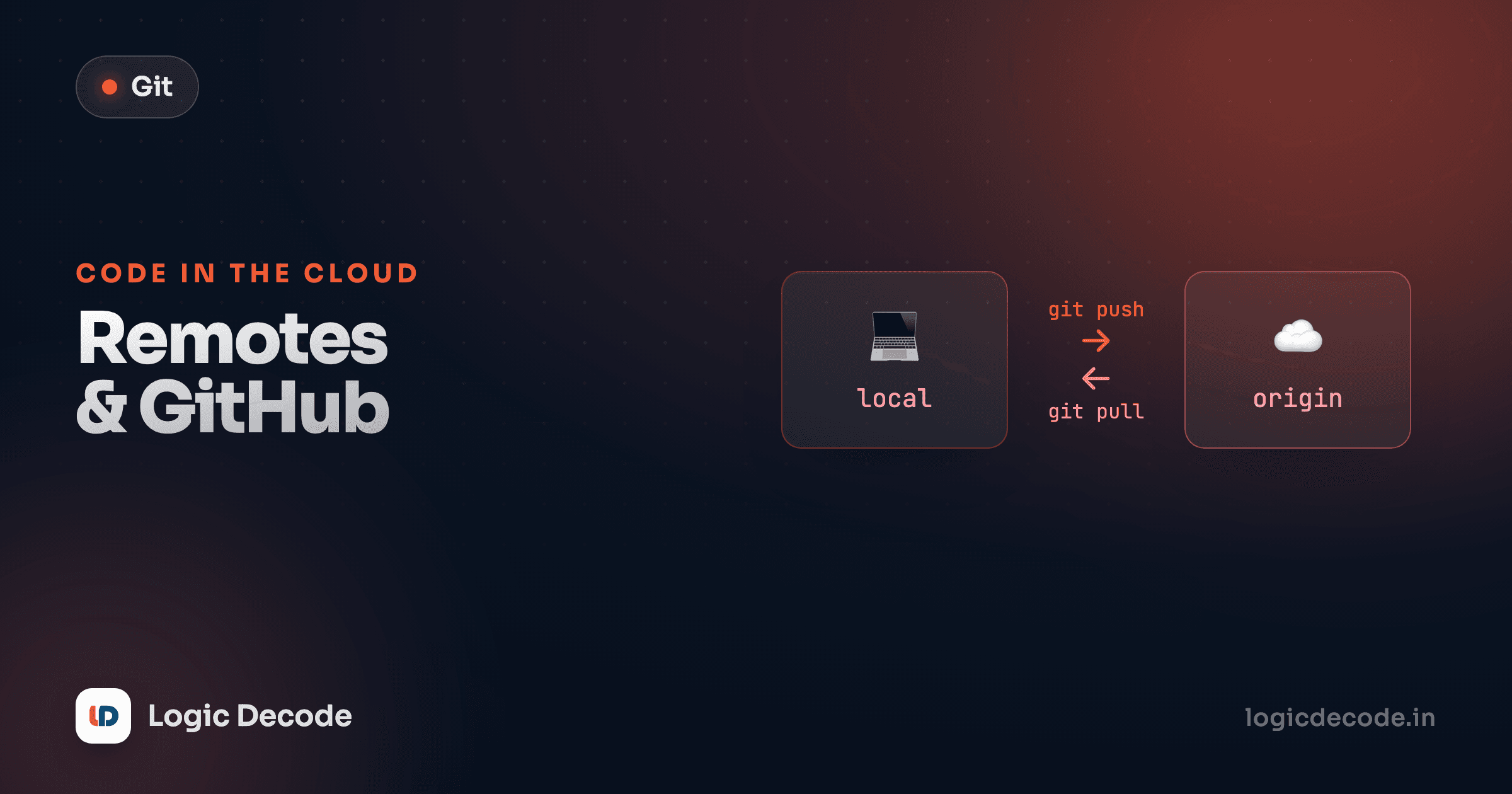
Before the commands, see the shape of it. Your local repository on the left, GitHub on the right, and the four commands that move commits between them:
push sends your commits up. fetch downloads the remote's commits without touching your files. pull does a fetch and then merges those commits into your branch. clone is the one-time move: it copies an entire remote down into a brand-new folder. Everything else in this lesson is just these four arrows.
Clone an existing repo
The fastest way to get a remote is to start from one. git clone takes a URL and downloads the whole repository (every commit, every branch, all the history) into a new folder on your machine:
git clone https://github.com/octocat/Hello-World.git
cd Hello-World
That's it. You now have a full local repository, not a partial download. Clone does three things in one step: it copies the entire history, it creates the folder and puts the files in it, and it sets up the remote named origin pointing back at that URL automatically. So after a clone, git push and git pull already know where to go, no setup needed.
This is how you grab someone else's project to contribute to, or get a fresh copy of your own repo on a new machine. Run git remote -v inside the folder and Git shows you the origin URL it wired up:
git remote -vorigin https://github.com/octocat/Hello-World.git (fetch)
origin https://github.com/octocat/Hello-World.git (push)Quick check
What does git clone set up that a plain git init does not?
Connect an existing local repo to GitHub
What if the repo already lives on your machine (the recipe-app you built earlier in this series) and you want to put it on GitHub now? Clone is for going the other way, so here you connect manually. It's two short steps.
First, on GitHub, create a new empty repository. Don't add a README or license, you already have files. GitHub then shows you the repo's URL, something like https://github.com/maya/recipe-app.git. Copy that.
Back in your project folder, point your local repo at it with git remote add, then push:
git remote add origin https://github.com/maya/recipe-app.git
git push -u origin main
git remote add origin <url> creates the origin nickname for that URL, the same wiring clone would have done for you. git push -u origin main then sends your main branch up for the first time. The -u (short for --set-upstream) is the part worth remembering: it links your local main to the remote main permanently, so from then on a bare git push or git pull knows exactly where to go. You only need -u once, on the first push of a branch.
Create the GitHub repo empty
If you let GitHub add a README during creation, the remote starts with a commit your local repo doesn't have, and that first push gets rejected with a "fetch first" error. Make it empty, push your work into it, and you'll avoid the most common first-push snag.
Push: send your commits up
Once a branch is connected with -u, pushing is one word:
git pushpush uploads any local commits the remote doesn't have yet and updates the remote branch to match yours. Commit locally as much as you want (five small commits, ten, whatever), then push them all up together when you're ready. Push is the only command that changes the remote, so nothing you do is visible to teammates (or backed up) until you run it.
A push only moves commits, not your uncommitted edits. If git status shows changes you haven't committed, push won't send them. Commit first, then push. (Need a refresher on staging and committing? That's staging and commits earlier in the series.)
Fetch vs pull
Here's the distinction that confuses people for years, so let's nail it now. Both bring down commits from the remote. The difference is what they do with them.
git fetch downloads the remote's new commits into your local repo but does not touch your working files or your current branch. It's the safe, look-but-don't-change option. After a fetch, your files are exactly as they were; you've just updated Git's knowledge of what the remote has. You can then inspect those incoming commits before deciding to merge them.
git fetchgit pull is fetch plus merge in one step. It downloads the remote's commits and immediately merges them into your current branch, updating your working files:
git pullSo the relationship is simply:
git pull = git fetch + git mergeDay to day, pull is what you'll run before starting work, to get your teammates' latest changes. Reach for fetch when you want to see what's coming without applying it yet, handy before a tricky merge, or when you just want to check whether the remote moved. Because pull triggers a merge, it can hit a merge conflict, exactly the kind you learned to resolve in merging and conflicts. Same conflict, same fix. It just got triggered by a pull instead of a local merge.
Quick check
What's the difference between git fetch and git pull?
A word on authentication
GitHub won't let just anyone push to your repo, so the first push will ask you to prove it's you. Two common ways. With HTTPS (the https:// URLs above), you authenticate with a personal access token in place of a password, which you generate in GitHub under Settings → Developer settings. With SSH (git@github.com:... URLs), you add an SSH key to your account once and never type a credential again. SSH is the smoother long-term setup, and HTTPS with a token is fine to start. GitHub's docs walk through both, and that's the only auth detail you need today.
The everyday loop
Put it together and the collaboration rhythm is short. Pull to get the latest, do your work, commit, push it back:
git pull           # get teammates' latest changes
# ...edit files, then:
git add .
git commit -m "Add filtering to the recipe list"
git push           # send your commits up
That four-step cycle (pull, work, commit, push) is what working with a team on GitHub actually looks like. The local↔remote model from the diagram is the whole thing: two copies of one repository, kept in sync by commands you run on purpose.
Recap and what's next
A remote is a copy of your repository on a server like GitHub, nicknamed origin by convention. git clone <url> downloads an existing repo into a new folder and wires up origin for you. To connect a repo you already have, git remote add origin <url> then git push -u origin main. After that, git push sends your commits up, git fetch downloads the remote's commits without changing your files, and git pull (which is fetch + merge) brings them down and merges them into your branch. Authentication is HTTPS-with-a-token or SSH keys, set up once. The full mechanics live in GitHub's guide to pushing commits to a remote repository.
You came in here from undoing changes. Now your work is on GitHub, but pushing straight to main isn't how teams actually ship. Next up: pull requests, where you propose changes, get them reviewed, and merge them the way real projects do.

Written by
Rhythm Bhiwani
Engineer and relentless builder, happiest reverse-engineering hard problems until they click.
Enjoyed this?
Tap the heart to leave some love.
Be the first to react
Comments
Join the conversation.
Loading comments…